Ghost Mannequin Photography Explained: How to Get the Hollow Man Effect
Ghost mannequin (invisible mannequin) photography for fashion e-commerce — the two-shot technique, how background removal fits in, and what makes it work in post-production.
By Novus Stream Solutions Editorial Team · Part of the Publishing and marketplace requirements topic cluster
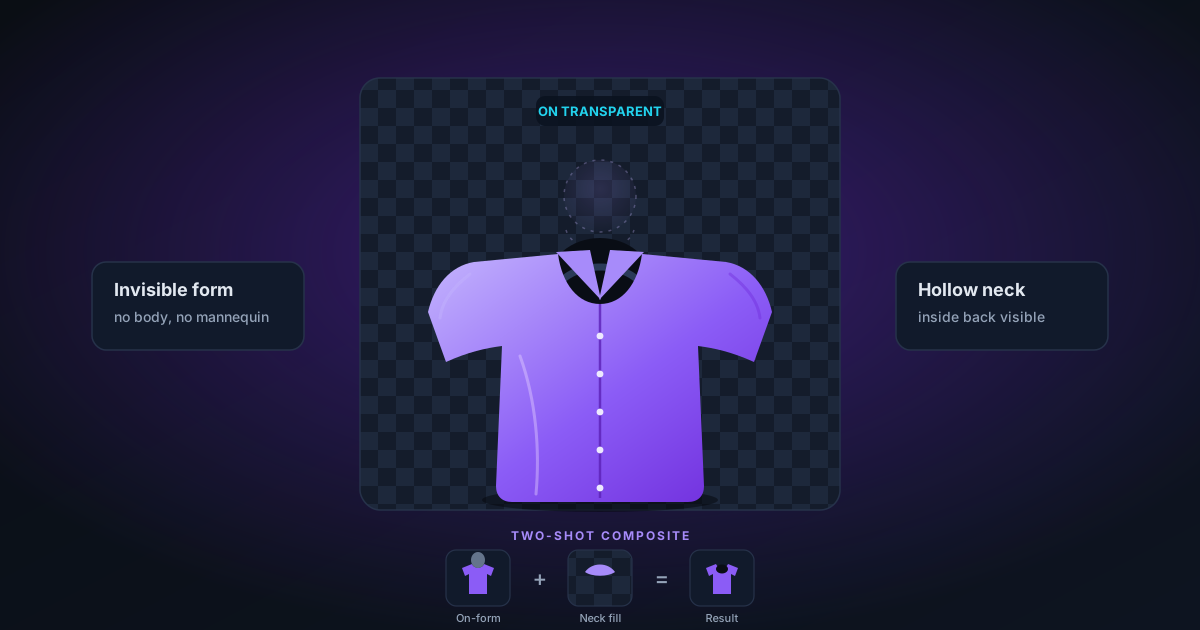
Ghost mannequin photography — sometimes called the invisible mannequin or hollow man effect — is the standard technique for apparel product photography on Amazon, ASOS, independent boutiques, and almost every fashion e-commerce platform.
The result looks like clothing worn by an invisible person: the garment holds its natural shape, the collar sits correctly, the sleeves hang naturally — but there's no model and no visible mannequin.
Here's how it's done.
Why Ghost Mannequin?
The alternatives each have a trade-off:
Flat lay photography — garment laid flat on a surface. Easy to shoot, no mannequin required, but the garment loses its three-dimensional shape. Buyers can't see how a jacket will drape or how a shirt fits around the chest.
Model photography — shows fit and scale well, great for aspirational lifestyle images. But expensive (model fees, styling, location), harder to shoot consistently across a catalogue, and can distract from the product.
Mannequin photography (visible) — holds shape well, cheaper than a model, but the mannequin itself is distracting and looks cheap to most buyers.
Ghost mannequin — combines the shape of mannequin photography with the clean presentation of flat lay. The garment looks worn and three-dimensional, but the focus is entirely on the product.
This is why it's the industry standard.
The Two-Shot Technique
Ghost mannequin is a composite technique. You take two photographs and combine them:
Shot 1: Garment on the mannequin
Dress the mannequin fully. Clip, pin, or stuff the garment to achieve the shape you want — a proper fit, not loose or bunched. Photograph from the front and back.
Settings:
- White seamless background (or any clean, contrasting background)
- Even, diffuse lighting — no hard shadows on the garment
- Consistent position and framing between shots
- Aperture around f/8–f/11 for sharpness across the full garment depth
Shot 2: The interior tag shot (for the neck area)
The neck opening of the mannequin shows the mannequin's chest through the collar — this is the most visible sign that a mannequin was used. To fix it:
- Remove the garment from the mannequin
- Hold the garment open at the neck/neckband
- Photograph the inside of the collar showing the tag, label, and inner fabric
- This "interior shot" will be used to fill in the neck area where the mannequin was visible
For bottoms (trousers, skirts), the equivalent is the waistband interior shot.
Post-Production: How Background Removal Fits In
The composite happens in Photoshop (or similar). Here's the workflow:
Step 1: Remove the background and mannequin
- Upload the front shot to NSS Background Remover
- The AI removes the background
- In the editor, check the result — specifically around collar edges, sleeve openings, and bottom hem
- Export as transparent PNG
Step 2: Remove the background from the interior shot
- Upload the collar/interior shot to NSS Background Remover
- Remove its background
- Export as transparent PNG
Step 3: Combine in Photoshop
- Open the main garment cutout (transparent PNG)
- Place the interior collar shot as a new layer below the main garment layer
- Position it so the tag and interior fabric shows through the collar opening
- Mask or erase the overlap areas where the interior shot shows beyond the collar edge
- The result: mannequin is gone, collar area shows natural interior fabric
Step 4: Final adjustments
- Clone stamp or heal any residual mannequin that showed through seams
- Levels/curves to ensure consistent exposure across the composite
- Export as PNG (for maximum flexibility) or JPEG on white background (for standard e-commerce listing images)
What Makes Ghost Mannequin Work Well
Correct mannequin selection
Half-body torso mannequins work for tops. Full-length mannequins for dresses and full outfits. Headless mannequins (neck visible) are easiest to work with — the neck and head are common problem areas.
Foam or padded mannequins clip garments better than rigid mannequins. Visible seams or model reference lines on the mannequin will show through thin fabrics and require cleanup in post.
Garment preparation
- Steam or iron the garment before shooting. Creases photograph worse than they appear in person.
- Clip pins at the back (invisible in front shots) to achieve the right chest, waist, and hip dimensions
- Stuff hollow areas (sleeves, legs) with tissue or white foam to hold their shape
- Position the garment correctly on the mannequin — off-mannequin garments look exactly like they're "just hanging on a stand"
Lighting consistency
If you change your lighting between the mannequin shot and the interior shot, the composite will look unnatural. Keep the same setup for both shots. This is also why consistency across a full catalogue matters — if every product is lit the same way, the store looks coherent.
Background removal quality at the collar
The collar/neckline is the most scrutinised part of a ghost mannequin composite. This is where the illusion can break if the cutout is imprecise.
For this specific edge:
- Use BiRefNet (Best Quality mode) in NSS — it handles complex curves and fabric textures better
- Add slight Feather (1–2px) to soften the collar edge
- Check the red-overlay mask preview carefully around the inside of the collar before exporting
Common Mistakes
Mannequin showing through thin fabric: Lightweight materials (chiffon, voile, mesh) can show mannequin contours beneath. Fix in Photoshop with a clone stamp, or reshoot with a padding layer between garment and mannequin.
Mismatched interior shot: The interior collar shot is brighter or darker than the exterior. Fix at the photography stage by matching exposure — or in Photoshop with a curves adjustment layer on the interior element.
Hard edges on the collar interior patch: The pasted interior shot has hard, visible edges. Fix with a gradient mask or feathered edge on the interior layer.
Garment looks flat: Insufficient clipping and stuffing. Garment styling is at least half the work — the camera and retouching can only work with what the garment shows.
Wrong mannequin size: A size 8 mannequin for a size 16 garment will produce a garment that looks baggy and undersized. Use mannequins appropriate for the garment size, or clip heavily.
Quick Reference: The Ghost Mannequin Checklist
Before shooting:
- Garment steamed/ironed
- Correct mannequin size
- Padding/stuffing in place
- Consistent lighting setup ready
- Clean white background in place
On set:
- Front shot: full garment on mannequin
- Back shot: same
- Interior shot: collar/neckline, inside of garment
- Waistband interior shot (for trousers/skirts)
Post-production:
- Background removed from all shots
- Composite assembled in Photoshop
- Collar interior filled correctly
- Mannequin traces cleaned up
- Final export as PNG (archival) + JPEG on white (listing)
Ghost mannequin isn't complicated once you have the workflow locked in. The first few are slow — by your tenth garment, the whole process from clothing the mannequin to final JPEG takes under an hour.
Applies to NSS Background Remover v0.2.0 — the release that was current when this article was published.
Was this article helpful?
Your answer is saved in this browser only. This control makes no network request and does not send the answer to an NSS feedback endpoint.