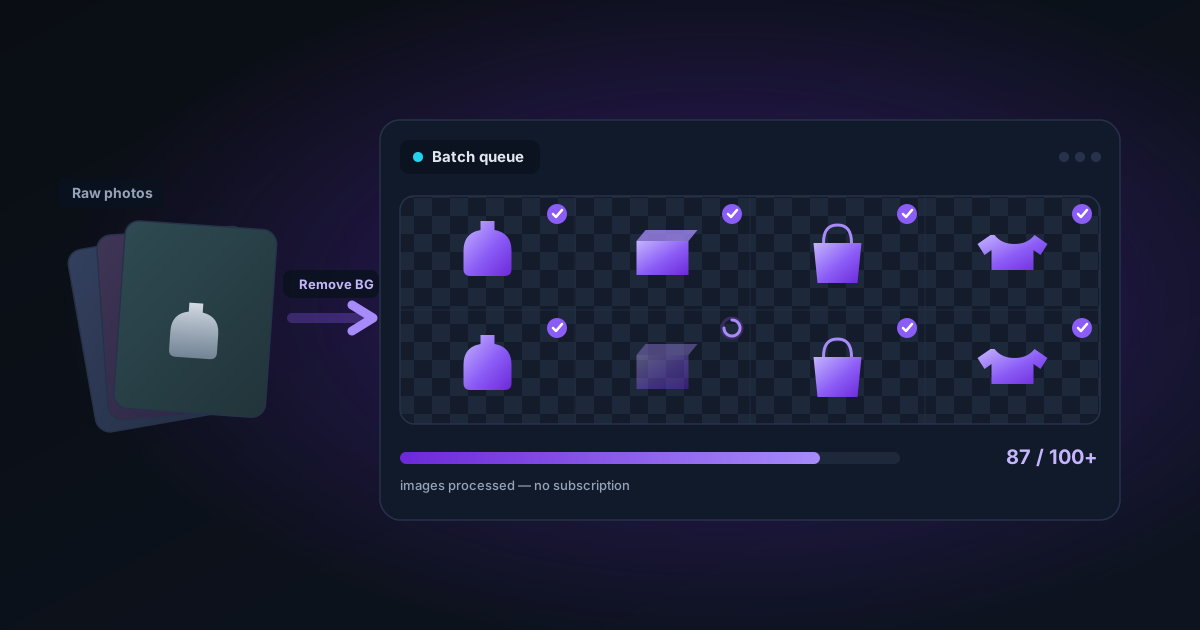
Batch Processing Product Photos: How to Remove Backgrounds from 100+ Images
A practical workflow for batch background removal on product photos — how to organise, process, and export dozens or hundreds of images efficiently without a subscription.
By Novus Stream Solutions Editorial Team · Part of the Browser-local editing workflows topic cluster
Processing one product photo takes a minute. Processing a hundred takes the same minute each — unless you have a system.
Here's a practical workflow for removing backgrounds from large batches of product images efficiently, without expensive subscriptions or uploading your photos to cloud servers.
The Batch Background Removal Workflow
Step 1: Organise your files before you start
Batch processing goes wrong when files aren't organised. Before you start:
- Rename files descriptively:
product-sku-angle.jpgbeatsIMG_4738.jpg. You'll know what's what in the export. - Cull first: Remove duplicates, blurry shots, and clear rejects before processing. AI processing time is wasted on images you'll delete anyway.
- Group by type: If some images need different processing (e.g., jewellery needs finer edge work than clothing), separate them into folders.
Step 2: Optimise your source images
Background removal AI works better on consistent inputs. Before batch uploading:
- Resize to a reasonable working size if originals are very large (> 6000px). A 3000px source image gives more than enough quality for export at 2000px and processes faster.
- Check exposure consistency — images from the same shoot should be batch-adjusted in Lightroom or similar before background removal. Consistent lighting = consistent edge detection.
- Verify file formats — NSS Background Remover supports JPG, PNG, WebP, AVIF, and HEIC. Convert any unusual formats to JPG before importing.
Step 3: Upload to NSS Background Remover
- Open NSS Background Remover in Chrome, Edge, or a modern browser
- Drag all your files onto the upload zone at once — up to 20 can be queued simultaneously
- Select your model:
- Fast (ORMBG): Best for product shots on simple backgrounds, approximately 3–5 seconds per image
- Best Quality (BiRefNet): Better for complex subjects (hair, fur, fine details), approximately 8–15 seconds per image
For a batch of product photos on white or neutral backgrounds, Fast mode usually produces excellent results and halves your processing time.
- Processing runs sequentially — you'll see each image move through the queue with a progress bar
- Processed images show a thumbnail with the background removed
Step 4: Review, edit where needed
After processing, check each image in the queue. For most product batches on clean backgrounds, AI removal will be correct without any editing.
For images that need adjustment, click through to the editor:
- Brush tool (E): Erase remaining background areas or restore accidentally-removed product details
- Edge Refinement (F): Add feathering for soft edges on fabric, increase smoothing for geometric products
- Decontaminate toggle: Increase strength if you see colour fringe from the original background
Most photographers find that 80–90% of a batch from consistent studio shots requires no editing at all.
Step 5: Batch export
Once you've reviewed and edited the queue:
- Click Export All (the batch export button in the queue toolbar)
- Choose your format:
- PNG: Lossless, preserves transparency fully, larger file sizes — best for e-commerce platforms (Amazon, Etsy) and master archival
- WebP: Smaller file sizes with transparency, great for web use where you control the environment
- AVIF: Smallest file sizes with transparency, excellent quality — but check platform support before using
- JPG with background: For platforms that need white-background JPGs (some Amazon categories, print)
- Set quality (for WebP/AVIF, 80–90% is typically indistinguishable from 100% at much smaller sizes)
- Click Export as Zip
The browser bundles all exported images into a ZIP file, downloaded directly to your machine. No images leave your browser — the entire process happens locally.
Platform-Specific Export Settings
Amazon
- Format: JPG on white background (Amazon's guidelines require white background, JPEG)
- Size: Minimum 1000px on the short side, 2000px+ recommended for zoom
- In the Background tool, select Solid → White before exporting as JPG
Etsy
- Format: PNG (preserves transparency for flexibility) or JPG on white
- Size: 2000 × 2000 minimum, 3000 × 3000 recommended
- Etsy converts to JPEG internally, but PNG source gives better quality input
Shopify
- Format: PNG for products with transparency, JPG for photography-style backgrounds
- Size: 2048 × 2048 square recommended
- Shopify processes images server-side — PNG source gives more flexibility
Instagram / Social Media
- Format: JPG (Instagram recompresses everything anyway)
- Size: 1080 × 1080 for square, 1080 × 1350 for portrait
- Set your desired background colour in the Background tool before exporting
Handling High Volumes (100–1000+ Images)
NSS Background Remover is designed for in-browser processing, which has advantages (privacy, no subscription) and limits (browser memory, sequential processing).
For very large batches:
Strategy 1: Session-based batches Process 20–50 images, export, clear the queue, process the next batch. Each session takes roughly 2–5 minutes of processing time (plus your review time). For 200 images, four sessions of 50 is manageable in an afternoon.
Strategy 2: Overnight processing Load the queue and let it run while you're away. NSS Background Remover processes sequentially and doesn't require interaction between images. A 100-image batch in Best Quality mode runs 15–25 minutes of processing time.
Strategy 3: Parallel tabs Open multiple tabs, each with a separate batch. Processing runs independently per tab. This uses more memory but can process two batches simultaneously on capable hardware.
Memory note: Each processed image stays in memory in the queue. For very large batches on older machines, you may hit browser memory limits. Watch for the storage warning in the queue header — it alerts you when approaching limits.
Quality Checks at Scale
For large batches, a spot-check system saves time:
- Check the first 5 images in a batch manually — if they're all correct, the rest from the same shoot likely are
- Check any image with a complex subject (hair, reflective surfaces, intricate edges) individually
- Use the red-overlay mask preview (**** key in the editor) to quickly scan edge quality without careful inspection
- Check both dark and light areas of the product — the mask should be opaque on both
Before and After Comparison
The fastest quality check is the simple eye test: does the product look like it was cut by a professional retoucher, or does it look like a quick automatic extraction?
Signs of high-quality output:
- Edges match the actual object boundary
- No visible halo or fringe
- Semi-transparent areas (fabric, glass, hair) show partial transparency
- The export in Photoshop shows checkerboard, not black
Signs you should refine or re-process:
- Jagged pixelated edges
- Black or coloured halo
- Parts of the product missing
- Background bleeding through product areas
For consistent studio product shots on clean backgrounds, the NSS AI produces professional-quality results on the first pass for the vast majority of images.
Summary
A good batch workflow is: prepare → upload in batches of 20–50 → fast model for studio shots → review and fix exceptions → batch export as ZIP. For 100 product images, expect 30–60 minutes of total time including review, versus hours of manual masking or days waiting for outsourced retouching.
Applies to NSS Background Remover v0.2.0 — the release that was current when this article was published.
Was this article helpful?
Your answer is saved in this browser only. This control makes no network request and does not send the answer to an NSS feedback endpoint.