Working with Transparent PNGs in Photoshop: The Definitive Guide
Everything you need to know about transparent PNGs in Photoshop — why they show black, how straight vs premultiplied alpha works, and how to verify your export has true transparency.
By Novus Stream Solutions Editorial Team · Part of the Browser-local editing workflows topic cluster
Opening a transparent PNG in Photoshop and seeing a black background is one of the most frustrating moments in digital post-production. The file looks transparent in other apps. The tool that exported it said it was transparent. But Photoshop shows black.
This is one of the most common problems in product photography and design workflows — and it has a specific cause.
Why Your Transparent PNG Shows Black in Photoshop
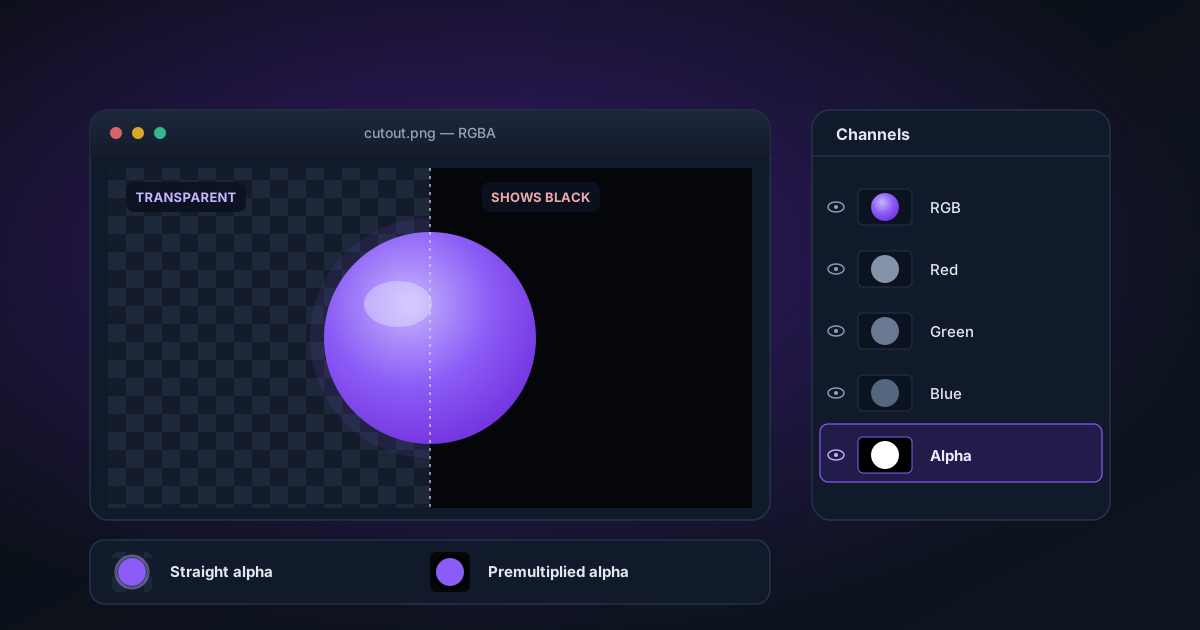
The problem is almost always premultiplied alpha.
Here's what that means.
Straight Alpha vs Premultiplied Alpha
A PNG with transparency stores two things for each pixel: colour (RGB values) and opacity (alpha value, 0–255).
Straight alpha: RGB values are stored as-is. A 50% transparent red pixel has R=255, G=0, B=0, A=128. The colour and the transparency are independent.
Premultiplied alpha: RGB values are pre-multiplied by the alpha. That same 50% transparent red pixel would be stored as R=128, G=0, B=0, A=128. The colour values are mathematically combined with the transparency before storage.
For fully transparent pixels (alpha=0), premultiplied alpha means R=0, G=0, B=0, A=0. The RGB values are zeroed out.
Why Photoshop Shows Black
When Photoshop opens a premultiplied PNG, it can try to "undo" the premultiplication — but if the RGB values at transparent pixels are already zeroed (which they are in most premultiplied files), there's nothing to recover. It displays those pixels as black.
The checkerboard pattern you expect to see behind transparent areas instead shows solid black, or a dark fringe around edges where partial transparency meets the solid background.
This is not a Photoshop bug. Photoshop correctly reads the file — the file itself has zeroed RGB at transparent pixels. The bug is in the tool that exported it.
How to Tell If You Have a Premultiplied PNG
In Photoshop:
- Open the PNG
- If you see black where there should be transparency (especially around edges), it's premultiplied
- Go to Window → Channels and look at the RGB channels separately. If RGB channels show black at areas the Alpha channel shows as transparent, it's premultiplied
In any hex editor or image viewer, sample a pixel at a semi-transparent edge. If the alpha is ~128 (50%) but the RGB values are all roughly half what they should be (i.e., R=128 when you'd expect R=255 for red), it's premultiplied.
How to Fix a Premultiplied PNG in Photoshop
If you already have a premultiplied file and can't regenerate it:
Method 1 (destructive, fast):
- Open the file in Photoshop
- The black areas appear. Use Select → Colour Range to select the black areas
- Delete the selected area (this works if the black is genuinely zero-information, but may remove valid dark colours)
Method 2 (better):
- Open in Photoshop
- Flatten to a white background: create a white fill layer below your image
- Merge visible
- The "black" areas are now white — use Magic Wand or Colour Range to select them
- Delete and rebuild your mask
Both methods are imperfect. The real fix is to go back to the source tool and export with straight alpha.
The Right Way: Export Straight Alpha from the Start
The best fix is prevention. Use a background removal tool that exports straight (un-premultiplied) alpha.
NSS Background Remover exports straight alpha by default across all formats:
- PNG: Canvas
toBlobwith straight alpha - WebP: Same straight-alpha output
- AVIF: Explicitly disables premultiplication in the encoder
When you open an NSS-exported PNG in Photoshop, you see the checkerboard immediately. No black fringe, no RGB destruction at transparent pixels.
To verify any file before importing into your workflow, there's a built-in transparency checker at /tools/check-transparency — it samples random semi-transparent pixels and confirms alpha is non-binary and RGB values are preserved.
Working with Transparent PNGs in Photoshop: Best Practices
Opening
When you open a transparent PNG with File → Open, Photoshop creates a Layer 0 with the transparency information intact. The checkerboard pattern confirms transparency is active.
If the file is correctly exported (straight alpha), you'll see:
- Checkerboard behind transparent areas
- Soft edges where partial transparency exists
- No black halo around cut-out subjects
Compositing
To place a transparent PNG on a background:
- Open your background image
- File → Place Embedded to bring in your PNG as a Smart Object (preserves the original)
- Position and scale as needed
- The transparency composites automatically
Alternatively, drag and drop from Finder/Explorer directly onto the canvas.
Don't: Paste and flatten before checking alignment. Flattening merges your cutout onto whatever was behind it and can't be undone cleanly.
Saving and Exporting
To export a transparent PNG from Photoshop:
- File → Export → Export As — choose PNG, confirm "Transparency" checkbox is ticked
- File → Save As → PNG — preserves transparency by default if your document has transparent pixels
Avoid: Save for Web (legacy) — it has intermittent issues with alpha channel handling in older Photoshop versions.
Verify before delivery: Open your exported PNG in a second app (Preview on Mac, Edge on Windows). If you see the checkerboard or the subject cleanly cut out against whatever is behind the window, your transparency is intact.
Soft Edges and Feathering
Background removal tools produce edges with varying amounts of softness (partial transparency). In Photoshop, you can further adjust this:
- Select the layer mask (if your layer has one)
- Filter → Blur → Gaussian Blur — adds feathering
- Select → Modify → Feather — before masking
- Properties panel with Masks — provides Feather slider non-destructively
For product photography going to a white background, a feather of 0.5–1px is usually right. For hair or fur, 1–3px. For geometric objects with clean edges, 0px.
Dealing with Colour Fringe
Even with straight alpha, background removal can leave a slight colour fringe on edges — colour from the original background that "leaked" into the edge pixels.
In Photoshop:
- Layer → Matting → Defringe — removes a 1–2px border of contaminated edge pixels
- Layer → Matting → Remove White Matte / Remove Black Matte — specific fix for white or black backgrounds
NSS Background Remover handles this automatically with Lab-colourspace edge decontamination — but if you're working with files from other sources, Photoshop's matting tools are the fallback.
Common Questions
My PNG looks fine in Preview but shows black in Photoshop. Preview ignores alpha rendering issues; Photoshop is correctly showing you the premultiplied alpha problem. The file is broken; Preview is just more forgiving.
I exported from Photoshop and it shows black when I open it again. Check that your Export As settings have Transparency enabled. Also check whether you're opening it on a layer with a background — the black may actually be the layer stack beneath an opaque pixel, not transparency.
My transparent PNG looks fine in Chrome but shows black in Figma. Different apps handle alpha differently. Figma is strict about straight alpha. Your file is likely premultiplied. Re-export from a tool that uses straight alpha.
Can I convert premultiplied to straight alpha in Photoshop? Not reliably, especially if RGB values at transparent pixels have already been zeroed. Get a straight-alpha export from the source tool.
Summary
Black backgrounds in Photoshop almost always mean premultiplied alpha — an encoding mistake in the export tool. The fix is using a tool that exports straight alpha. NSS Background Remover does this for every format it supports.
If you're inheriting files from other tools, verify before you build your workflow around them. A simple check with the transparency checker or a quick pixel sample in Photoshop saves hours of troubleshooting later.
Applies to NSS Background Remover v0.2.0 — the release that was current when this article was published.
Was this article helpful?
Your answer is saved in this browser only. This control makes no network request and does not send the answer to an NSS feedback endpoint.