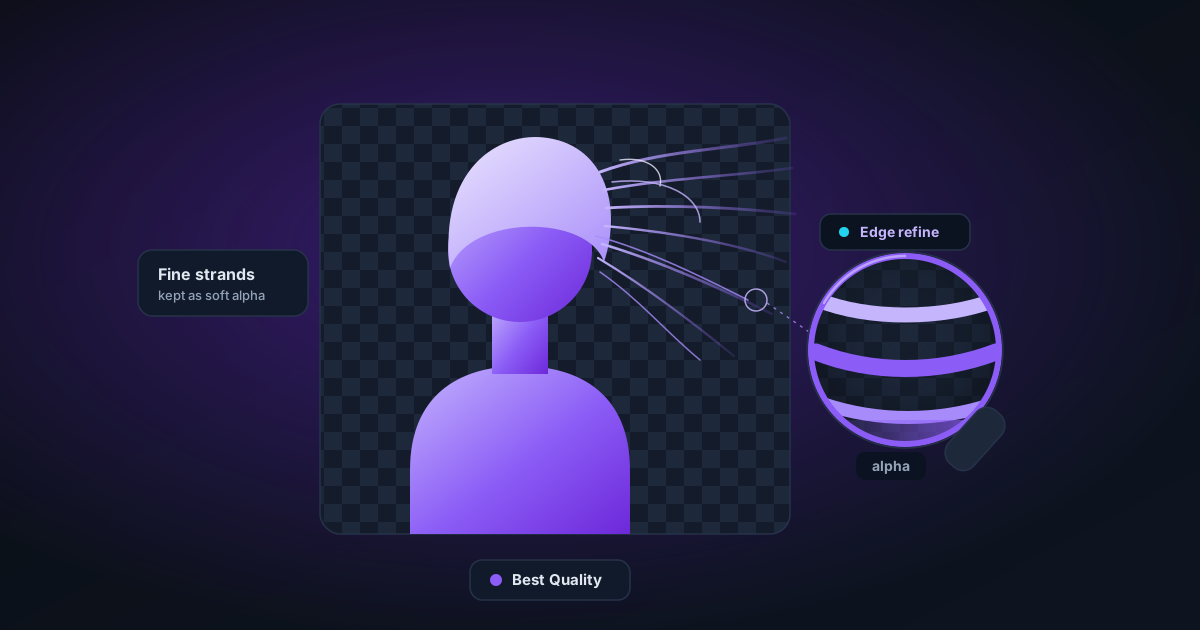
How to Remove Backgrounds from Photos with Hair and Fur
Hair, fur, and fine strands are the hardest subjects for background removal AI. This guide covers why it's difficult, how Fast and Best Quality models handle it, and how to get the cleanest results using edge refinement.
By Novus Stream Solutions Editorial Team · Part of the Image processing and on-device AI topic cluster
How to Remove Backgrounds from Photos with Hair and Fur
Hair is the hardest subject in background removal. Individual strands are thin — often a single pixel wide — partially transparent, and highly dependent on background contrast to be visible at all. Add wind, fine fur on animals, or wispy flyaways on a portrait, and you're asking an AI to make decisions at the pixel level with very limited information.
This guide explains why hair is hard, how ORMBG and BiRefNet handle it differently, and what you can do to get the cleanest results.
Why Hair Is Hard
A strand of hair is essentially a partially transparent object. It lets some background light through, especially at its edges. When the hair is darker than the background (dark hair on a bright sky), the edge pixels are a blend of hair colour and background colour.
Most background removal algorithms work by:
- Classifying pixels as foreground or background
- Producing an alpha value (0–255) representing how "foreground" each pixel is
For hair, the correct alpha at the edge is often 10–80% — partially transparent, partially opaque. Getting this right requires the model to understand fine structure at sub-pixel level.
Fast Model vs Best Quality Model
NSS offers two modes:
| ORMBG (Fast) | BiRefNet (Best Quality) | |
|---|---|---|
| Speed | ~2–5 seconds | ~5–15 seconds |
| Hair accuracy | Good | Excellent |
| Edge feathering | Moderate | Fine-grained |
| Transparent subjects | Partial | Better |
For portrait photos where hair quality matters, always use Best Quality mode. Select it in the model dropdown before uploading.
Shooting for Better Results
The AI can only work with the information in the pixels. Better input → better output.
Shoot on a high-contrast background. Dark hair against a light background (grey or white) gives the AI more signal at the edges. Light hair against a bright white background is the hardest case — minimal contrast makes strand detection unreliable.
Avoid complex backgrounds. Busy patterns, foliage, or other subjects with similar colour to the hair confuse the model's boundary detection.
High resolution helps. Processing a 3000 × 4000 px portrait at full resolution gives the model significantly more information than a downscaled 800px JPEG.
Controlled lighting. Even lighting reduces the number of dark/transparent pixels in the hair region. Dramatic backlighting creates translucent hair edges that are very difficult to mask accurately.
Using Edge Refinement
Once the AI has produced an initial mask, the Edge Refinement tool in the editor applies additional processing at the alpha mask boundary:
- Feather: Softens the mask edge (adds a smooth fade instead of a sharp cutoff). Values of 2–6px work well for portraits.
- Smooth: Reduces jaggedness on fine edges like hair strands. Applies a Gaussian smooth to the mask boundary.
- Decontaminate edges: Reduces colour fringing — the halo of background colour that sometimes bleeds into edge pixels. Particularly useful for light hair on dark backgrounds.
Open any processed image in the editor and click the Edge Refine tool (shortcut: F) to access these controls.
Manual Touch-up with the Brush Tool
For any remaining imperfections — a patch of background that survived, or a hair strand that was accidentally erased — use the Brush tool (shortcut: E for erase, R for restore).
Tips:
- Work at 200–400% zoom for precision on hair regions
- Use low opacity (20–40%) for gradual edge blending on semi-transparent areas
- Use a small brush size (4–8px) for individual strand work
Pet Photos and Animal Fur
The same principles apply to animal fur, but with added challenges:
- Fur texture can look similar in colour to many backgrounds
- Animals rarely hold still, causing motion blur in strands
- Pets often have mixed light/dark colouring that creates inconsistent edge contrast
For the best results with pets:
- Use Best Quality (BiRefNet) mode
- Shoot on a plain, contrasting background (blue or green for dark pets, dark grey for light-coloured pets)
- Use decontaminate edges in Edge Refinement to remove fringing
Common Issues and Fixes
| Problem | Fix |
|---|---|
| White halo around hair | Enable Decontaminate Edges + increase feather |
| Hair strands missing entirely | Re-process with Best Quality mode |
| Background patches inside hair | Use Restore brush (R) to recover those areas |
| Edges too sharp and aliased | Increase Feather slider in Edge Refinement |
| Colour bleed on light hair | Decontaminate Edges; also try reducing feather radius |
Related Tools
- Image Background Remover — the main tool (select Best Quality for hair)
- Image Editor — add bokeh blur to portrait backgrounds
- How AI Background Removal Actually Works — model internals explained
Applies to NSS Background Remover v0.3.0 — the release that was current when this article was published.
Was this article helpful?
Your answer is saved in this browser only. This control makes no network request and does not send the answer to an NSS feedback endpoint.