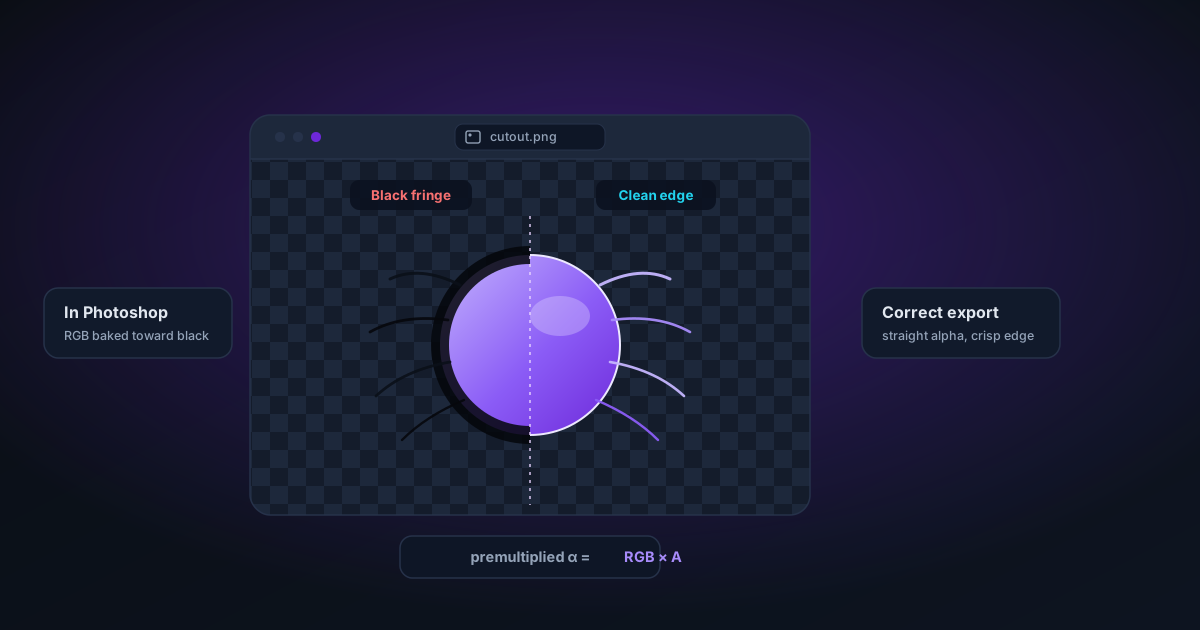
Why Your Transparent PNG Shows Black in Photoshop (And How to Fix It)
The premultiplied alpha problem explained: why most free background removers produce PNGs that show black in Photoshop, and what to look for in a tool that gets it right.
By Novus Stream Solutions Editorial Team · Part of the Image processing and on-device AI topic cluster
You've done everything right. You removed the background, exported a PNG, opened it in Photoshop — and there's a black rectangle where the transparency should be.
You didn't make a mistake. The tool did. Here's what happened.
Two ways to store transparency
A PNG with an alpha channel stores four values per pixel: Red, Green, Blue, and Alpha. There are two conventions for how those values relate to each other.
Straight alpha (also called unassociated alpha or non-premultiplied alpha):
- R, G, B = the actual colour of the pixel
- A = how opaque it is (0 = fully transparent, 255 = fully opaque)
- At alpha = 0, the pixel's RGB still contains its real colour — it's just not visible
- At alpha = 128 (50% transparent), RGB still contains the full colour
Premultiplied alpha (also called associated alpha):
- R, G, B have already been multiplied by the alpha value
- At alpha = 128 (50% transparent), RGB values are half what they should be
- At alpha = 0 (fully transparent), RGB values are zero — the colour is destroyed
When Photoshop opens a file, it expects straight alpha. If it gets premultiplied alpha, those zero-RGB "transparent" pixels appear as black, and the semi-transparent edge pixels look dark and muddy.
Why free tools produce premultiplied alpha
The culprit is the HTML Canvas API, which most browser-based tools use. When you call canvas.toBlob() or ctx.getImageData(), the canvas returns pixel data in a premultiplied format internally. Many tools don't convert it back to straight alpha before writing the PNG.
This isn't a bug you can see in the browser — browsers display premultiplied alpha correctly, and the PNG file looks right until you open it in Photoshop.
It's a silent failure mode that only shows up when professionals use the file.
What NSS does differently
NSS keeps the image data and the mask completely separate throughout the entire processing pipeline:
- The original image pixels are stored as raw RGB values in a separate buffer — never premultiplied, never modified by the mask
- The mask is a
Float32Arrayof values from 0.0 to 1.0 - At export time, each pixel is written as:
R = original_R,G = original_G,B = original_B,A = Math.round(mask * 255) - Even at mask = 0.0 (fully transparent), the RGB values are written — not zeroed
This is straight alpha by construction. The RGB and alpha channels are written independently.
After encoding, NSS decodes the file back into pixel data and samples 100 random pixels where the mask was semi-transparent (between 5% and 95% opacity). It verifies that the decoded alpha values are soft (not binary) and that the RGB values haven't been destroyed. If anything looks wrong, it shows a warning before the file downloads.
Testing it yourself
If you have a file you're unsure about:
- Open it in Photoshop
- Check Window → Channels
- Click the Alpha 1 channel
- Look for grey values in the mask — white = opaque, black = transparent, grey = semi-transparent
If the alpha channel is binary (only black and white, no grey), the tool thresholded the mask to hard edges and discarded soft transparency.
If the alpha channel has grey but the image shows black in the canvas, it's premultiplied alpha — the RGB was zeroed when alpha was low.
A correct file has grey in the alpha channel and looks correct (checkerboard) in Photoshop's canvas.
Why this matters for your work
Premultiplied alpha causes:
- Black halos around subjects in Photoshop, Affinity, and InDesign
- Dark fringing on edges when composited over coloured backgrounds
- Incorrect blending when used as a layer in video editors
- Colour shifts in print workflows
Straight alpha composites perfectly everywhere because the colour data is always intact.
The checkerboard test
The simplest test: export a PNG and drag it into a new browser tab. If you see a checkerboard pattern where the background was, the transparency data is there. That doesn't tell you if it's straight or premultiplied — but it confirms the alpha channel exists.
For straight alpha confirmation, the Photoshop test is definitive. Open the file, look at the canvas — checkerboard means straight alpha is working.
Related
- Exporting with transparency — NSS export options
- Why does my export show black in Photoshop? — help article
- Working with Photoshop — step-by-step import guide
Applies to NSS Background Remover v0.2.0 — the release that was current when this article was published.
Was this article helpful?
Your answer is saved in this browser only. This control makes no network request and does not send the answer to an NSS feedback endpoint.