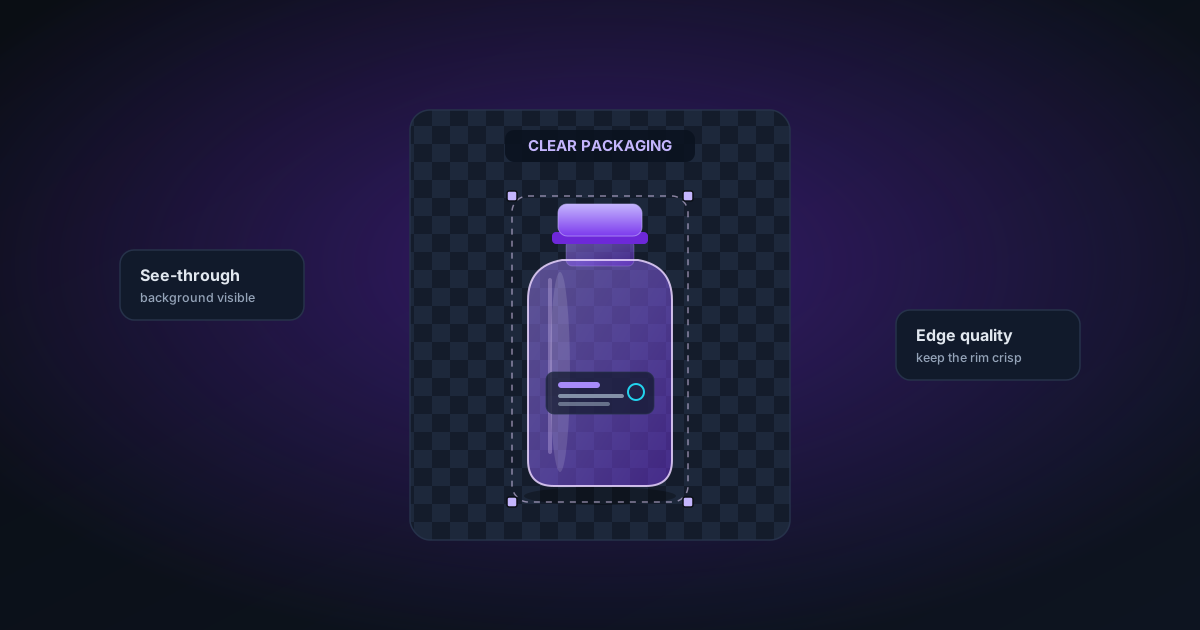
Removing Backgrounds from Products in Clear or Transparent Packaging
Clear plastic bags, glass jars, and transparent boxes are among the hardest subjects for AI background removal. Here's what works, what doesn't, and how to get the best result.
By Novus Stream Solutions Editorial Team · Part of the Browser-local editing workflows topic cluster
A pair of socks in a clear polybag. A glass perfume bottle. A skincare product in a transparent acrylic box. These are common e-commerce subjects — and they are among the hardest cases for background removal AI.
Here is why they are difficult, what the NSS Background Remover does to handle them, and practical steps to get the cleanest result.
Why transparent packaging confuses AI models
A standard background removal model is trained to identify the boundary between a subject and its background. For most subjects — a person, a piece of furniture, an opaque product — that boundary is clear: the subject has consistent colour and texture, the background is different, and the edge between them is sharp.
Transparent packaging breaks this assumption in two ways:
Problem 1: The background shows through the subject. A clear plastic bag containing socks lets the background be visible inside the subject boundary. The model correctly identifies the bag as foreground at its edges, but sees the background-coloured pixels inside and marks them as background — punching holes through your product.
Problem 2: Reflections and refractions. Glass and glossy plastic create reflections of the studio background, the lights, and the photographer's reflection. These colour casts cause the model to be uncertain about whether those pixels belong to the subject.
What NSS does to handle this
Several layers of post-processing are applied after the base AI inference to address transparent subjects:
Morphological close. After the segmentation model produces its initial mask, a dilation + erosion pass is applied (morphological closing). This fills interior holes — the transparent gaps where the background was showing through — while preserving the outer boundary shape of the product. The effect is roughly: "fill any background-coloured region that is completely surrounded by foreground."
Guided filter. For pixels on the mask transition zone (soft edges), local colour contrast between the source image and sampled foreground/background regions is used to push each pixel confidently toward opaque or transparent. This sharpens the edges of the bag or glass without affecting the fill from the morphological close.
Hair/fine-detail preservation. High-frequency edge pixels (fine printed text on packaging, fabric texture visible through the bag) are handled with reduced binary snapping to preserve soft alpha values — so fine details don't get hard-thresholded to fully opaque.
Despite these improvements, truly perfect results on transparent packaging require either manual touch-up or a different photography setup. The AI cannot fully reconstruct detail that was never there — it can only make reasonable inferences.
The Best Quality mode advantage
Switch to Best Quality (BiRefNet) for products in transparent or glass packaging. BiRefNet is a larger model trained on finer edge detail. The improvement is most visible on:
- Acrylic and polycarbonate packaging where the background tint is subtle
- Glass containers where edge gradients are gradual rather than sharp
- Products where internal shadows help define the packaging boundary
Photography tips that make a real difference
The most effective way to handle transparent packaging is to give the AI better inputs.
Use a plain, high-contrast background. Shoot against a pure white background if the packaging is colourless. If the product is white or light, use mid-grey. High contrast between the background colour and the packaging interior makes the AI's job dramatically easier.
Control reflections. A light tent (a diffusion box surrounding the product) eliminates reflections from lamps and the photographer. This is standard for jewellery photography and works just as well for glass and acrylic.
Backlighting works surprisingly well. Place a light behind the product, pointed toward the camera. This creates a bright rim around the packaging that gives the segmentation model a strong edge signal. Overexpose slightly if needed — the mask only needs the boundary to be clear.
Shoot flat. Products in clear bags are often softer when shot at an angle (the background is visible at varying depths through the packaging). Shooting straight-on means the background seen through the product is uniform and predictable.
Post-removal brush touch-up
After AI processing, the brush erase and restore tools in the editor let you fix any remaining holes or artefacts:
- Use Restore (paint white onto the mask) to fill areas where the packaging was incorrectly marked as background.
- Zoom in to the edge on the checkerboard view to distinguish transparent packaging (correct — you want it removed) from product fill (incorrect — those pixels should be kept).
- Use Feather in Edge Refinement to soften the edge on glass containers, where a hard binary edge looks unnatural.
If the product has printing or a label inside the clear bag, you usually want to keep those pixels fully opaque. Paint over them with Restore, then use the Magic Wand to quickly select and fill any large uniform areas.
A realistic expectation
Products in clear packaging will always take more work than opaque subjects. The AI gets you 70–90% of the way there depending on the packaging and photography conditions. The remaining refinement — filling holes, cleaning edges around the label, softening glass edges — takes 1–3 minutes in the editor.
For catalogue-scale work (hundreds of SKUs), the combination of better photography setup + AI + batch export gets you a consistent, professional result faster than any manual approach.
Applies to NSS Background Remover v0.2.0 — the release that was current when this article was published.
Was this article helpful?
Your answer is saved in this browser only. This control makes no network request and does not send the answer to an NSS feedback endpoint.