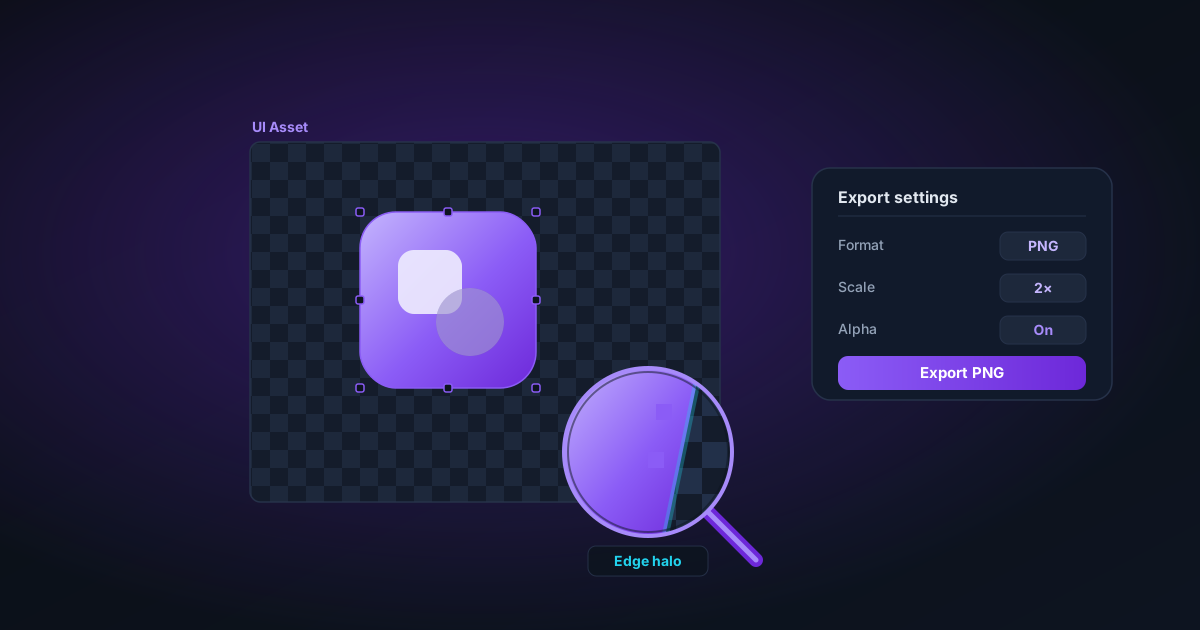
Working with Transparent PNGs in Figma: Import, Export, and Troubleshooting
How to correctly import and use transparent PNGs in Figma — why edges sometimes look wrong, how to check alpha quality, and the best export settings for UI assets.
By Novus Stream Solutions Editorial Team · Part of the Browser-local editing workflows topic cluster
Figma is strict about alpha channels in a way that reveals problems other tools quietly hide. If a transparent PNG looks right in Preview or Chrome but shows a dark halo in Figma, Figma is not the problem — the file is.
Here's how to work with transparent images in Figma correctly.
Importing Transparent PNGs
There are three ways to bring a transparent PNG into Figma:
Drag and drop: Drag a PNG from Finder/Explorer directly onto the Figma canvas. Figma creates an image fill inside a frame at the image's native resolution.
File → Place Image: Available in the main menu. Works the same way.
Copy/paste from another app: Works, but can introduce resampling artefacts depending on where you're pasting from. Direct file import is safer.
When a PNG is imported with correct transparency, you'll see Figma's default grey checkerboard pattern behind transparent areas. No checkerboard means no transparency — Figma is rendering it against its canvas background.
Why Your Transparent PNG Looks Wrong in Figma
Dark Halo Around Edges
This is the premultiplied alpha problem. A dark halo (or black fringe) around a cut-out subject means the PNG was exported with premultiplied alpha — the RGB values at semi-transparent edge pixels were mathematically reduced by the alpha value before the file was saved.
Figma, like Photoshop, correctly interprets this encoding and shows you the dark fringe that's actually in the file.
Fix: Re-export from a tool that uses straight alpha. NSS Background Remover exports straight alpha by default across all formats. The transparency checker confirms whether a file has this problem before you import it.
White Fringe or Colour Fringe
A white or coloured fringe around edges usually means colour spill — the original background colour contaminated the edge pixels when the background was removed.
Fix: NSS Background Remover's edge decontamination (in the Edge Refinement panel) reduces this. Increasing feathering slightly (2–4px) also helps blend edges more naturally.
Jagged Edges
Hard, staircase-like edges on organic subjects (hair, foliage, fabric) indicate the mask was binarized — all alpha values converted to either 0 (transparent) or 255 (opaque) with nothing in between.
Fix: Re-process the image with "Preserve Soft Edges" enabled (default in NSS Background Remover). Soft edges have partial alpha values that blend naturally against any background.
Best Practices for Transparent Images in Figma
Use Frames as Containers
When you place an image in Figma, by default it becomes a standalone image object. For transparent PNGs you're using as design elements, it's usually better to:
- Create a frame at your desired size
- Place the PNG inside the frame
- Set Clip Content on the frame
This gives you a container to position and resize while keeping the image fill intact.
Image Fill vs Image Object
When you use a PNG as an image fill on a frame or shape (via the Fill panel → Image), the transparency in the PNG is composited over the fill stack below. This means the PNG's transparent areas show the fill colour of the underlying layer, not the Figma canvas.
For most UI work, this is what you want: place your product photo fill on a frame with a white fill below, and the transparent edges composite onto white cleanly.
For transparent assets you want to layer freely (stickers, logos, cutouts), use them as image objects (drag onto canvas), not as fills on shapes.
Resizing Without Quality Loss
Figma handles image scaling without re-encoding — resizing an image object doesn't degrade quality because Figma stores the original file and scales on render. You can resize freely.
When you export from Figma, choose your scale (1×, 2×, 3×) and format. For retina screens, 2× is the minimum for sharp display.
Exporting Assets from Figma
PNG Export with Transparency
To export a frame or image with transparency from Figma:
- Select the layer/frame
- Design panel → Export (bottom right)
- Click "+" to add an export setting
- Choose PNG format
- Leave "Include 'background color' in export" unchecked
- Click Export
The exported PNG will have straight alpha — Figma exports correctly by default.
Checking Your Figma Export
Before using a Figma-exported PNG in your workflow:
- Open in Preview (Mac) — look for checkerboard behind transparent areas
- Sample an edge pixel in Photoshop — verify alpha is non-binary and RGB is correct
- Or use the NSS transparency checker — upload the exported file and it verifies alpha integrity
SVG vs PNG for Icons and Logos
For vector assets that need transparency (icons, logos, UI components), SVG is almost always better than PNG because:
- Infinitely scalable with no quality loss
- File size is usually smaller
- Transparency is inherent, no alpha channel required
Use PNG when:
- The asset is a raster photo (product shot, illustration, textured artwork)
- You need a specific pixel-level rendering guarantee
- The destination platform doesn't support SVG
Figma and Background Removal: A Practical Workflow
A common workflow for product design and social media:
- Photograph your product on a simple background
- Upload to NSS Background Remover → remove background → export PNG with transparency
- Import PNG into Figma → place on your designed background or scene
- Design your composition — product page mockup, ad creative, social post
- Export from Figma — PNG at 2× or higher for digital, or as needed for print
This workflow keeps the heavy lifting (background removal) in a dedicated tool optimised for it, and keeps Figma doing what it does best (layout, typography, brand consistency).
Common Issues and Fixes
Transparent PNG renders opaque in Figma: The image probably doesn't have an alpha channel. Re-export from NSS Background Remover or whatever source tool you used, confirming transparency is enabled.
Image quality looks degraded after import: You're viewing at > 100% zoom in Figma (which shows individual pixels). Export at 2× and view the actual export file to judge quality.
My exported PNG from Figma shows black in Photoshop: This was a bug in some older Figma versions but has largely been fixed. Check your Figma version is current. If the issue persists, try exporting at a different scale or re-importing the source image.
I can't get feathered/soft edges on my PNG in Figma: Figma doesn't have a feather tool for image edges. Apply feathering before import using the Edge Refinement tool in NSS Background Remover.
Summary
Figma handles transparent PNGs correctly and is strict about alpha quality — use it to your advantage. If something looks wrong in Figma, check the source file rather than working around the problem in Figma. Straight-alpha exports from NSS Background Remover import cleanly, composite naturally, and export correctly from Figma.
Applies to NSS Background Remover v0.2.0 — the release that was current when this article was published.
Was this article helpful?
Your answer is saved in this browser only. This control makes no network request and does not send the answer to an NSS feedback endpoint.