From Long Video to Captioned Highlights: A Browser-Local Workflow
Turn a long clip into reviewed highlight ranges, transcribe its latest edited audio, correct timed captions, and export a shorter captioned result while keeping the work on your device.
By Novus Stream Solutions Editorial Team · Part of the Browser-local editing workflows topic cluster
A useful highlight is not simply the loudest thirty seconds of a recording, and a useful caption track is not an unedited transcript broken wherever a model happened to pause.
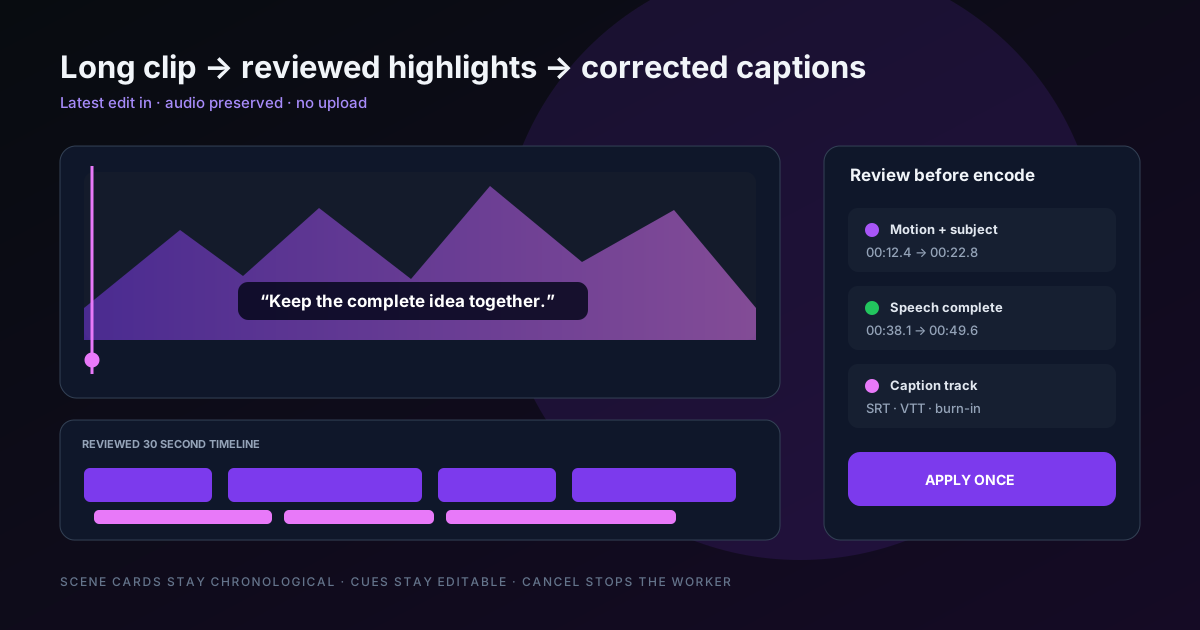
The browser-local workflow separates those decisions. Auto Highlights proposes chronological ranges from the latest edited clip; you review and adjust them before any encode. Auto Subtitles decodes that same current clip, transcribes its audio locally, and gives you timed cues to correct before exporting SRT, WebVTT, text, or an optional burned-in video.
Nothing is uploaded. That privacy boundary is useful for interviews, customer footage and unpublished work, but it also makes device limits visible: model downloads, memory and encoding time belong to your browser rather than a remote render farm.
Start with the latest edited clip
Trim dead material and make structural edits first in the Video Editor. Both tools operate on the current output blob, not the original upload hidden behind it. That sounds obvious; it prevents a subtle class of failures where captions refer to speech you already cut or highlights silently restore an earlier version.
The editor passes the workflow:
- the latest video blob;
- decoded mono audio and its sample rate;
- whether an audio stream exists;
- source duration and dimensions; and
- whether the video carries transparency that an output codec must preserve or explicitly composite.
Changing the file or tool invalidates an in-flight result. A late worker message from the old clip is discarded instead of becoming a caption track on the new one.
Highlights are a proposal, not an automatic cut
Choose a target of 15, 30 or 60 seconds and one scoring mode:
| Mode | Signals it favours | Best starting point |
|---|---|---|
| Motion | frame-to-frame visual change | sport, demonstrations, action |
| Visual prominence | luma structure and centre contrast | visually structured tutorials and product clips |
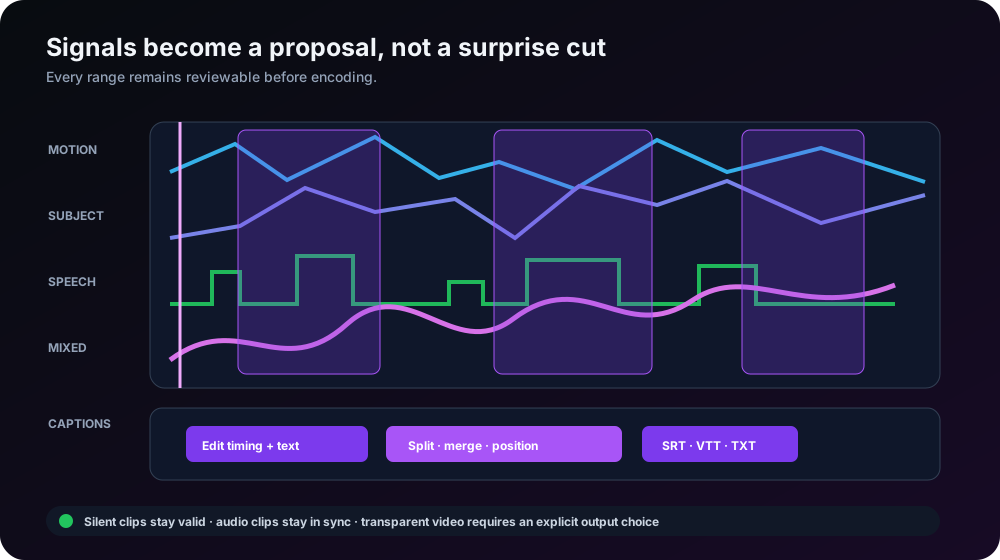
| Speech | detected voice activity and speaking density | interviews, lectures, presentations |
| Mixed | a balanced combination of all available signals | unfamiliar or varied footage |
Speech mode is only meaningful when speech is actually scored. The workflow runs local voice-activity analysis over decoded audio; it does not relabel volume as “speech.” Silent clips remain valid for Motion and Visual prominence, while a missing audio stream disables speech-dependent scoring rather than throwing an encode error.
Scene boundaries and scores become cards in chronological order. Each card shows a thumbnail, the proposed numeric range, and why it ranked. You can include or remove it and edit its start and end times, then verify the rendered result in the output player before publishing.
How to judge a proposed cut
The highest numerical score is not always the moment a viewer needs. Check four things:
The action has a beginning and an end. A product reveal that starts after the hand enters frame feels clipped even if the motion peak sits in the middle.
Speech is not cut mid-sentence. Move boundaries to nearby pauses. A five-second duration tolerance is more valuable than hitting exactly 30.000 seconds with a broken thought.
Tiny fragments are removed. Several half-second peaks create a frantic montage and increase the risk of audio discontinuity. The planner rejects micro-clips and prefers ranges long enough to understand.
Chronology still makes sense. Highlights are ranked by interest but presented and encoded in source order. Reordering an explanation after its result may score well and communicate badly.
When enough suitable material exists, the accepted duration stays within five seconds of the target. A ten-second source cannot honestly produce a sixty-second highlight, and the interface reports that limitation instead of duplicating footage.
Transcription has a separate consent boundary
Auto Subtitles uses a pinned, quantized Whisper browser model. OpenAI describes Whisper as a general-purpose system for multilingual recognition, translation and language identification in its official project documentation. This browser workflow deliberately asks you to choose the spoken language: the pinned JavaScript wrapper can transcribe multiple languages but does not currently expose reliable automatic language identification. The task is transcription, preserving what was spoken rather than silently translating it.
The first run names the exact model revision and measured files before asking permission. Declining makes no request. A cached model can run offline; a cold offline browser explains that the required files are unavailable. WebGPU can accelerate browser inference through Transformers.js, but support varies, so the readiness state distinguishes accelerated and slower supported paths rather than promising the same timing everywhere. See the official Transformers.js WebGPU guide.
Cancel really means stop. The transcription worker is terminated and recreated so inference does not continue invisibly after the UI says it ended.
A transcript becomes captions through editing
Speech recognition returns text with time information. The editor stores that as one typed caption track, not hundreds of disconnected text overlays. Each cue has:
- an identifier;
- editable text;
- a start and end time;
- position and alignment;
- style values; and
- track-level defaults that “apply to all” can update intentionally.
From there you can split a long cue at its midpoint, enter exact start and end times, merge an awkward fragment with its neighbour, or delete false speech without regenerating the transcript.
Review names, numbers, product terms and punctuation first. Then check cue length. A grammatically complete sentence can still be too wide for a vertical video, while breaking every phrase into two words makes reading exhausting.
SRT, WebVTT, text or burned-in video
External caption files remain editable and accessible to a video player. SRT is the common interchange option. WebVTT is the web-native timed-text format; its cues are ordered by start time and each end must come after its start, as defined by the W3C WebVTT specification. Plain text is useful for review and copy, but it has no timing.
Burn-in draws the approved cues into the video frames. It works on platforms that ignore caption tracks, but the words cannot be switched off, translated or restyled later. Keep the external caption file even when you export a burned version.
Caption styling should solve readability rather than imitate a poster:
- use high contrast and a restrained background or shadow;
- keep cues inside the platform safe area;
- test the smallest destination size;
- avoid covering faces, demonstrations and existing lower thirds; and
- apply global changes through the track, then override only genuine exceptions.
Audio and transparency are part of the result contract
Highlight encoding preserves the source audio and checks sync across every concatenated range. A silent source takes a video-only encoding path instead of failing because an audio stream was assumed.
Transparent WebM needs an explicit choice. Preserve alpha in a compatible WebM output or choose the background that should be composited. Flattening transparent pixels to black without asking is not a successful highlight.
Encoding happens locally through ffmpeg.wasm, a browser WebAssembly port of FFmpeg described in its official overview. Local encoding avoids upload latency and server copies, but it is slower than native desktop FFmpeg and consumes browser memory. Shorten and review ranges before the final encode rather than rendering every experiment.
A workflow that survives review
- Open the source in the Video Editor, trim obvious dead time, and save the current edited state.
- Run Auto Highlights with a 15, 30 or 60 second target and the scoring mode that matches the footage.
- Review every scene card, remove weak ranges, and move boundaries to complete actions and pauses.
- Encode once; confirm duration, picture order, audio continuity and transparency handling.
- Run Auto Subtitles on that latest highlight clip.
- Approve the pinned model only if you want the local transcription path.
- Confirm the selected source language, correct the words, then split, merge and time cues while watching the clip.
- Export SRT and WebVTT for reuse. Burn captions only when the destination requires visible text in the pixels.
- Use one undo operation to return to the pre-highlight timeline and verify the accepted state can be restored exactly.
Automation is most useful when it turns an unstructured hour into a reviewable proposal. The human decision stays where it belongs: which moments tell the story, and which words a viewer should actually read.
Applies to NSS Background Remover v2.4.0 — the release that was current when this article was published.
Was this article helpful?
Your answer is saved in this browser only. This control makes no network request and does not send the answer to an NSS feedback endpoint.