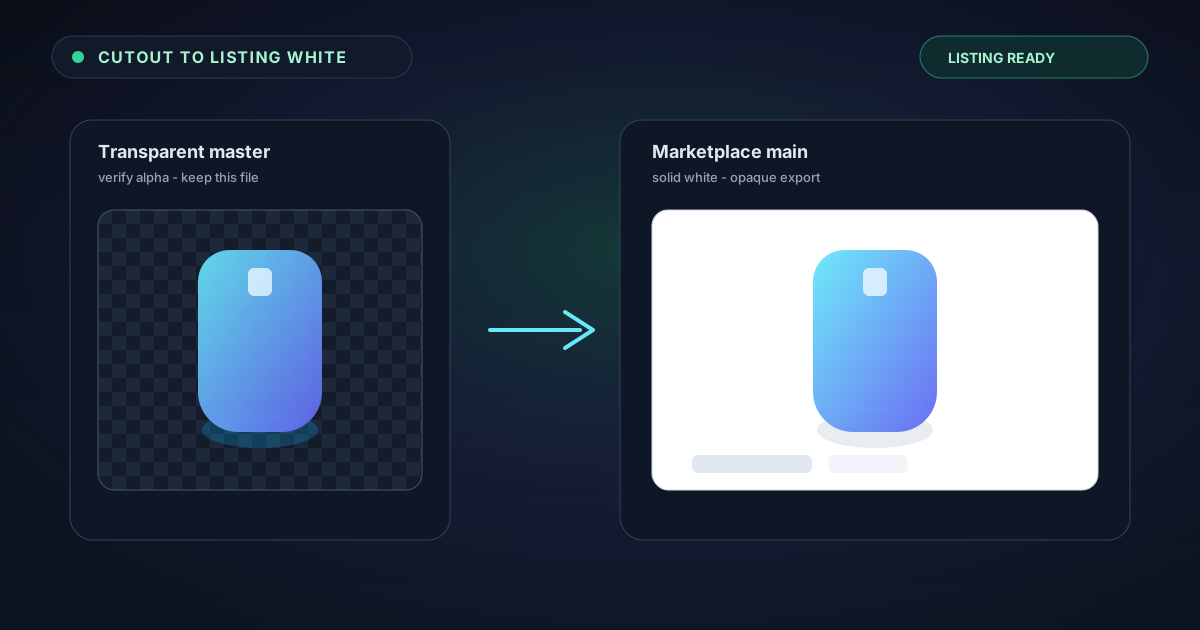
From Cutout to Marketplace White — Finishing a Background Removal for Listings
A transparent PNG is only half the job for many storefronts. Learn how to remove a background in NSS, verify the alpha, place a solid white or brand-colour back, and export a listing-ready image without uploading your photos.
By Novus Stream Solutions Editorial Team · Part of the Browser-local editing workflows topic cluster
A clean cutout is not always what a marketplace wants. Amazon, many Shopify themes, and a long list of retail portals still ask for an opaque white (or near-white) field behind the product. A transparent PNG is perfect for design tools and comps — and the wrong deliverable if the listing form rejects alpha or composites your item onto a grey page.
This walkthrough covers the finish line after background removal: verify the mask, place a solid back with Add Background, and export something a catalogue can accept. Processing stays in your browser; nothing is uploaded for the AI step.
What marketplaces actually ask for
Requirements vary by channel, but the pattern is familiar:
- Main image: product on a pure white or very light field, fully opaque, subject filling most of the frame.
- Secondary images: often allow lifestyle scenes; those are a different job.
- File type: JPEG is common for the main slot. JPEG has no alpha, so a transparent PNG saved “as JPEG” will get a baked background — usually black or white depending on the encoder. Decide the background before you flatten.
If you only need a transparent asset for Canva, Figma, or print-on-demand, stop after the cutout. This article is for the case where the storefront wants white (or a brand colour) baked in.
Remove the background first — match the mode to the subject
Open the background remover, drop in the photo, and pick a mode that fits the edges:
- Fast for clear products on plain sweeps.
- Best Quality for hair, fur, soft packaging, or busy backdrops.
- Glass when see-through regions must stay see-through.
We cover the decision tree in detail in Fast, Best Quality, or Glass?. For a listing batch, start Fast, escalate only the failures, then move on to the finish below.
Export a true transparent PNG (or WebP with alpha) from the remover. That file is your working master. Do not jump straight to JPEG yet.
Verify the alpha before you composite
A checkerboard preview is useful, but it is not a certificate. Spend thirty seconds on a quick checklist:
- Subject completeness — no missing handles, straps, or corners.
- Background leftovers — no grey wedges or table lines still attached.
- Edge quality — no thick coloured fringe from the old studio wall.
- Soft detail — hair and fur should look intentional, not chewed.
If the fringe is the main problem, fix the mask or refine edges before compositing. Putting a white field behind a bad fringe just makes the halo more obvious. For why spill happens and what cleanup does, see coloured fringe and edge decontamination. For how NSS checks exports before download, see how we verify transparent exports.
Place white (or brand colour) with Add Background
Open Add Background and load the transparent cutout.
- Choose a solid fill — pure white (
#FFFFFF) for classic marketplace mains. - Or pick a brand colour when the channel allows it and your style guide requires it.
- Keep gradients and patterns for lifestyle assets, not for “white background” compliance slots.
The tool composites the subject onto the fill in the browser and lets you download a flat, opaque image. That is the file you resize and upload to the listing.
| Goal | Background choice | Typical export |
|---|---|---|
| Amazon-style main image | Solid white | JPEG after composite |
| Brand-consistent PDP | Solid brand hex | JPEG or PNG (opaque) |
| Design / POD / overlay | Leave transparent | PNG / WebP with alpha |
| Soft-edge preview only | Checkerboard in the editor | Do not upload checkerboard |
Size and export checklist
After the background is baked in:
- Crop and pad so the product sits comfortably in frame — many portals want the subject occupying most of the image without touching the edges awkwardly.
- Match the portal’s pixel rules (longest side, file size caps). Use Image Resizer or Image Compressor when you need dimensions or kilobytes under control.
- Flatten to JPEG only after the white (or brand) field is permanent. Saving a transparent PNG as JPEG earlier is a common way to get a black box behind the product.
- Keep the transparent master in a separate folder. Listing requirements change; re-compositing from a good cutout is faster than re-running removal.
For large catalogues, remove in a batch, export ZIP cutouts, then composite the ones that need white. The batch path is covered in batch cutouts and ZIP export.
Mistakes that show up after upload
| Mistake | What you see on the storefront | Fix |
|---|---|---|
| JPEG’d a transparent PNG too early | Black or weird fill behind the product | Composite white first, then JPEG |
| Uploaded checkerboard “preview” | Grey squares in the listing | Never export the editor’s preview pattern as the listing file |
| Coloured fringe on white | Pink/blue halo around the silhouette | Clean edges / decontaminate, then re-composite |
| Soft hair on mandatory hard white | Fuzzy grey smear | Best Quality + softer refine, or accept a slightly harder edge for compliance |
| Wrong canvas size | Rejected upload or tiny product | Resize to the portal’s published specs |
Privacy stays the same through the finish
Removal, verification, and add-background all run locally. The marketplace only receives the final file you choose to upload. There is no account required in NSS for this pipeline, and the session is one-time-use: download what you need before you close the tab.
Try the pipeline
- Cut out the subject in the background remover.
- Confirm the transparent master looks clean.
- Place solid white (or brand colour) in Add Background.
- Resize/compress if the portal demands it, then upload the opaque file.
Transparent when you need flexibility. Opaque white when the listing form insists. The cutout is the hard part — finishing it for the storefront is a short, deliberate last step.
Applies to NSS Background Remover v2.3.0 — the release that was current when this article was published.
Was this article helpful?
Your answer is saved in this browser only. This control makes no network request and does not send the answer to an NSS feedback endpoint.