Why AI Models Download Once — and How to Keep Them Ready Offline
Learn why on-device AI needs a first-run model download, what NSS stores in your browser, how pre-download and durable storage prepare background removal for offline use, and how to reclaim space safely.
By Novus Stream Solutions Editorial Team · Part of the Product, privacy, and trust topic cluster
When an online AI tool says it is private because processing happens on your device, one practical question follows: where does the intelligence come from? The answer is a model download.
The app code accepts a file, draws controls, prepares pixels, and saves an export. A model is the learned set of numerical weights that recognises a subject, estimates colour, selects an object, or reconstructs pixels. A cloud service keeps those weights on its servers and sends your media to them. NSS sends the weights to your browser so your media can stay with you.
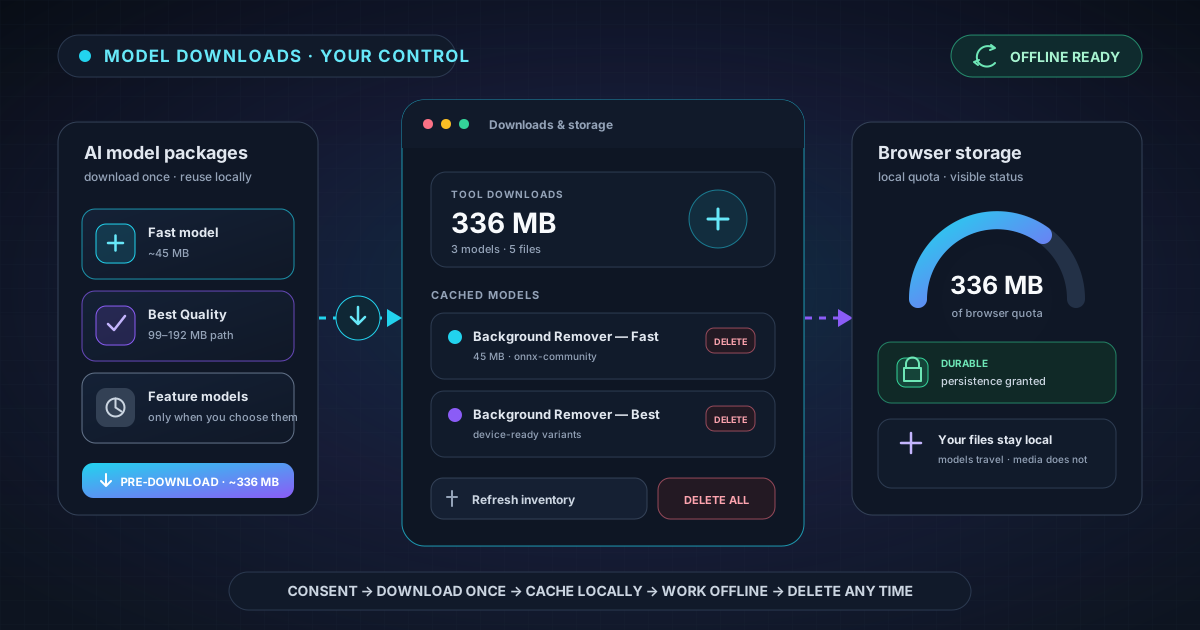
Instead of uploading every image or video, you download a model once, cache it, and reuse it. The Downloads & storage manager shows what is present, how much space it occupies, whether storage is durable, and what you can safely remove.
The model comes to the data
In a cloud workflow, your image crosses the network, the provider runs inference, and the result crosses back. In an on-device workflow, the model weights cross the network on first use and inference runs in the browser. The original photo or clip does not need to be uploaded for the AI operation.
A neural network may contain millions of learned parameters, so its model can be much larger than a normal page asset. Once cached, a second job loads those weights from browser storage. A tool can then work without a live connection when its model and the application shell are both present.
This is also why “nothing uploaded” does not mean “nothing downloaded.” Privacy describes the direction your media travels, not an absence of network activity. On first use, your browser still needs internet access to fetch any model it does not have. For a closer comparison of the two architectures, see Browser AI vs. Cloud API.
Different features need different weights
NSS does not bundle every AI model into the initial page. That would force every visitor to download tools they may never use. Instead, each feature acquires its own model when needed.
| Feature | Approximate first-run model download | Why it is separate |
|---|---|---|
| Background Remover — Fast | 45 MB | Responsive general foreground separation |
| Background Remover — Best Quality | 99–192 MB | Higher-detail path selected for the device |
| Video Background Remover — People | 15 MB | Recurrent matting across video frames |
| Image Upscaler | 65 MB per model path | Adds detail through a dedicated super-resolution network |
| Object remover click selection | 40 MB | Segments the object indicated by your clicks |
| Licence plate detector (RT-DETRv2) | 81 MB | Proposes plates for reviewed blur or removal |
| Photo Colorizer — Realistic | 460 MB | Predicts plausible colour for monochrome photographs |
| Object remover AI patch | 196 MB | Fills regions that surrounding frames cannot reveal |
These are working estimates. Device capability also matters: Best Quality can use a smaller WebGPU path or a larger compatibility path through WASM.
Many utilities need no AI model at all. Resize, rotate, format conversion, compression, metadata removal, and classical filter operations can run from application code already loaded in the page. Choosing the simplest sufficient tool saves both time and storage.
Large downloads ask before they begin
NSS uses consent gates for large optional weights. Anything above roughly 50 MB should not quietly consume a metered connection. The dialog identifies the model, gives an approximate size, explains the benefit, and states the fallback when one exists.
Declining is a real choice, not a broken state. The Realistic colourizer can fall back to instant classical colour styles. Object removal can use a simpler fill when the LaMa patch is declined. Other tools may offer a smaller or more compatible path. Your answer is remembered so the same tool does not repeatedly interrupt the workflow.
Permission controls whether a download starts. It does not send the selected photo anywhere. The model request and the local media-processing path remain separate.
Read the Downloads & storage summary
Open Downloads & storage from the header or navigation menu. The first summary card reports model files that belong to NSS: total bytes, number of grouped models, and number of underlying files. A model can include more than one file because weights, configuration, and tokenizer or runtime assets may be cached together.
The second card shows the browser's estimate of usage and quota. It covers the site's browser storage, not only grouped models, so the figures need not match. Some browsers expose no estimate; the manager says so.
Below the summary, every detected model is grouped by tool with its source, measured size, and file count. The inventory recognises the app's managed ONNX, Transformers.js, and versioned service-worker caches, so older downloads remain manageable after an update.
Use Refresh after a tool finishes downloading if its entry has not appeared yet. If the browser does not expose Cache Storage at all, the manager shows an unsupported state; offline model management cannot be assumed in that environment.
Pre-download background removal before you need it
Normal loading is demand driven: open Background Remover, choose a mode, and acquire the required model. The manager also offers Pre-download for the Fast and Best Quality background-removal weights. The current offline bundle is approximately 336 MB because it includes Fast plus both device paths for Best Quality.
Pre-downloading helps before a flight, shoot, client visit, class, or unreliable connection. It warms the same Cache Storage used by the tools, so removal can start offline after the app is cached.
Use a stable, unmetered connection. Wait for success, refresh the inventory, and confirm the entries are present. Then run one image online to confirm the browser can load and execute the selected model path.
Pre-download currently targets background removal, not every AI feature in the product. To prepare another tool for offline use, open and run that tool once while online so its own model and supporting assets can be cached.
Best-effort and durable storage are not the same
Browser storage begins as best-effort. The data is local, but the browser may evict it when the device is short on space or according to its own storage policy. That is the common explanation when a model used last month unexpectedly downloads again.
Make durable calls the browser's persistent-storage API. If granted, NSS marks the status durable. That makes automatic eviction less likely; it is not a backup and does not survive clearing site data, a private session, or removal of the browser profile.
The browser—not NSS—decides whether to grant persistence and how much quota the site receives. Policies differ, so the manager reports the result rather than promising that one click controls every device.
For frequent offline use, combine three steps: install NSS as an app, pre-download the models you rely on, and request durable storage. The installed app makes launch convenient; the cache provides the assets; persistence reduces the risk of automatic eviction. Each solves a different part of offline readiness.
Delete one model or reclaim everything safely
Cached weights are replaceable. Choose Delete beside one model to reclaim only its measured files, or Delete all to remove every model cache NSS owns. Both actions ask for confirmation. The manager reports the approximate bytes freed and refreshes its inventory after deletion.
Deleting model files does not delete your projects, edits, settings, source media, or exported images. It only removes the local weights used by AI tools. The next time you select that feature, the model downloads again and the tool returns to normal.
Per-model deletion suits a shared or space-constrained device: keep the 45 MB Fast model and remove a 460 MB colourizer after a restoration project. Use “Delete all” when you need the maximum space back.
Clearing site data in browser settings also removes model caches, but it is a broader operation and may remove other local site state. Use the manager when you want the precise, understandable option.
Use a short offline-readiness checklist
Before relying on NSS without a connection:
- Visit the app online and allow the service worker to cache the application shell.
- Open Downloads & storage and review the browser's available quota.
- Press Pre-download for Fast and Best Quality background removal if those are your planned tools.
- Run any other required AI feature once while online.
- Request durable storage and confirm the reported state.
- Test the real workflow with the network switched off before leaving the reliable connection.
- Keep enough device space available for working files and exported results, not only model weights.
The first-time model download, an uncached HEIC conversion module, unvisited help content, and external links still require a connection. Offline support is prepared capability, not a claim that the browser can manufacture assets it has never received. The full boundary is documented in Working offline.
If a model downloads again, open the manager and follow the evidence. Site data may have been cleared, the browser may have reclaimed space, or you may be using another profile. A model revision or different device path can also require a new file; WebGPU and WASM do not always use the same Best Quality asset.
The system remains reversible and visible. Models can be acquired, inspected, prepared for offline work, made more resistant to eviction, and deleted without sacrificing your media. The initial download is not a privacy loophole; it moves the computation to your side of the connection.
That is the product choice behind on-device AI. NSS spends local bandwidth and disk once so your images and videos do not have to make a round trip for every edit. You can see the cost, decide when to accept it, and take the space back when the job is done.
Applies to NSS Background Remover v2.3.0 — the release that was current when this article was published.
Was this article helpful?
Your answer is saved in this browser only. This control makes no network request and does not send the answer to an NSS feedback endpoint.