Removing Unwanted Objects from Video in Your Browser: Click, Track, Erase
The rebuilt object remover in the NSS Video Editor lets you click an object to select its full outline, draw a box, or auto-detect licence plates — then remove, blur, or pixelate it across the clip, entirely on your device. Here is how the selection, tracking, and fill actually work, and where the honest limits are.
By Novus Stream Solutions Editorial Team · Part of the Browser-local editing workflows topic cluster
Most clips are nearly right. The take is good, the light is good — and there is a parked car with a readable number plate in the corner, a passer-by over your shoulder, or a brand logo you would rather not advertise. Until recently the honest options were to crop, to reshoot, or to learn a desktop compositing suite.
The object remover in the NSS Video Editor gives you a fourth option: select the thing once, and it is removed, blurred, or pixelated on every frame it appears in — with the clip never leaving your browser. It is the most ambitious AI tool we ship, which is exactly why this post spends as much time on what it cannot do as on what it can.
Three ways to select what should go
Open a clip in the editor, find the Object remover panel, and scrub the playhead to a frame where the offending object is clearly visible. Then pick one of three selection methods:
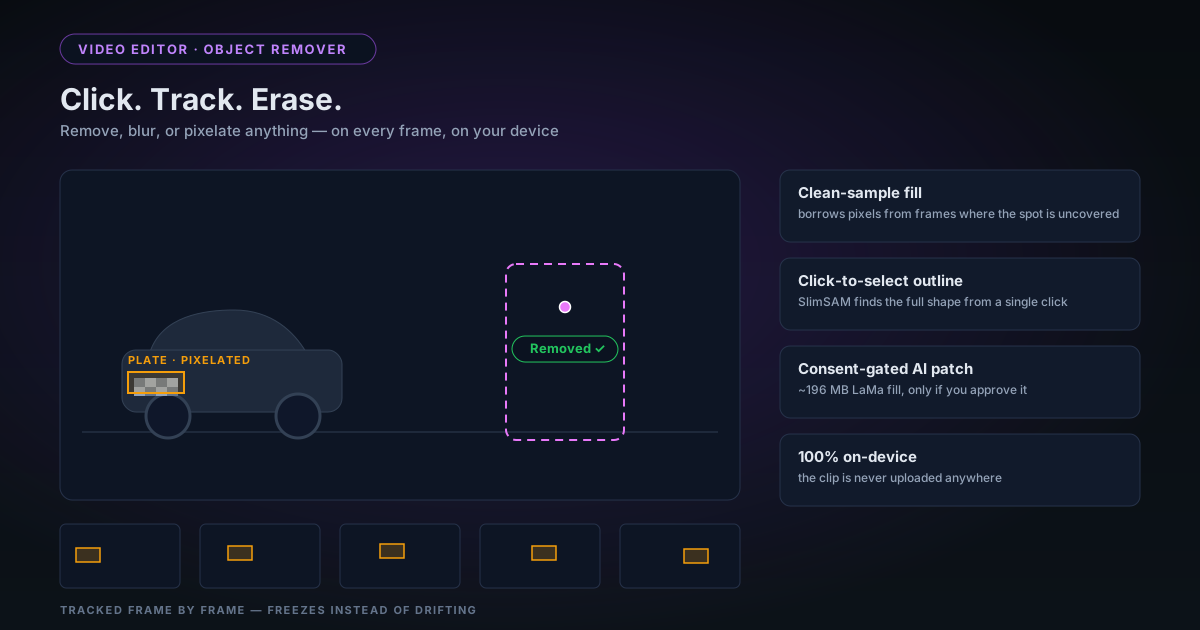
- Click the object. A single click hands the frame to SlimSAM, a compact segmentation model running in a background worker, which returns the object's full outline — not a rectangle around it, the actual shape. If the first outline misses a part, keep clicking: up to five points refine the mask, and each click re-runs the segmentation with the full set.
- Draw a box. For text, signs, watermarks, or anything where you know better than a segmenter, drag a rectangle. No model involved, no surprises — the box is the mask.
- Find licence plates. One click runs a pinned Apache-2.0 RT-DETRv2 plate detector (a one-time download of roughly 81 MB, plus potentially uncached shared ONNX Runtime assets) over the frame and proposes plate boxes for review. On apply, plates are re-detected as the clip processes rather than tracked from a single frame, so a car driving through the shot stays covered. When you select plates, the tool switches the effect to blur by default — censoring, not erasing, is almost always what a plate needs.
The click tool is the one that feels new. The old version of this feature asked you to guess an object's extent with corner handles; SlimSAM replaced that guesswork with an outline that actually hugs the object, which matters because everything downstream — the fill, the tracking, the feathered edge — is only as good as the mask.
Remove, blur, or pixelate
Three treatments, and choosing well saves you re-processing:
| Treatment | What it does | When to reach for it |
|---|---|---|
| Remove | Fills the region with reconstructed background | Distractions you want gone: objects, logos, litter |
| Blur | Gaussian blur (2–40 px) over the region | Plates, faces, screens — proof something was hidden |
| Pixelate | Mosaic blocks (4–32 px) over the region | The same, when you want the censoring to read clearly |
An edge feather slider (0–20 px) softens the boundary of any treatment so the edit does not sit in the frame with a hard cut-out edge.
The distinction worth internalising: blur and pixelate are honest about hiding something, and they are robust — they work no matter what is behind the object. Removal is reconstruction, and reconstruction has preconditions. That is the next section.
How removal actually fills the hole
The remover does not hallucinate the background by default. It borrows it — from time.
For every pixel inside the mask, the pipeline looks at a window of nearby frames (the temporal window slider, ±3 to ±24 frames) and collects that pixel's value from each frame where the mask does not cover it. The median of those clean samples becomes the fill. If a cyclist rides through your shot, the pavement behind them is visible a few frames earlier and a few frames later — the median stitches those revealed pixels into a stable, natural fill with real grain, real colour, real light.
The phrase clean samples is doing important work. An earlier version of this tool skipped that check and computed the median from every frame in the window — so for a static watermark, it averaged the watermark with itself and proudly produced a no-op. The rebuilt pipeline only samples frames where that pixel is actually uncovered, and when there are none, it says so and hands the problem to the AI patch rather than pretending. This is the same fail-loudly principle we apply everywhere else.
A practical consequence: a wider window gives cleaner fills for slow-moving objects, at the cost of processing time. The default of ±12 frames covers about half a second each way at 24 fps, which handles most walking-pace occlusions.
When the camera never sees behind
Some regions are never revealed — a watermark that sits over the same corner for the whole clip, a sticker on a static shot. Temporal borrowing has nothing to borrow.
For those cases there is an optional AI patch: LaMa, an inpainting model that generates a plausible fill for the permanently covered area. It is a large model — roughly 196 MB — so it is consent-gated: the first time you enable it, the tool asks before downloading, and the model is cached on your device afterwards, the same way all our models download once and stay ready. Decline, and permanently covered spots simply keep their original pixels — nothing fetches silently, and nothing pretends to have worked.
Be honest with yourself about what inpainting is: a plausible invention, not a recovery. Over a flat wall or soft bokeh it is excellent. Over text, faces, or intricate patterns it will produce something texture-shaped rather than the truth. For anything that matters forensically, blur it instead.
Tracking that freezes instead of drifting
Objects move, so a mask selected on one frame has to follow its object. The tracker uses normalised cross-correlation: the region you selected becomes a small grayscale template, and each subsequent frame is searched for the best match near the last known position.
Two deliberate design choices are worth knowing about:
- The template never updates. Trackers that refresh their template from each new frame accumulate tiny errors until they slide off the object entirely — drift is how a blur ends up censoring a patch of empty road. A fixed template means confidence genuinely falls when the object changes, instead of the tracker confidently following its own mistake.
- It freezes rather than wanders. After five consecutive low-confidence frames, the mask freezes in place and the edit is flagged in the edits list. You will see tracking froze mid-clip rather than discovering a wandering blur in the export.
Tracking runs from the selected frame forward, because the mask only matches the object there. And for things that do not move — watermarks, channel bugs, fixed overlays — turn tracking off entirely; a static mask is more reliable than a tracker asked to follow something stationary.
Edits that stay on the timeline
Applying an edit re-processes the clip — audio kept — and the result replaces the clip on the editor timeline, so everything downstream (grading, text, layers, export) operates on the cleaned footage.
Each edit is also recorded: the mask, the per-frame tracking offsets, the detected plate boxes. Delete one edit from the list and the remaining ones replay deterministically from the pre-edit original using their recorded data — no re-tracking, no drift between what you approved and what you get. Revert all restores the untouched clip. It behaves like non-destructive editing even though each apply is a real render.
The limits, stated plainly
The panel prints its own limits, and we will repeat them here rather than let you discover them mid-project:
- Removal needs the background to be revealed in nearby frames, or to hold still. If the camera orbits an object, reconstructing the parallax behind it is a research problem we do not attempt.
- Tracking follows movement, not rotation or scale. A car turning towards the camera changes shape; the tracker freezes and flags rather than stretching a stale mask over it.
- Automatic detection covers licence plates only. Street signs, name badges, and screens are a draw-a-box job.
- Processing runs at up to 1280 px on the long edge — the same memory-safety ceiling as the video background engine, and the price of doing this in a browser tab instead of on a server farm.
Everything runs on your device. For footage of your home, your family, or your customers, that is not a slogan — the clip is never uploaded, which pairs naturally with stripping the file's hidden metadata before you share it.
A workflow that holds up
- Open the clip in the Video Editor and trim first — the remover only processes the range you keep.
- Scrub to a frame where the object is clear, then click it (refine with extra clicks), draw a box, or run plate detection.
- Pick the least ambitious treatment that does the job — blur beats removal for anything you are censoring.
- Leave tracking on for moving objects; turn it off for fixed overlays.
- Apply, watch the processed range end to end, and check the edit stayed attached.
- Delete any edit that draws more attention than the distraction did, and try a wider temporal window or a feathered edge.
- Export from the editor — or run the result through the video metadata remover if it is leaving your hands.
The full control reference lives in the object remover help article. Bring a clip with something in it you wish were not — that is the entire test.
Applies to NSS Background Remover v2.3.0 — the release that was current when this article was published.
Was this article helpful?
Your answer is saved in this browser only. This control makes no network request and does not send the answer to an NSS feedback endpoint.