Video Background Removal Is Back: How the New Recurrent Engine Works
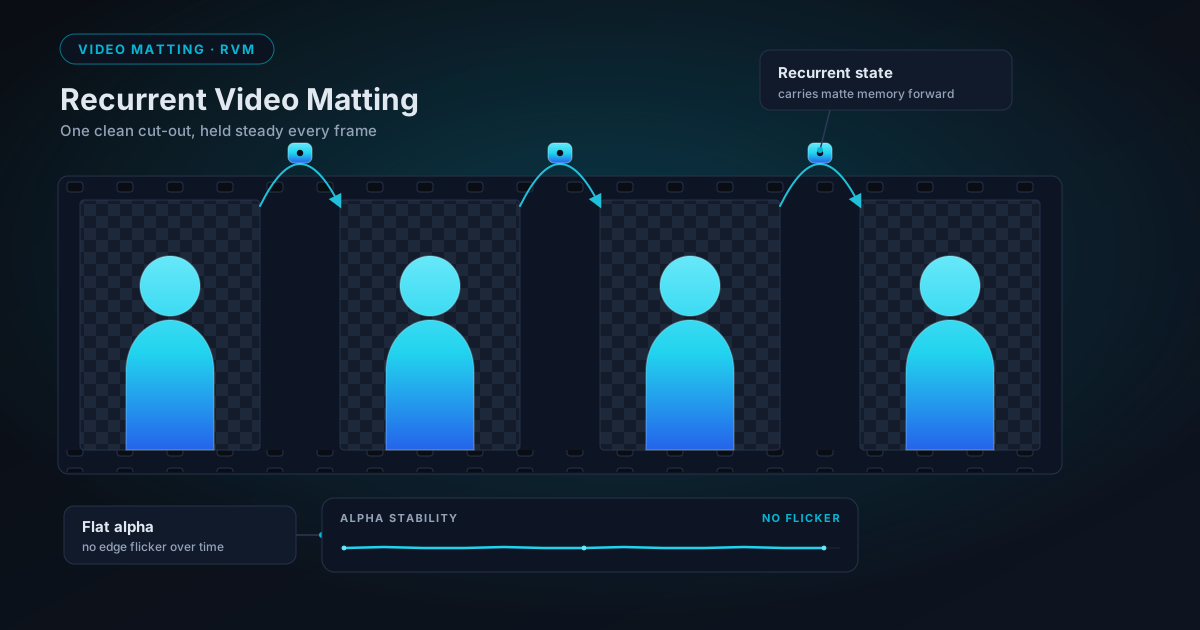
Video background removal is back, rebuilt around a recurrent matting network that carries state from frame to frame, so the result does not flicker the way per-frame masks do. Here is how the new engine works, why it runs entirely in your browser, and where its limits are.
By Novus Stream Solutions Editorial Team · Part of the Image processing and on-device AI topic cluster
The old video background remover was one of the few tools we quietly stopped recommending. It worked on paper (mask every frame, drop the background), but the output shimmered. Edges crawled. Hair boiled. You could tell at a glance that the clip had been cut out, and no amount of tidying fixed it. So we took it out and rebuilt it from the ground up.
This is a technical write-up of what changed and why. The short version: the flicker was never a polish problem you could smooth away afterwards. It was baked into the approach. Fixing it meant changing the kind of model doing the work.
Why per-frame masking flickers
A video is just a stack of still frames. The obvious way to remove a background is to run a still-image segmenter on each frame in turn. That is exactly what the old tool did, and it is what most quick browser tools still do.
The problem is that an image model has no memory. It looks at frame 100 with no knowledge of what it decided on frame 99. Every frame is a fresh, independent guess. In the easy middle of the subject that is fine. Those pixels are obviously foreground in every frame. The trouble lives at the boundary: the exact pixel where a strand of hair meets the wall, or where a shoulder blurs into a similar-coloured background.
At that boundary the model is genuinely uncertain, and its guess wobbles by a pixel or two from one frame to the next even when nothing in the scene has actually moved. Stack those independent wobbles back into a video and the eye reads the collective jitter as shimmer, crawl, and flickering fringes. It is the temporal equivalent of the "cut-out" look. The same failure we wrote about in why good masks still look cut out, only now it is moving.
The tempting fix is to smooth. Average each frame's mask with the previous few, an exponential moving average, so the jitter gets damped down. We tried that. It is a trap:
- Smoothing hides jitter, it does not prevent it. You are averaging bad guesses, so soft edges get softer and mushier.
- Smoothing lags. When the subject actually moves fast, the averaged mask trails behind the real edge, leaving a ghost or a chewed-off limb for a few frames.
- It cannot tell wobble from motion. The two look identical to an averaging filter, so it damps both or neither.
You end up trading one artefact for another. The honest conclusion was that afterwards is the wrong place to solve this.
The core idea: recurrence instead of smoothing
The People tier, which is the default, uses RVM: Robust Video Matting. It is a recurrent network built on a mobilenetv3 backbone, and the important word is recurrent.
Instead of forgetting each frame, RVM carries a hidden state forward. Internally these are four recurrent tensors, call them r1 through r4, that travel from one frame into the next. When the model looks at frame 100 it also receives its own condensed memory of everything up to frame 99: where the edges were, how the subject was moving, which ambiguous pixels resolved which way. It resolves the current boundary in the context of the recent past.
The distinction matters, so it is worth being precise about it:
| Per-frame + EMA smoothing | Recurrent (RVM) | |
|---|---|---|
| Where consistency comes from | Bolted on after masking | Built into the architecture |
| Handles fast motion | Lags, leaves ghosts | State tracks the movement |
| Ambiguous edge pixels | Averaged into mush | Resolved with prior context |
| Failure mode | Soft, laggy, trailing | Degrades gracefully |
Temporal consistency stops being a filter you apply and becomes a property of how the model thinks. That is the whole reason the rebuilt tool does not shimmer where the old one did. Not a better smoothing pass, a different class of model. If you want the wider argument for why matting like this beats a hard keyed mask, we laid it out in AI video background removal versus chroma key.
Three tiers, because one model is not right for everything
RVM is trained on people. It is very good at people, and it is fast, but point it at a product on a turntable or a pet and its assumptions do not hold. So the tool offers three tiers:
- People (default): RVM. The recurrent engine described above. Choose this for anyone on camera: talking heads, dancers, presenters, interviews.
- Fast. A lightweight per-frame model with edge smoothing, for when you want a quick result or the subject is not a person.
- Best Quality. A heavier per-frame model, again with edge smoothing, for the most accurate boundaries on arbitrary subjects.
The two per-frame tiers still work frame-by-frame, so they lean on edge smoothing for consistency and carry the trade-offs above. That is deliberate and honest: recurrence is the right tool for people, and for everything else you pick between speed and edge quality. There is no single model that wins on all three axes at once, and we would rather show you the choice than pretend one exists.
Running it on your machine
The whole thing runs on-device, in the browser. Your video is never uploaded. It is decoded, matted, and re-encoded on your own hardware, and when you close the tab the session is gone.
- The RVM model is about 15 MB and self-hosted by us, so there is no third-party CDN in the loop. It downloads once and is cached; the next visit starts without the wait.
- It runs on WebGPU where the browser and GPU support it, and falls back to WASM on the CPU where they do not. WebGPU is meaningfully faster, but the fallback keeps the tool usable rather than broken. (WebGPU is powerful and occasionally sharp-edged, we documented one such shader bug that broke Best Quality if you want a sense of the terrain.)
We are not going to quote you a frames-per-second figure. It depends entirely on your GPU, the clip's resolution, and which tier you pick, and any single number we published would mislead most readers.
The real constraints
Processing video in a browser tab means living inside a memory budget, and we would rather state the limits plainly than let you discover them mid-export:
- About 60 seconds of clip. Longer than that and memory pressure gets unsafe.
- Processed at up to 1280px on the long edge. Larger frames are scaled to fit that ceiling.
- Frames are streamed through a small working buffer, so the pipeline holds only the handful it is actively processing rather than the whole decoded video: decode, mat, encode, release, repeat.
These are honest ceilings, not placeholders we intend to quietly lift. They are the price of keeping everything on your device instead of shipping your footage to a server farm.
The alpha-output reality
Removing the background is only half the job; you then have to store the transparency, and here browsers force a genuine trade-off.
The tool's primary output is a transparent WebM: VP9 with a yuva420p alpha channel. It is real per-pixel transparency, and it drops straight onto any other layer. The catch, stated directly:
- Transparent WebM plays most reliably with its alpha in Chromium browsers: Chrome and Edge. Support varies in other players, where the transparency may appear as an opaque or black background.
We are not going to pretend that cost does not exist. So the tool also offers two alternatives:
- A composited MP4: your subject placed over a background colour or image you choose, flattened into a universally-playable file.
- A PNG-sequence ZIP: every frame as a PNG with full 8-bit alpha, for dropping into a proper editor.
If you are targeting Safari or the wider web, reach for the MP4 or the PNG ZIP. WebM is the right answer when you control the playback environment.
Feeding the video editor
The recurrent engine is not only a standalone download tool. It is the same matting that powers scenes in the video editor. When you drop a lifestyle background behind a clip that is still opaque, an amber prompt offers to remove that clip's background with the People model in place, so the layer beneath actually shows through instead of being hidden. The background removal and the compositing live in the same place, which is where you usually want them.
Try it
The rebuilt tool is live. Bring a clip up to about a minute, pick the tier that matches your subject, and choose the output that suits where the video is going. Nothing leaves your device, and nothing is kept once you close the tab.
Open the video background remover and see how the recurrent engine handles your footage.
Applies to NSS Background Remover v2.3.0 — the release that was current when this article was published.
Was this article helpful?
Your answer is saved in this browser only. This control makes no network request and does not send the answer to an NSS feedback endpoint.