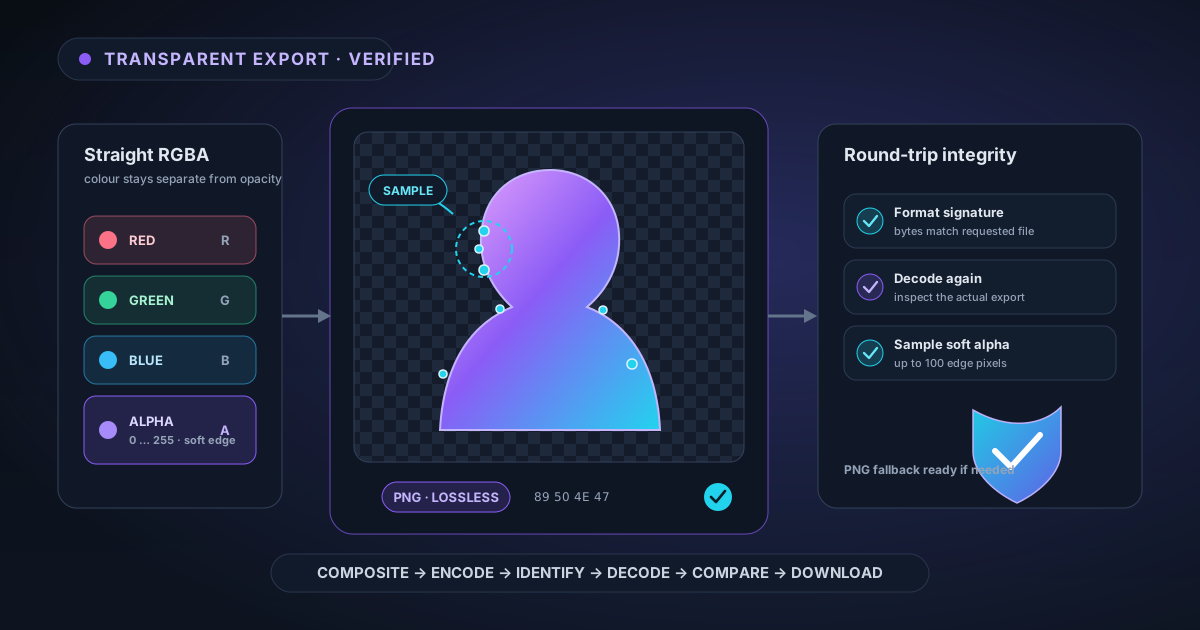
How NSS Verifies a Transparent Export Before You Download It
A checkerboard preview is not proof that a file contains usable transparency. Here is how NSS keeps straight alpha intact, verifies the encoded format, decodes the export again, samples soft-edge pixels, and falls back safely when PNG integrity fails.
By Novus Stream Solutions Editorial Team · Part of the Image processing and on-device AI topic cluster
A transparent checkerboard is a useful preview, but it is not proof. A page can draw a checker pattern behind an image whose file has no alpha channel at all. An encoder can return a blob with the wrong header. A soft mask can become binary during a round trip. RGB values can be damaged under partly transparent pixels and reveal a dark halo only after the cutout is placed on a new colour.
That is why NSS does not treat "the browser gave us a file" as the end of export. The app builds the transparent pixels deliberately, encodes them in the requested format, checks the file signature, decodes the result again, and compares real edge pixels with the mask that went in. PNG also has a separate fallback encoder if that round-trip check fails.
The verification takes place on your device before the download. It is less visible than the Remove button, but it is part of what makes the downloaded asset usable outside our own preview.
Transparency is four channels, not a visual effect
Every output pixel starts as RGBA: red, green, blue, and alpha. Alpha is opacity. A value of zero is transparent, 255 is opaque, and values between them are essential for antialiasing, hair, fur, motion blur, glass edges, and any other soft transition.
The export compositor combines the original source pixels with the edited mask. For a transparent background, the final alpha is the mask value capped by the source pixel's own alpha. If the uploaded image was already partly transparent, background removal cannot make that pixel more opaque than the source. The colour channels remain separate from opacity.
That separation is straight alpha. The RGB does not get multiplied by alpha and baked toward black before storage. The compositor also avoids turning every fully transparent RGB value into zero merely because the pixel cannot currently be seen. Preserving colour information across the boundary makes later compositing more predictable.
If you want the underlying distinction, straight alpha versus premultiplied alpha explains the equations and the halos they can create. The export pipeline is where that theory becomes a file.
Edge colour is cleaned before encoding
An alpha value can be correct while its RGB still carries the old background. Imagine a hair-edge pixel that is half brown hair and half blue wall. The mask may correctly keep it at 50 per cent opacity, but the blue mixed into its RGB will show as a cool rim on a white or orange replacement background.
When edge decontamination is enabled, NSS works on a copy of the source colours and reduces that spill before compositing. For a transparent result it also performs a narrow post-composite halo sweep: an almost-transparent, near-white pixel at the outer fringe is overwhelmingly likely to be leftover studio background, so it can be cleared without flattening the whole edge.
Neither pass turns the mask into a hard silhouette. The goal is to clean contaminated transition pixels while preserving partial alpha where the subject genuinely mixes with the background. That is why Edge Refine offers separate controls for boundary position, softness, and decontamination strength.
The output format changes the promise
The export panel supports PNG, WebP, AVIF, and JPG, but those formats do not make identical promises.
| Format | Transparency | Quality control | Best fit |
|---|---|---|---|
| PNG | Full alpha, lossless | Not needed | Editing handoff, logos, print assets, safest general cutout |
| WebP | Full alpha, compact | Yes | Websites and applications that support WebP |
| AVIF | Alpha with very strong compression | Yes | Small modern web assets where compatibility has been checked |
| JPG | No alpha channel | Yes | A finished image flattened onto white, solid colour, gradient, or another background |
JPG is not a broken transparent export. It is a format that cannot store transparency. If JPG is selected, the compositor supplies a background; white is the safe fallback when none was chosen. PNG, WebP, and AVIF go through the alpha-integrity path.
The broader trade-offs are covered in PNG versus WebP versus AVIF. For an asset that will be edited again, PNG remains the least surprising default. For a finished web placement, WebP or AVIF can be much smaller.
Check 1: does the file identify as the format requested?
An extension and MIME type are labels. The bytes inside the file are the evidence. Immediately after encoding, NSS reads the opening bytes and checks the format signature: the PNG signature for PNG, the RIFF/WEBP markers for WebP, the file-type box for AVIF, or the JPEG start marker for JPG.
If the header does not match the chosen format, the export is aborted instead of downloading a corrupt blob with a convincing filename. This is a small check, but it catches a class of failures that otherwise surface later as "file cannot be opened" in another application.
The filename is added only after the encoded payload has proven what it is.
Check 2: can the browser decode the alpha it just encoded?
A valid PNG signature proves that the file is a PNG. It does not prove that its soft edge survived. The next check decodes the new blob into an image again, draws it on an alpha-enabled canvas, and inspects the pixel data.
The verifier finds positions where the original mask was neither near zero nor near one: the ambiguous edge band that should contain partial transparency. It samples up to 100 of those pixels across the mask and compares the decoded alpha with the expected alpha.
Three failure signals matter:
- Binarisation. A pixel expected to be partly transparent comes back as fully transparent or fully opaque.
- Large alpha drift. The decoded value is too far from the mask value that was encoded.
- Destroyed edge colour. A visible pixel comes back with all-black RGB, a sign that colour information may have been lost or mishandled.
Hard-edged graphics may have no soft pixels to sample. That is valid; an icon with only zero and 255 alpha is not defective merely because it has no feathering. The check adapts to the actual mask rather than demanding partial transparency everywhere.
Check 3: PNG gets an independent fallback
Browser image encoders are fast and normally reliable, but export should not bet the only copy of your result on "normally". If the PNG round trip fails its alpha-integrity check, NSS re-encodes the same ImageData with a pure-JavaScript PNG fallback.
The fallback is independent of the path that produced the failed blob. It is slower, which is why it is not the first choice, but it gives the export a second route that does not repeat the same browser or driver behaviour. The replacement file is then used for the download.
WebP and AVIF still receive the signature and decoded-alpha checks. PNG gets the extra fallback because it is the default handoff format and the one users most often choose specifically for lossless transparency.
Verification itself is not allowed to destroy a successful export. If the browser cannot perform the diagnostic decode even though encoding produced a correctly identified file, the app does not throw away the finished blob solely because the inspection API was unavailable. The check is a guardrail, not a second single point of failure.
Verify the file in the workflow that matters
No automated sample can predict every destination application. After downloading a cutout, test it where the asset will actually live:
- Drop it onto both a dark and a light background. Halos usually reveal themselves on the opposite tone from the original backdrop.
- Reopen it in the NSS image editor. The import path preserves RGBA and recognises an existing cutout rather than treating transparent pixels as black.
- Run it through Check Transparency to see whether the file has any transparent pixels and whether it contains partial alpha.
- If Photoshop shows black, distinguish the canvas display from the file itself. Our guide to transparent PNGs showing black in Photoshop walks through that diagnosis.
- Confirm that the receiving platform accepts the chosen format. A platform that converts PNG to JPG will flatten transparency after a correct NSS export.
The last point is important: export integrity ends at the file we create. A social network, marketplace, email client, or CMS can recompress or flatten it later. Keep the original PNG when the transparent master matters, then make destination-specific copies from that master.
A local guarantee needs local evidence
The source image, mask, compositing, encoding, decoded verification, and fallback all stay in the browser. No cutout is uploaded to an export service, and no server needs to receive the final pixels to validate them. The temporary decoded copy exists only in the local export path and its bitmap is released when the check is finished.
That is the useful meaning of "true transparency" for this app. It is not just a checkerboard in the interface or an image/png label on a download. It is a straight-alpha pixel pipeline, a format signature that matches the request, a round-trip comparison against the working mask, and another PNG encoder ready when the first path cannot prove it kept the edge intact.
Create a cutout with NSS Background Remover, export it as PNG, and place it on a colour the original photo never contained. A clean edge there is the result that matters, and it has already been checked before the file reached your Downloads folder.
Applies to NSS Background Remover v2.3.0 — the release that was current when this article was published.
Was this article helpful?
Your answer is saved in this browser only. This control makes no network request and does not send the answer to an NSS feedback endpoint.