Sticker and Emoji Sizes for Discord, Slack and Telegram, Checked at the Source
The sizes and file limits each platform actually documents for custom emoji and stickers, read from their own pages, including the two places where the documentation is silent. Plus the three things that make a cutout look like a sticker.
By Novus Stream Solutions Editorial Team · Part of the Browser-local editing workflows topic cluster
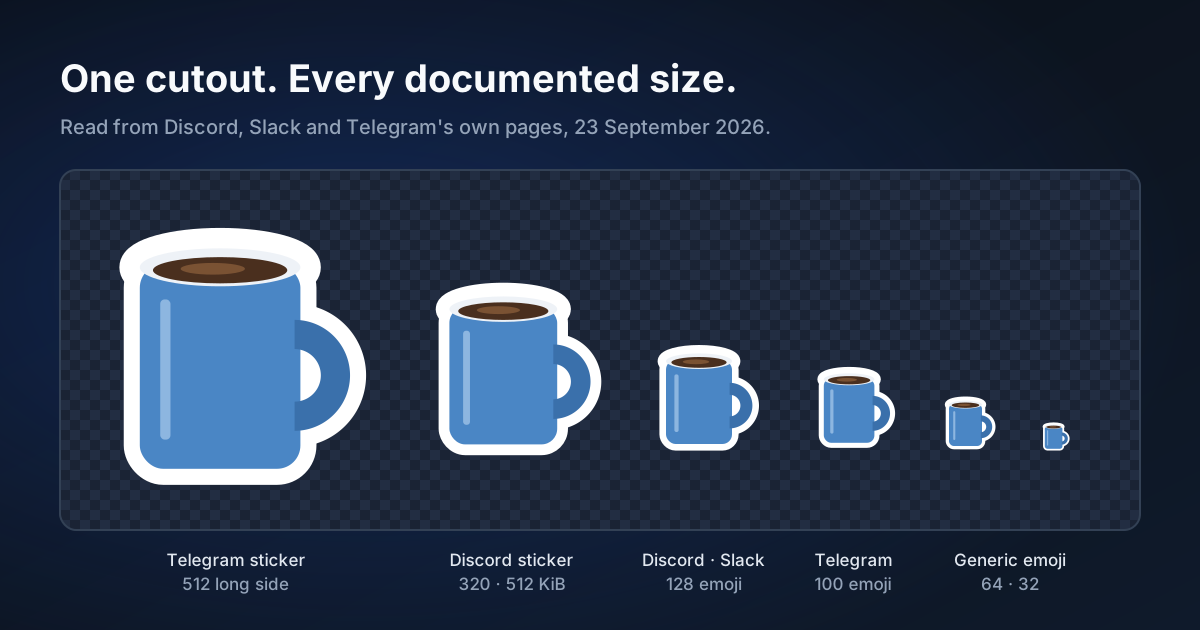
Sticker and emoji sizes get repeated from blog to blog until nobody remembers where they came from. We needed them for the Sticker & Emoji Pack, so we read each platform's own documentation on 23 September 2026. Here is what each one says, and what it does not.
Discord
- Custom emoji: the developer documentation describes the upload as "the 128x128 emoji image" and gives a maximum file size of 256 KiB. (Emoji resource)
- Stickers: 320 by 320 pixels, as a PNG, APNG, GIF or Lottie file, at most 512 KiB. (Sticker resource)
Slack
Slack's help page asks for square images under 128 KB with transparent backgrounds, in JPG, PNG or GIF. (Add custom emoji)
It does not give a pixel size. If you see a Slack emoji size quoted as a rule, it did not come from that page. We make Slack emoji at 128 by 128 because it matches Discord and stays well inside the byte limit, and we say it is our choice.
Telegram
- Stickers: one side exactly 512 pixels, the other 512 or less, as PNG or WEBP.
- Custom emoji: exactly 100 by 100 pixels.
Both come from Telegram's stickers page. That page gives firm size limits for animated and video stickers but no file-size limit for static ones, and the Bot API's upload method points back to the same page. So a tool that tells you a Telegram static sticker must be under some number of kilobytes is not quoting Telegram's current documentation.
What makes a cutout look like a sticker
The sizes are the easy part. Three details decide whether the result looks like a sticker or like a pasted photo.
- An outline of even width with round corners. Draw it a fixed distance out from the subject's edge in every direction and the corners come out round on their own. Scale the width with the sticker size, or a good outline at 512 pixels disappears at 32.
- No dark fringe. When a cutout is shrunk, averaging its fully transparent pixels in as black leaves a grey rim around the subject. Blending colour together with transparency avoids it.
- Nothing important in a thin gap. An outline closes any gap narrower than twice its width. That is the die-cut look, but it is worth knowing before you outline a subject whose point is the gap.
Doing it without the busywork
The Sticker & Emoji Pack makes every size above from one cutout, in your browser, checks each file against its platform's published limit, and hands you a single ZIP. If you only have a photo, it can remove the background first. The rest is a classical transform of your own image: nothing is generated.
Applies to NSS Background Remover v2.6.2, the release that was current when this article was published.
Was this article helpful?
Your answer is saved in this browser only. This control makes no network request and does not send the answer to an NSS feedback endpoint.