What's Actually Inside an AI-Generated Image, and How to Strip It
AI image generators quietly stamp their output with provenance data: C2PA manifests, prompt strings, generator tags. Here is what is actually inside an AI-generated image, why it is there, and how to inspect and strip it losslessly without wrecking the pixels.
By Novus Stream Solutions Editorial Team · Part of the Image processing and on-device AI topic cluster
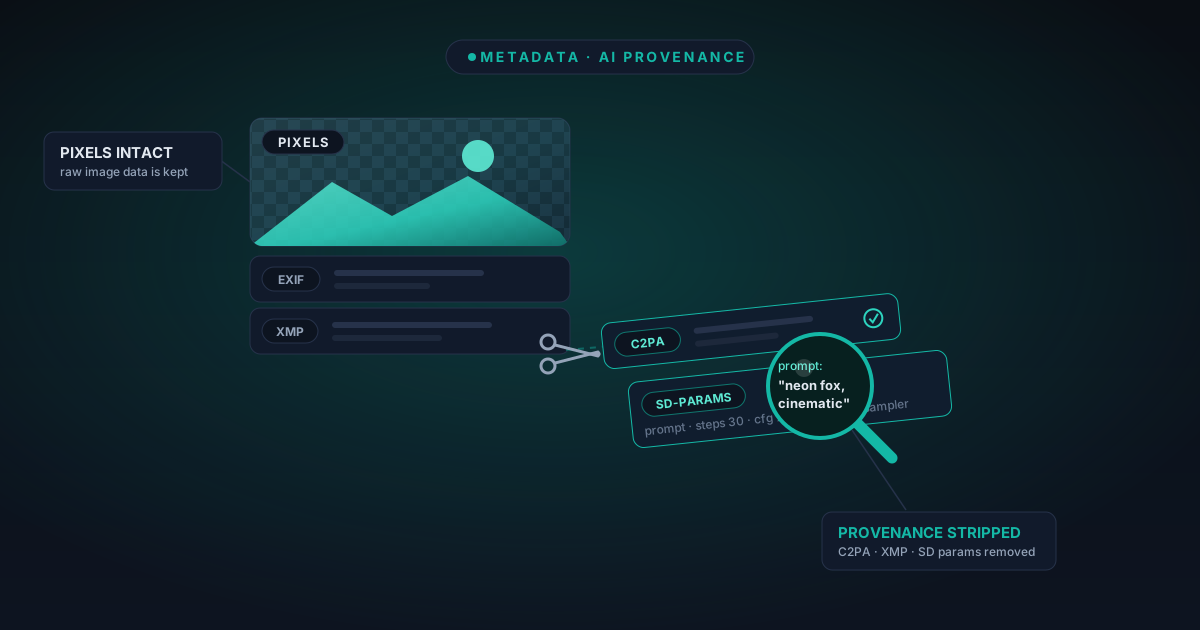
Open any AI-generated image in a text editor and scroll past the pixel data, and you often find a surprising amount of writing: the exact prompt you typed, the sampler and seed, the tool that made it, sometimes a signed manifest tracing the file back to its generator. None of that is in the picture you can see. It sits in the file's metadata: separate blocks bolted onto the image, quietly travelling with it wherever you send it.
That can be useful. It can also leak more than you meant to share. This post is about what actually lives inside a generated image, why some of it is worth keeping, and how to inspect and strip the rest without touching a single pixel.
Metadata 101: the writing that isn't the picture
An image file is not one thing. It is a container. The pixels, the part you look at, are one segment. Around them sit other segments that describe the file, and most viewers never show them to you.
- EXIF: the camera-and-settings block. Shutter speed, ISO, lens, the make and model of the device, timestamps. On a photo taken with a phone this is dense; on a generated image it is often sparse or faked.
- GPS: technically part of EXIF, but worth naming on its own. Latitude and longitude, sometimes to a few metres. This is the block that turns "a photo of my desk" into "a photo of my desk at this address".
- XMP (an Adobe-originated block that holds structured text: editing history, captions, ratings, and) importantly for generated images: provenance tags.
- ICC: the colour profile. This one describes how the numbers in the pixels map to actual colours, so a screen or printer renders them faithfully. Strip it carelessly and colours can shift.
The key idea: these blocks live around the pixels, not inside them. You can remove the writing and leave the picture untouched. That distinction is the whole reason a good stripper does not have to degrade your image, which we will come back to.
What AI generators add on top
A generated image carries the four blocks above, but generators also write their own. This is where privacy and provenance meet, and where the choices get interesting.
- C2PA content credentials. A cryptographically signed manifest, the "Content Credentials" standard, that records that the file was made or edited by AI, by which tool, and sometimes the chain of edits after. It is designed to be tamper-evident and to travel with the file.
- Stable Diffusion "parameters". Many local generators embed a plain-text block containing your full prompt, your negative prompt, the model checkpoint, sampler, steps, CFG scale, and seed. It is human-readable. Anyone who opens the file properly can read exactly how you made it.
- XMP
digitalSourceType=trainedAlgorithmicMedia. A standardised XMP tag that flags the image as generated by a trained algorithm rather than captured by a camera. Platforms increasingly read this to label AI content automatically. - Generator and software tags. Simple strings naming the app, the version, the pipeline. Individually harmless; collectively a fingerprint of your tooling.
Here is a rough map of what each block reveals:
| Block | What it can expose | Keep or strip? |
|---|---|---|
| EXIF / GPS | Device, timestamps, location | Usually strip (GPS especially |
| Stable Diffusion parameters | Your full prompt, seed, model | Strip if the prompt is private |
| C2PA manifest | Signed AI-provenance chain | A deliberate choice) see below |
XMP digitalSourceType | "This is AI" flag | A deliberate choice |
| ICC profile | Colour accuracy | Usually keep |
Why this matters: in both directions
The privacy risk is easy to state. Your prompt is your working method, and sometimes your intellectual property. Post a generated image to a forum or a client and, unless you have stripped it, you may be handing over the exact recipe, including any private notes you tucked into the prompt. If the source image was a real photo you fed in, an inherited GPS tag can point at where you live or work. Our guide to stripping EXIF from photos covers the location angle in more depth.
But provenance is not simply a leak to be plugged. C2PA and the digitalSourceType flag exist for good reasons. If you are an artist labelling your work honestly, a newsroom preserving a chain of custody, or a platform that wants generated images marked as such, that manifest is a feature you want to keep. Stripping it is a legitimate choice, and so is leaving it in.
That is precisely why we treat metadata removal as a choice rather than a default. A tool that silently scrubs everything would quietly destroy provenance that some users are trying hard to maintain. The honest design is to show you what is there and let you decide.
Inspect before you strip
The metadata remover starts by reading, not deleting. Drop an image in and it inspects the file and reports every block it finds, grouped by type: the camera EXIF, any GPS coordinates, the XMP, the ICC colour profile, and, called out on their own, the AI-provenance markers. That last group specifically looks for:
- C2PA manifests
- Stable Diffusion
parameters/ prompt strings - XMP
digitalSourceType=trainedAlgorithmicMedia - generator and software tags
You see what is actually in your file before you change anything. No guessing, no "trust us". Like everything we build, this runs entirely in your browser. The image is never uploaded, there is no account, and nothing is stored between sessions. The reasoning behind that approach is laid out in our note on privacy-first image editing.
Three ways to strip, so you keep what you mean to
Once you have seen the report, you choose what goes:
- Everything. The clean slate. Every non-pixel block removed. Good for a photo you want to share with nothing attached.
- AI-provenance only. Removes the C2PA manifest, the Stable Diffusion parameters, the
digitalSourceTypetag and generator strings, while leaving ordinary EXIF and the colour profile alone. This is the option for "I want my prompt private but I do not need to nuke the whole file". - Custom selection. Pick block by block. Keep the ICC profile so colours stay accurate and keep orientation so the image does not rotate, but drop GPS and the prompt string. This is the surgical option.
The custom path is there because the blocks are not equally disposable. The ICC profile is the clearest example: it carries no personal information, and removing it can shift your colours on the next screen that opens the file. Keeping it while stripping everything sensitive is a perfectly sensible combination.
Lossless removal beats re-encoding
Here is the part that matters for image quality, and it follows directly from metadata living around the pixels rather than inside them.
Many strippers work by re-saving the image: decoding it and encoding a fresh copy without the metadata. For a JPEG that means re-running lossy compression, which throws away a little more detail every time. Do it repeatedly and the image visibly softens.
The metadata remover does lossless block-removal instead. It excises the metadata segments and leaves the compressed pixel data exactly as it was. No decode, no re-encode, no quality loss. A re-encode fallback exists only for a few exotic formats that cannot be edited in place; for the common cases, your pixels come out byte-for-byte identical.
Verify, don't assume
Stripping metadata is only useful if it actually worked, and different tools write these blocks in slightly different places. So after removing anything, the tool re-inspects the output and shows you the fresh report. If a block survived, you will see it. You are not trusting that the strip succeeded. You are looking at the confirmation.
The same metadata controls live inside the image editor too, alongside an export toggle, so you can inspect and strip as the final step of a larger edit rather than as a separate errand. And for video, there is a sibling tool that handles the equivalent container tags.
The short version
Generated images carry more than they show: your prompt, your tooling, sometimes a location inherited from a source photo, and a provenance manifest that may be an asset or a liability depending on who you are. The right move is not "strip everything by reflex". It is to look first, understand what each block does, and remove only what you mean to, without degrading the picture in the process.
When you are ready to see what your files are actually carrying, open the metadata remover, drop an image in, and read the report before you decide. It all happens on your device, and when you close the tab, nothing is left behind.
Applies to NSS Background Remover v1.9.0 — the release that was current when this article was published.
Was this article helpful?
Your answer is saved in this browser only. This control makes no network request and does not send the answer to an NSS feedback endpoint.