Working with Transparent PNGs in Canva: Upload, Use, and Export
How to bring transparent PNGs into Canva without losing quality, position them correctly, and export designs that maintain transparency for print and digital.
By Novus Stream Solutions Editorial Team · Part of the Browser-local editing workflows topic cluster
Canva is one of the most popular design tools for small business owners, social media managers, and creators — and transparent PNGs are central to almost every product-focused design. Here's how to use them correctly.
Uploading Transparent PNGs to Canva
- From any Canva editor, click Uploads in the left panel
- Click Upload files and select your PNG
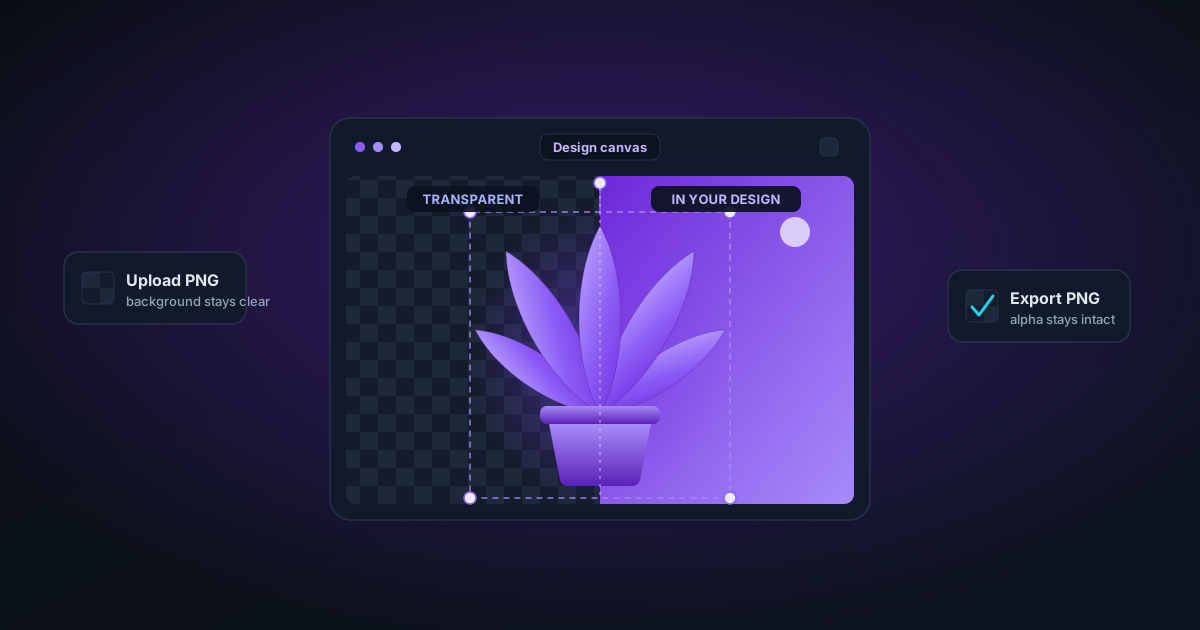
- The file appears in your uploads — you'll see the checkerboard pattern on the thumbnail if transparency is intact
What the checkerboard means: A checkerboard pattern on a Canva image thumbnail indicates the file has transparent areas. If the thumbnail shows a solid background (even white), check whether the original PNG actually has transparency — it may be a white background, not a transparent one.
If the thumbnail shows your subject correctly isolated with a transparent background, you're good to proceed.
Using Transparent Images in Canva Designs
Basic placement
Click your uploaded PNG to add it to the canvas. Drag to reposition, drag corners to resize. Canva composites the transparent areas over whatever is below — your page background, other images, or Canva's canvas.
Layering
Transparent images layer naturally in Canva. Place a product cutout over a styled scene, a text background, or a brand colour. Use the Position tool (via the toolbar or right-click) to move images forward or backward in the layer stack.
Replacing the background behind a transparent image
If you want your cut-out product on a specific background:
- Add a background element first — a Canva background photo, a solid colour rectangle, or a gradient
- Add your transparent PNG on top
- The product composites over the background naturally
Alternatively, use the Background Colour tool (Design panel → Background) to set the page background colour, and your transparent PNG will sit on that colour.
Canva's Background Remover
Canva Pro includes a built-in background remover. It works for simple cases but has limitations compared to dedicated tools:
- Less accurate on hair, fur, and fine details
- Limited edge refinement controls
- Produces premultiplied alpha in some export scenarios (can cause issues in Photoshop)
- No soft-edge control or decontamination
For quick social media graphics where edge quality isn't critical, Canva's built-in remover is fine. For product photography, portraits, or anything going into a professional workflow, use NSS Background Remover first, then import the clean PNG into Canva.
Exporting from Canva with Transparency
PNG export (with transparency)
- Click Share (top right) → Download
- Select PNG as the file type
- Check the "Transparent background" checkbox — this is the critical step
- Click Download
Without the transparent background checkbox, Canva composites your design onto a white background and exports a flat PNG. The transparent areas become white, not transparent.
When Canva Pro is required for transparent export
The "Transparent background" option on PNG export requires Canva Pro. Free users can still work with transparent images inside Canva but exports always include a background.
Workaround for free users: Design your composition (product on your chosen background) and export normally — the result is a flat image but that's often fine for social media and print use cases where transparency isn't needed at the final output stage.
PDF export and transparency
For print projects (brochures, flyers, business cards), use PDF Print export — it preserves transparency and vector elements. PNG for digital, PDF for print.
Transparency Issues in Canva: Troubleshooting
Transparent PNG looks correct in uploads but white in design
The image may have a white background embedded — it just looks transparent as a thumbnail because of anti-aliasing. Check by placing on a coloured background: if the white doesn't disappear, the PNG has a white background.
Fix: Re-process in NSS Background Remover.
Dark halo or black fringe around subject
This is premultiplied alpha from the source tool. The RGB values at semi-transparent edge pixels are corrupted.
Fix: Re-export from NSS Background Remover. Canva shows premultiplied alpha correctly — it's the source file that's wrong.
Edges look rough after placing in Canva
Canva applies slight compression when storing uploaded files internally. For high-resolution work, upload at 2× your intended display size. Also check that the source file used soft edges, not binarized hard edges.
Exported PNG from Canva shows black in Photoshop
If you exported a design from Canva and the transparent areas show black in Photoshop, check:
- Was "Transparent background" checked during export?
- Was any element in your Canva design placed on a black background layer?
If both are fine, this is rare but can happen. Try re-downloading the file — it can be a Canva server-side rendering quirk.
Practical Workflows
Product listing image
- Remove background from product photo in NSS Background Remover
- Export PNG with transparency
- Upload to Canva
- Create a 2000 × 2000 canvas
- Set background to white
- Place product cutout — scale to fill 80% of canvas, centred
- Export as PNG at 300 DPI (Canva Pro) or standard PNG
Social media post with product cutout
- Remove background in NSS Background Remover
- Upload to Canva
- Start from a template or blank 1080 × 1080 canvas
- Layer: background photo or colour → product cutout → text elements
- Export as PNG or JPG (JPG if no transparency needed in the final output)
Instagram Story with transparent product
- Remove background in NSS
- Canva canvas at 1080 × 1920
- Place a lifestyle background image full-bleed
- Overlay product cutout — scale, position, adjust opacity if desired
- Add brand text and call-to-action
- Export PNG
Tips
Keep originals: Save your transparent PNGs from NSS before importing to Canva. Canva's internal storage is compressed and you can't extract originals later.
Upload at actual use size: For a 1080px design, an image larger than 2160px (2×) offers no quality benefit and uploads slower.
Use Smart Mockups: Canva Pro's Smart Mockup tool lets you place product images into pre-made scenes. Your transparent PNG works naturally with these.
Folder organisation: If you manage multiple brands or product lines, use Canva's Folders feature (Pro) to organise brand-specific transparent PNGs separately from lifestyle photos.
Applies to NSS Background Remover v0.2.0 — the release that was current when this article was published.
Was this article helpful?
Your answer is saved in this browser only. This control makes no network request and does not send the answer to an NSS feedback endpoint.