Emote Prep for Twitch and Discord: Transparency, Sizing, and Clean Edges
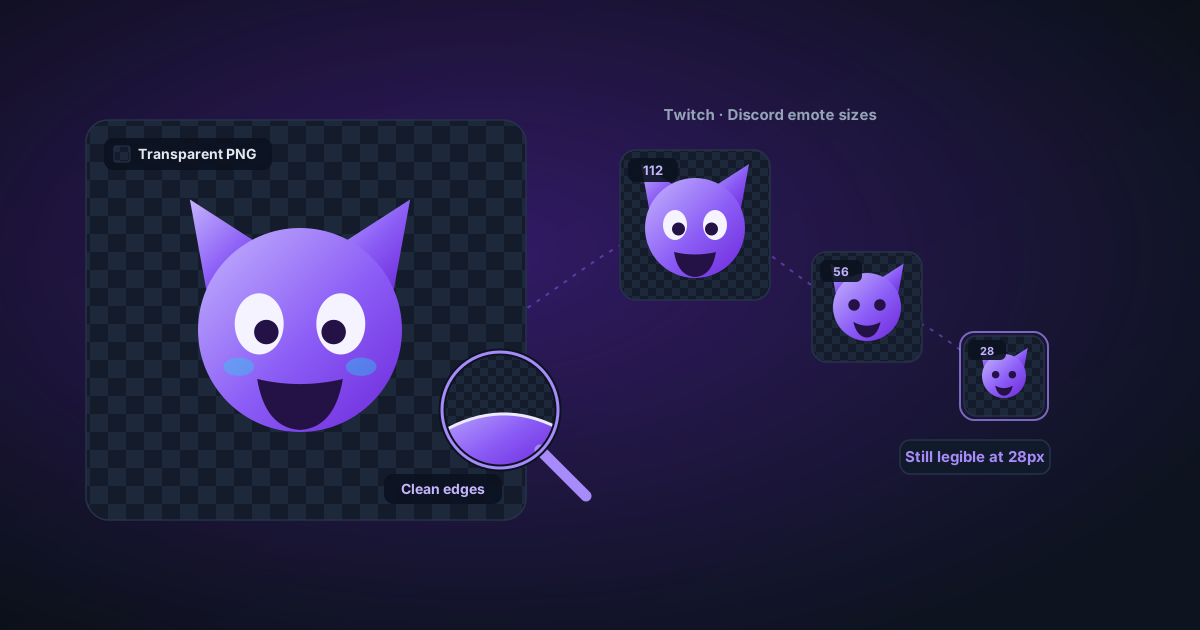
Twitch emotes render at 28 pixels: smaller than a favicon. Here's the transparency, sizing, and edge-cleanliness workflow that keeps a cutout legible at emote scale.
By Novus Stream Solutions Editorial Team · Part of the Browser-local editing workflows topic cluster
A Twitch subscriber emote is delivered to chat at 28 pixels square. That is smaller than the favicon in your browser tab, and roughly the width of the cursor you are reading with. At that size an emote stops being a picture and becomes a silhouette with a bit of colour attached: about 784 pixels of information total, and most of them are carrying no weight at all.
This is the thing nobody tells you before your first emote submission gets waved through and then reads as a brown smudge in a fast-scrolling chat. The problem is almost never resolution. It is that the design was judged at the size you drew it, not the size it ships at.
Why tiny display changes everything
At full size, a soft anti-aliased edge looks tidy. At 28 pixels, that same soft edge is now three or four semi-transparent pixels wide, a meaningful fraction of the whole image, and it turns your crisp cutout into a hazy blob that bleeds into the chat background. Fine internal details (a thin outline, a tiny highlight, lettering) simply vanish. Contrast that looked fine against your white canvas disappears against Twitch's dark chat or Discord's near-black.
So the two things that matter most for emotes are the two things that matter least everywhere else: edge cleanliness and a readable silhouette. Get those right and a simple design sings. Get them wrong and no amount of detail rescues it, because the detail is gone by the time anyone sees it.
Sizes and formats: what each platform actually wants
Treat everything below as a starting map, not gospel: platforms revise these rules, and the only authority is the upload dialog in front of you. Confirm the current spec in each dashboard before you export a full set.
Twitch emotes render at three sizes: 28, 56, and 112 pixels square. In practice you design and export at 112 and let the platform produce the smaller two, but you should always preview your own 28-pixel version, because that is where designs fail. Emotes want transparent PNG, with a per-file size cap you should check in the creator dashboard.
Twitch sub badges are a separate, even smaller set: commonly 18, 36, and 72 pixels. A badge is basically a tiny icon and should be designed like one: one shape, one or two colours, no lettering.
Discord custom emoji are typically prepared around 128 pixels square and displayed far smaller in chat, with a strict per-file weight limit (Discord is notably stingy here, so expect to compress). Discord stickers are larger and have their own dimensions and format rules. Check the server settings page, as sticker specs differ from emoji and change more often than you would like.
Animated emotes are a different animal. Twitch supports animated emotes, and Discord animated emoji and BTTV/FFZ entries lean on GIF or APNG. These carry tight frame-count, dimension, and file-size limits, and honestly they are fiddly enough that you will often re-time and re-size them in a dedicated animated-GIF exporter. The cut-out and edge work below still applies to every frame, but do not expect a still-image workflow to hand you a compliant animated file.
BTTV and FFZ are third-party and more permissive, often allowing larger frames and animation your channel emotes can't use. Read each extension's own limits; do not assume Twitch's rules carry over.
The cut-out and export workflow
For a static emote, the pipeline is short and forgiving.
-
Start from the largest clean source you have. Ideally the art was drawn or shot with an emote in mind: bold, centred, uncluttered. If your only source is a small existing logo or avatar, run it through the image upscaler first so you have real pixels to cut and clean, rather than trying to carve a crisp edge out of a blurry 60-pixel original.
-
Remove the background. Drop the image into the background remover to get a transparent PNG. Everything is processed on your own device, nothing is uploaded, which is worth knowing when the source is unreleased channel art or a commissioned design you would rather not post to a stranger's server.
-
Tighten, centre, and pad in the editor. Open the cutout in the image editor and crop close to the subject, then add a small, even margin so the artwork does not kiss the frame edge. Emotes that touch their own border look cramped and clip awkwardly against chat UI. Centre the subject; a badge or emote that sits off to one side reads as a mistake at small sizes.
-
Add a contrasting outline while you are here. A thin stroke that separates the subject from whatever is behind it is the single most effective emote trick. More on getting it right below.
-
Export as PNG, then preview at the real size. Export your master, then look at it shrunk to 28 pixels (or 18 for a badge) before you submit anything. Squint. If you cannot tell what it is, neither can chat.
If you are making general stickers, avatars, or Instagram cutouts rather than platform emotes, the broader cutout workflow covers the general case. This guide stays fixated on the specific tyranny of the 28-pixel render.
Make it read at 28 pixels
Everything in this section is about surviving the downscale.
Simplify the silhouette. Before colour or detail, ask whether the outline shape alone communicates the emote. A pog face, a raised fist, a mug, recognisable as a black shape on white. If the silhouette is mush, the emote is mush.
Design for both dark and light backgrounds. Twitch chat is dark; Discord can be either. A dark-outlined subject that looks great on white may disappear against a near-black chat. This is why an outline matters so much.
Add a proportional outline, not a fixed one. A 3-pixel stroke on a 112-pixel export becomes barely a pixel at 28 and vanishes. Think in proportion: a border thick enough to still register after a 4x reduction. A pale or white outline reads on dark backgrounds; a subtle dark inner edge keeps it from glowing on light ones. Some designers use both: a light halo with a thin dark keyline.
Kill fine detail and small text. Thin whiskers, single-pixel highlights, and lettering under a few characters are all lost at emote scale. If a word is essential, it needs to be short, bold, and huge relative to the frame, or dropped entirely.
Push contrast harder than feels natural. Muted, tasteful palettes turn to grey sludge when the pixels are this few. Bump saturation and tonal separation so shapes stay distinct after downscaling.
Test at size, on the actual background. Paste your 28-pixel export onto a swatch of Twitch-dark and Discord-dark and look at it small. This one habit catches more failures than any checklist.
Quick pre-submission checklist
- Silhouette is recognisable as a solid shape
- Transparent PNG, edges crisp with no leftover halo or fringe
- Subject centred with a small even margin
- Outline still visible at the smallest render size
- Reads against both dark and light chat
- Previewed at 28 px (or 18 px for a badge) before upload
- File size within the platform's current cap
One honest limit to close on: if the source art is genuinely low-resolution or was never designed to work small, no cutout or upscale will save it. An emote that depends on detail the format cannot show is not a prep problem. It is a design problem, and the fix is to redraw it bolder, not to fight the exporter.
Applies to NSS Background Remover v1.8.0 — the release that was current when this article was published.
Was this article helpful?
Your answer is saved in this browser only. This control makes no network request and does not send the answer to an NSS feedback endpoint.