Stabilize Shaky Handheld Video in Your Browser (and Keep the Audio)
How in-browser video stabilization works — motion estimation, trajectory smoothing, and why a fast frame-by-frame encode beats a real-time screen recording. Plus how to keep your audio track.
By Novus Stream Solutions Editorial Team · Part of the Browser-local editing workflows topic cluster
Handheld footage is jittery because your hands are not a tripod. Every micro-movement shifts the frame a few pixels in a slightly different direction. Stabilization undoes that — it figures out how the camera actually moved, then counter-shifts each frame so the result looks locked down. Here is how it works when it runs entirely in your browser.
Three phases: estimate, smooth, render
Stabilization is not one algorithm; it is a pipeline.
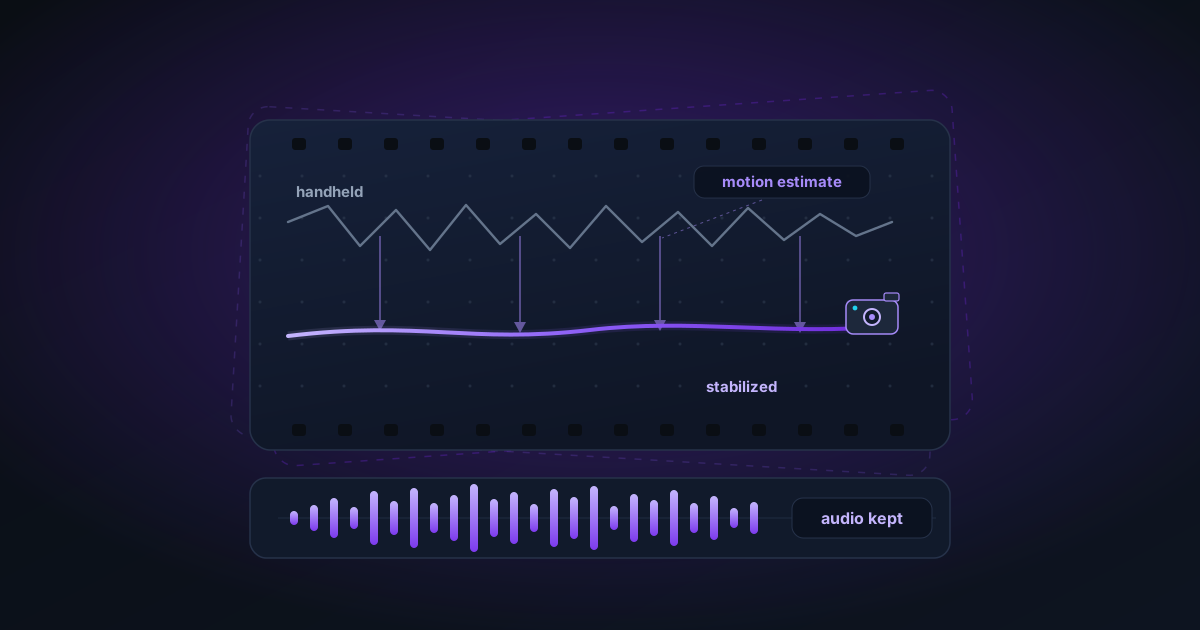
1. Estimate the motion. For each pair of consecutive frames, the tool measures how far the image shifted. It does this with block matching: sample a grid of points, then search a small window around each one in the next frame for the offset that best lines them up. Run that at quarter resolution and you get a fast, robust per-frame (dx, dy) — the camera's apparent movement.
2. Smooth the trajectory. Add up those per-frame offsets and you get the camera's path over time. A shaky path looks like a scribble; a smooth path looks like a gentle curve. Subtract one from the other and the difference is exactly the correction each frame needs. A moving-average window does the smoothing — a wider window (higher strength) produces calmer footage but needs more crop room.
3. Render and crop. Apply each correction by shifting the frame, then crop inward so the shifted edges never reveal blank borders. The stronger the shake, the more crop budget you spend.
The detail most tools get wrong: the export
A surprising number of browser tools "export" stabilized video by replaying the corrected frames into a MediaRecorder in real time. That means a 30-second clip takes at least 30 seconds to encode — and the captured stream usually drops your audio entirely.
The faster, cleaner approach is to render each corrected frame to a JPEG and hand the whole sequence to an in-browser FFmpeg build, which encodes an H.264 MP4 at its own pace — far quicker than real time — and muxes your original audio track back in. Same privacy (nothing uploaded), much better output.
Practical tips
- Leave headroom. Stabilization always crops. If a shot is critical edge-to-edge, shoot a little wider so there is room to correct.
- Match strength to the shake. Gentle handheld needs a small window; walking shots need a wider one. Too much smoothing on a slow pan can feel like the footage is "floating."
- Stabilize before you grade. Crop and motion changes first; colour and filters last, so your grade is applied to the final framing.
Stabilization will not rescue motion blur — if individual frames are blurry from a slow shutter, smoothing the path cannot sharpen them. But for the common case of "my hands were not steady," a good three-phase pipeline turns unusable footage into something you would actually post.
Applies to NSS Background Remover v1.7.0 — the release that was current when this article was published.
Was this article helpful?
Your answer is saved in this browser only. This control makes no network request and does not send the answer to an NSS feedback endpoint.