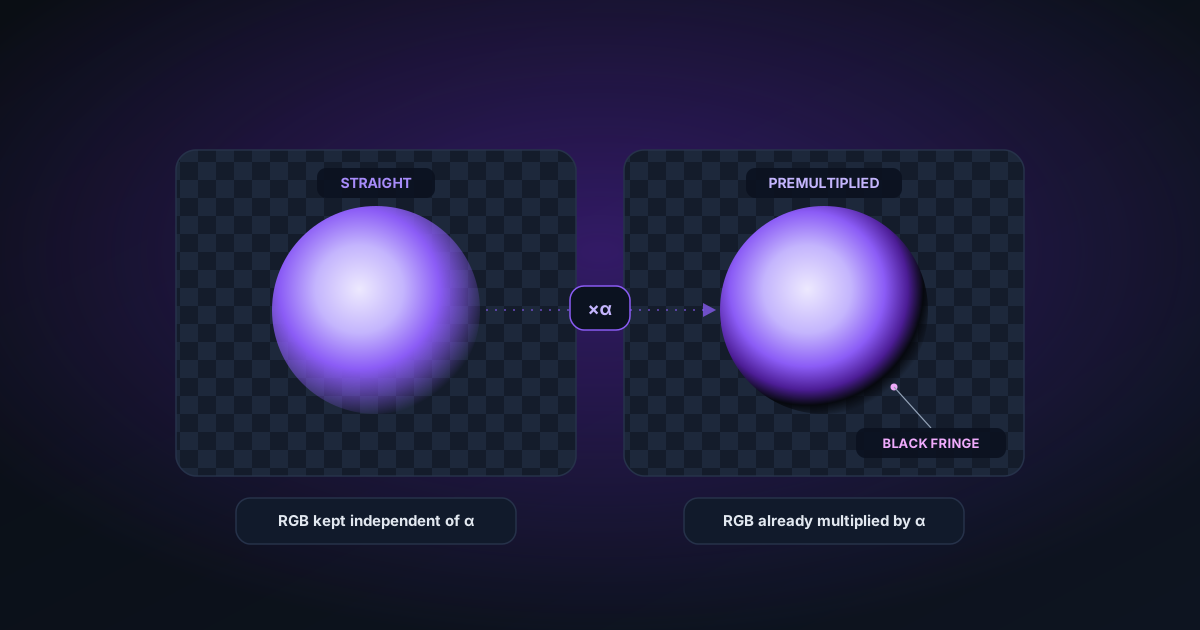
The Difference Between Straight Alpha and Premultiplied Alpha (And Why It Matters)
A clear technical explanation of straight alpha vs premultiplied alpha — what each means, why premultiplied alpha causes the "black fringe" problem, and how to tell which one your tool produces.
By Novus Stream Solutions Editorial Team · Part of the Image processing and on-device AI topic cluster
If you've ever opened a transparent PNG in Photoshop and seen a black background instead of the expected checkerboard — that's a premultiplied alpha problem. It's one of the most common issues in digital imaging workflows, and understanding it takes about five minutes.
The Basics: What Alpha Is
Every pixel in an image with transparency has four values: Red, Green, Blue, and Alpha.
- R, G, B (0–255): the colour of the pixel
- Alpha (0–255 or 0–1): the opacity — 0 is fully transparent, 255 is fully opaque
A soft edge on a cut-out subject has pixels where alpha is somewhere in between — say, 128, meaning 50% transparent. This is what produces smooth, natural-looking edges rather than hard jagged ones.
Straight Alpha
With straight alpha, the RGB values are stored independently of the alpha value. The colour of a pixel is stored as-is, regardless of how transparent it is.
Example: A 50% transparent red pixel
R: 255 G: 0 B: 0 A: 128
The red value (255) is the true colour. The transparency information (128) is stored separately and applied only at render time. The colour and the transparency are independent.
A fully transparent pixel (A: 0) might still have a stored RGB value:
R: 255 G: 128 B: 0 A: 0
That pixel is invisible — but the colour information is preserved. This matters when you composite the image over different backgrounds or adjust transparency levels.
Premultiplied Alpha
With premultiplied alpha, the RGB values are pre-multiplied by the alpha value before storage. The idea was an optimisation: if you're going to composite this pixel onto a background by multiplying alpha anyway, do it once at export and skip the multiplication at render time.
The same 50% transparent red pixel in premultiplied alpha:
R: 128 G: 0 B: 0 A: 128
R has been multiplied by alpha (255 × 128/255 ≈ 128). The stored colour is no longer the true colour — it's been mathematically modified.
For the fully transparent pixel:
R: 0 G: 0 B: 0 A: 0
All RGB values are zero. The colour information is gone.
Why Premultiplied Alpha Causes the Black Fringe
Here's the problem.
When you open a premultiplied PNG in Photoshop, it reads the alpha values, creates a transparency layer, and then tries to undo the premultiplication to recover the straight-alpha values — a process called "un-premultiplication" or "straight alpha conversion."
For the 50% red pixel:
- It reads R: 128, A: 128
- It calculates true R = 128 / (128/255) = 255 ✓ (Recoverable)
For the fully transparent pixel:
- It reads R: 0, A: 0
- It calculates true R = 0 / (0/255) = division by zero
Division by zero produces black. All pixels where alpha is 0 show as black, because there's literally no information to recover.
This is why you see black specifically at the areas that should be transparent. The solid opaque areas are fine (alpha=255, so division by 255 recovers the correct values). The semi-transparent edge areas might be okay or slightly off. The fully transparent areas are unrecoverably black.
The "Black Fringe" Problem Explained
Background removal produces soft edges with many partially-transparent pixels (alpha between 1 and 254). At the very edge of those soft pixels, some reach alpha=0 (fully transparent).
When those alpha=0 pixels are stored with premultiplied alpha, their RGB values are zeroed. When a compositing tool tries to read them back as straight alpha, those pixels are black.
Result: a dark or black fringe around the cut-out subject, most visible against light backgrounds.
This is not a rendering bug in Photoshop. It's not a viewer problem. The data was destroyed at export time. Straight-alpha PNGs don't have this problem because the RGB values are preserved even at zero alpha.
How RGB Destruction Happens at Alpha = 0
This goes deeper than just the black fringe. In a straight-alpha file, even pixels with alpha=0 store their original RGB colour. Why would you want colour under a transparent pixel?
Animation and compositing. A character that fades in from zero opacity transitions through smooth intermediate states. If the RGB values at alpha=0 are zeroed, the edges of the character show black as it fades in (at alpha=1, 2, 3..., the premultiplied RGB is still near-black before climbing back to correct values).
Editing. If you paint the alpha channel to restore a previously-transparent area, straight alpha gives you the original colour back. Premultiplied gives you black.
Edge anti-aliasing. The sub-pixel anti-aliasing at hard edges works by slightly reducing alpha at the very outermost pixels. If those pixels have zeroed RGB, the anti-aliasing produces dark fringing.
NSS Background Remover preserves original RGB values at every alpha level, including alpha=0. This is non-negotiable for the products we export.
How to Tell Which Type Your File Has
The Photoshop test
Open the PNG in Photoshop. Look at transparent areas:
- Checkerboard, clean soft edges → straight alpha ✓
- Black where transparent, dark fringe at edges → premultiplied ✗
The pixel inspector test
In Photoshop: Window → Info. Move your cursor over a semi-transparent edge pixel. Check R, G, B, A values.
Expected straight alpha (red subject, 50% transparent edge): R ≈ 255, G ≈ 0, B ≈ 0, A ≈ 128 Premultiplied (same pixel): R ≈ 128, G ≈ 0, B ≈ 0, A ≈ 128
In the premultiplied case, R is roughly half of what it should be at 50% alpha.
The transparency checker
Upload your PNG to NSS's transparency checker tool. It samples 100 random semi-transparent pixels and verifies:
- Alpha values are non-binary (not just 0 or 255 — soft edges exist)
- RGB values at semi-transparent pixels are consistent with the non-premultiplied expectation
Which Applications Use Each?
Tools that export straight alpha (correct):
- NSS Background Remover (all formats)
- Photoshop (Export As PNG, when done correctly)
- Figma (PNG export)
- Affinity Photo and Affinity Designer
Tools known to export premultiplied alpha:
- Some older versions of GIMP
- Some web-based background removers (not all — check each one)
- Some video export pipelines (video uses premultiplied alpha by convention; check if the tool converts on PNG export)
- Some Python image libraries if not configured correctly
Browser rendering: Web browsers handle both types transparently (pun intended). HTML5 canvas compositing uses premultiplied alpha internally for performance, but modern browsers convert correctly on display. You won't see the black fringe issue in a browser — only in professional compositing tools that are stricter about alpha correctness.
Why We Use Straight Alpha
NSS Background Remover was built specifically because the "black box in Photoshop" problem was common and annoying. The entire pipeline — from inference output to mask operations to encoding — maintains straight alpha throughout.
We verify this with an automatic integrity check after every export: the encoder is run and the output is decoded and sampled. If any format test produces premultiplied alpha, it fails the build.
True transparency means your PNG opens correctly the first time, in any professional tool, without workarounds.
Applies to NSS Background Remover v0.2.0 — the release that was current when this article was published.
Was this article helpful?
Your answer is saved in this browser only. This control makes no network request and does not send the answer to an NSS feedback endpoint.