Processing Hundreds of Images in the Browser Without Crashing the Tab
Cutting out 50 images is easy. Doing 500 is a different problem — memory, tab throttling, and what happens when a browser runs out of RAM mid-job. A practical playbook for high-volume batch runs that actually finish.
By Novus Stream Solutions Editorial Team · Part of the Browser-local editing workflows topic cluster
There's a clean tutorial for removing backgrounds from a folder of images, and then there's the reality of doing it to a catalogue of several hundred. The two are not the same task. At small volumes, you barely notice the constraints of the browser. At a few hundred images you start running into the actual physics of a tab: finite RAM, background throttling, and the ungraceful way a renderer dies when it runs out of memory.
This is the playbook for the second case — getting a genuinely large run to finish without a white-flash reload that loses everything.
Understand the real bottleneck first: RAM, not speed
People assume the limit on a big batch is processing speed. It isn't. The model chews through images at a few seconds each; given time, speed sorts itself out. The thing that actually kills a large run is memory.
Every full-resolution image you decode into the page holds onto memory until it's released. A 4000×3000 photo decoded to raw pixels is roughly 48 MB in memory, regardless of how small the JPEG was on disk. Hold a few dozen of those alive at once — the input, the cutout, an intermediate canvas — and a tab can blow past its memory ceiling. When it does, the browser doesn't show you a tidy error. It kills the renderer process. The tab flashes white, reloads, and your queue is gone. (We wrote about exactly this failure mode in The "White Flash" Bug.)
So the entire strategy for hundreds of images is: never hold more in memory than you need for the image in front of you.
The architecture that makes it safe
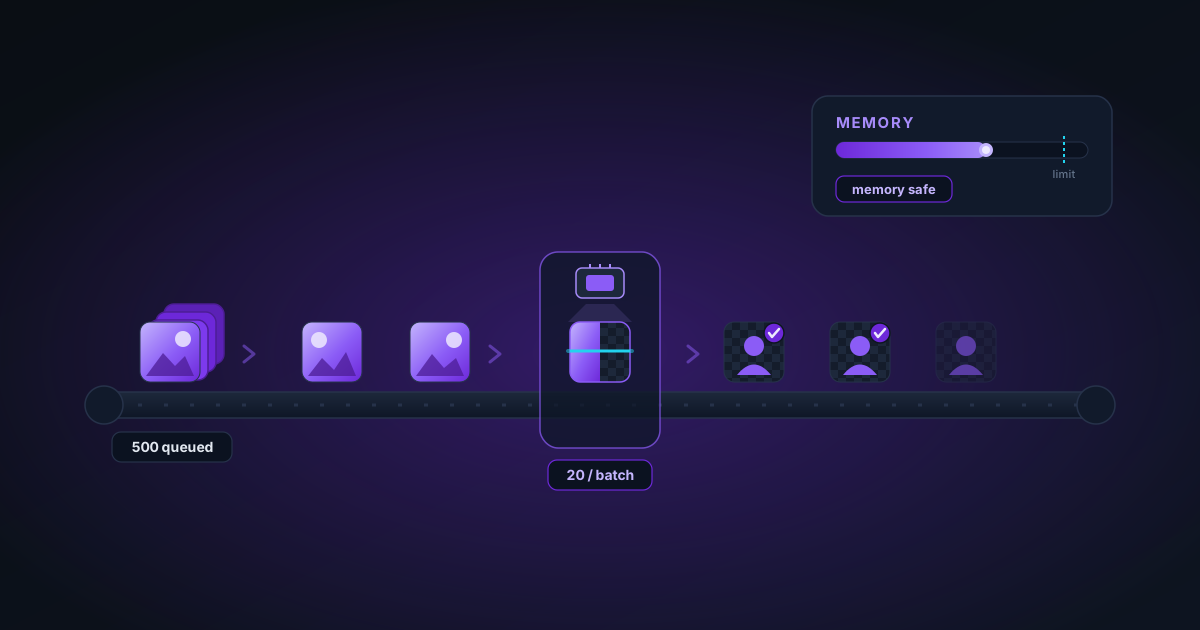
The background remover is built around streaming, not loading everything up front. It processes images one at a time through a queue: decode image N, run the model, write out the transparent PNG, release image N's memory, then move to N+1. At no point are all 500 images sitting decoded in RAM. This is the single most important design choice for high volume, and it's why a large run finishes instead of crashing.
You can lean into that architecture with a few habits.
Habit 1: Feed it a ZIP, not 500 file-picker selections
Selecting hundreds of files in a file picker is fragile — the OS dialog and the browser both strain. Zip the folder and drop the single ZIP onto the background remover. It extracts supported formats (PNG, JPG, WebP, AVIF) and feeds them into the queue as it goes, rather than materialising all of them at once. One file in, hundreds of cutouts out.
Habit 2: Downscale monster inputs before you start
A 50-megapixel phone photo is overkill for almost any listing or thumbnail, and each one is a memory spike. If your sources are huge, resize the longest edge to ~2000 px before batching. The cutout quality is identical for any normal use, and the memory pressure drops dramatically. The image resizer handles this; for a folder, do the resize pass first, then batch the resized set.
A rough rule: if any input is above ~4000 px on its longest side, downscale first. Your run will be faster and far less likely to hit the memory wall.
Habit 3: Keep the tab visible and the laptop awake
Browsers aggressively throttle background tabs to save power — timers slow down, work stalls. For a multi-minute run, this can pause your batch indefinitely the moment you switch tabs. So:
- Keep the batch tab in the foreground. Don't minimise the window.
- Disable system sleep, or plug in and keep the lid open.
- Don't let the screensaver kick in on a long run.
It feels old-fashioned to babysit a tab, but a 20-minute run on hundreds of images is exactly when throttling bites.
Habit 4: Split truly enormous runs into chunks
If you're doing something genuinely large — a thousand-plus image archive migration — don't try to do it in one queue. Split it into batches of 200–300, process each, download the ZIP, then start the next. This caps the worst-case memory and gives you durable checkpoints: if something interrupts batch 3, you still have batches 1 and 2 safely downloaded. It also lets you spot a systematic problem (wrong crop, wrong model choice) after 200 images instead of 1,000.
What "done" looks like and how to collect results
Each cutout becomes downloadable the moment it finishes, named [original-name]-nobg.png. For a big run, ignore the per-image downloads and wait for Download all (ZIP) at the end — one ZIP of every transparent PNG. Downloading them individually for hundreds of files is its own tedium.
Throughput expectations at volume
| Hardware path | Per-image | 300 images |
|---|---|---|
| WebGPU (Chrome/Edge, modern GPU) | 3–8 s | ~15–40 min |
| WASM multithreaded | 8–20 s | ~40–100 min |
| WASM single-threaded | 20–60 s | hours — chunk it |
If you land on the single-threaded path, that's a signal: your browser isn't getting the threads or GPU it needs. Use a recent Chrome or Edge, and check that the tab has the cross-origin isolation that unlocks multithreaded WASM. On the slow path, splitting into smaller chunks and running them across a couple of sessions is more reliable than one marathon queue.
Handle the exceptions separately — don't let them stall the batch
A few images in any large catalogue are hard: clear packaging, wispy hair, reflective metal. Don't try to perfect those inside the batch. Let the batch produce its best automatic cut for everything, then pull the handful of problem images into the main editor afterward for brush-based cleanup. Trying to tune for the hard 2% slows down the easy 98%.
The summary checklist
Before you kick off a run of hundreds:
- Resize any inputs above ~4000 px.
- Zip the folder; drop the single ZIP.
- Chunk anything over ~300 images.
- Keep the tab foregrounded, device awake and plugged in.
- Grab the final ZIP; clean up exceptions individually after.
Do those five things and a several-hundred-image run will finish in one sitting, entirely on your device, without a single byte uploaded and without the tab dying on image 287.
Was this article helpful?
Your answer is saved in this browser only. This control makes no network request and does not send the answer to an NSS feedback endpoint.