How to Create a Multi-Size Favicon .ICO from a PNG (Free, No Photoshop)
The ICO format explained, why favicons need multiple embedded sizes (16×16 to 256×256), and how to generate a proper .ico file directly in your browser from any logo or icon PNG.
By Novus Stream Solutions Editorial Team · Part of the Image processing and on-device AI topic cluster
The .ico file format is older than the web itself, but it's still the standard format for browser favicons. Understanding why it exists — and how to create one correctly — saves a lot of confusion when setting up a new site.
What Is an ICO File?
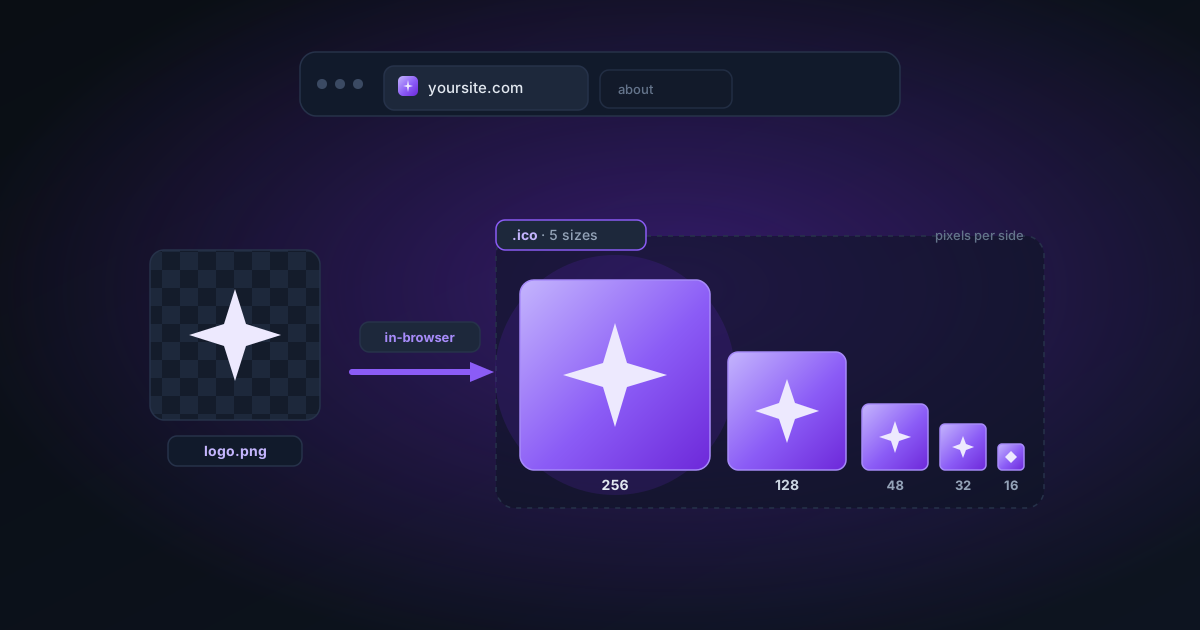
An .ico file is a container format that bundles multiple images of different sizes into a single file. When a browser requests /favicon.ico, it picks the most appropriate size for the current display context:
- 16×16 — browser tab favicon (standard display)
- 32×32 — browser tab on high-DPI displays, Windows taskbar, browser shortcuts
- 48×48 — Windows application icon at standard size
- 64×64 — Some Windows display contexts
- 128×128 — macOS Dock icons, Windows Jump List
- 256×256 — High-DPI desktop shortcut icons
A properly built ICO file includes all of these sizes so the OS and browser can always pick the sharpest version for the current context.
ICO vs PNG for Favicons
Modern browsers support <link rel="icon" href="/icon.png" type="image/png"> directly — so PNG favicons technically work. However:
/favicon.ico(at the root) is automatically requested by browsers and crawlers even without a<link>tag- ICO files handle the multi-size requirement in a single file
- Some older tools and systems still only look for
.ico
The best practice: provide both. A /favicon.ico with multiple sizes for browser compatibility, plus a <link> to a 512×512 PNG for modern Apple and Android home screen icons.
How ICO Files Are Structured
The ICO format has a simple binary structure:
- Header (6 bytes): reserved (
0x0000), image type (0x0001for icon), count of images - Directory entries (16 bytes per image): width, height, palette size, reserved, planes, bit depth, data size, data offset
- Image data: each image stored as a PNG or BMP chunk
Width and height of 256 are stored as 0 in the directory entry per the ICO spec — a quirk to be aware of when parsing ICO files.
The NSS ICO Creator handles all of this automatically: upload a PNG, choose which sizes to include, and download a correctly structured .ico file.
Tips for Good Favicons
Start with a square image. Favicons are rendered square — if your logo is horizontal or has a wide aspect ratio, you'll need a square version. Most designers create a standalone favicon mark separate from the full wordmark.
Simple designs scale better. A detailed illustration that looks great at 256×256 becomes unreadable at 16×16. Test at 16×16 before committing to a favicon design.
Remove the background. A favicon with a transparent background renders correctly whether the browser tab is light or dark. A white background favicon looks wrong in dark mode. Use the Background Remover before creating your ICO.
Use high contrast. At 16×16, there are only 256 pixels total. High contrast between the icon and the transparent background is more important than fine detail.
Related Tools
- ICO Creator — Convert PNG to multi-size favicon .ico
- Image Background Remover — Remove background before creating transparent favicon
- Image Resizer — Resize logo to square before converting
- Grayscale Converter — Preview how your favicon looks in greyscale
Applies to NSS Background Remover v0.9.0 — the release that was current when this article was published.
Was this article helpful?
Your answer is saved in this browser only. This control makes no network request and does not send the answer to an NSS feedback endpoint.