Grayscale, Sepia, and Invert: Classic Photo Effects in Your Browser
How grayscale conversion (luminance weighting), sepia tone (matrix transform), and invert effects work at the pixel level — and when to use each for product photography, branding, and art.
By Novus Stream Solutions Editorial Team · Part of the Image processing and on-device AI topic cluster
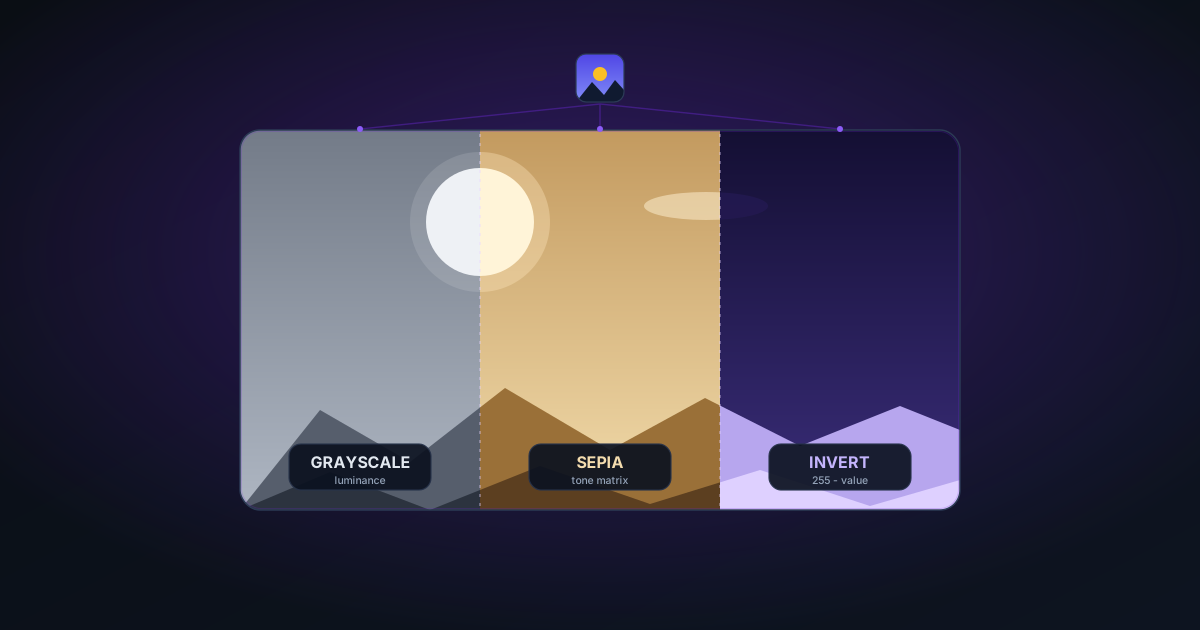
Grayscale, sepia, and invert are three of the most enduring effects in photography — and each has a precise technical definition that determines how it behaves on different images. Here's what's happening at the pixel level, and when each effect is most useful.
Grayscale: Luminance Weighting
The naive approach to grayscale — averaging R, G, and B channels — produces correct-looking results for some images but looks washed out for others. The reason: human vision is not equally sensitive to red, green, and blue light.
The standard (ITU-R BT.601) luminance formula is:
L = 0.299 × R + 0.587 × G + 0.114 × B
Green contributes the most to perceived brightness; blue contributes the least. This formula is used in CSS's filter: grayscale(), in Photoshop's desaturation, and in the NSS Grayscale Converter.
The result: green areas appear lighter than you might expect; blue areas appear darker. A photo with green foliage and a blue sky will show clear tonal separation in grayscale even when the original colors had similar brightness.
Sepia: The Warm Tone Matrix
Sepia tone reproduces the warm brownish colour of old silver halide prints that have oxidised over time. It's applied as a matrix transformation that shifts all three channels:
R_out = R×0.393 + G×0.769 + B×0.189
G_out = R×0.349 + G×0.686 + B×0.168
B_out = R×0.272 + G×0.534 + B×0.131
Output values are clamped to 0–255. The matrix adds warm (red-orange) tones while reducing blue — matching the appearance of aged photographs.
Sepia works best on portraits and outdoor photography. Very dark images (underexposed photos) can look murky in sepia; the effect is most attractive on well-exposed images with good tonal range.
Invert: Complementary Colours
Invert replaces every channel value with 255 - value. Black becomes white, white becomes black, and every colour becomes its complement on the colour wheel (red → cyan, blue → yellow, green → magenta).
Common uses:
- Creating negative-style art effects
- Dark-mode versions of icons or logos
- Making white-on-transparent elements visible on dark backgrounds before export
- Creating X-ray or thermal imagery effects for illustration
Transparency (alpha channel) is preserved in all three modes — the effect is applied only to the RGB channels.
Preserving Alpha
Unlike many online tools that flatten to white before applying grayscale or sepia, the NSS Grayscale Converter preserves the alpha channel from the original image. A transparent PNG remains transparent after the effect — the colour values of transparent pixels are set to zero regardless of the mode.
This matters when working with background-removed images: grayscale or sepia applied to a cut-out preserves the clean edge transparency for compositing.
Related Tools
- Grayscale Converter — Grayscale, sepia, and invert effects with alpha preservation
- Image Background Remover — Remove backgrounds before applying colour effects
- Add Background — Composite grayscale cut-outs onto coloured backgrounds
- Image Compressor — Grayscale images compress well — reduce file size after converting
Applies to NSS Background Remover v0.9.0 — the release that was current when this article was published.
Was this article helpful?
Your answer is saved in this browser only. This control makes no network request and does not send the answer to an NSS feedback endpoint.