Portrait Blur vs Background Removal — Which One Do You Actually Need?
Portrait blur and background removal look similar in the final photo, but they serve different purposes. Here is when to use each, and when to combine them.
By Novus Stream Solutions Editorial Team · Part of the Browser-local editing workflows topic cluster
Portrait blur (bokeh) and background removal are both ways to separate a subject from their surroundings in a photo. But they produce fundamentally different outputs, and the right choice depends on what you are trying to do with the image.
What each one does
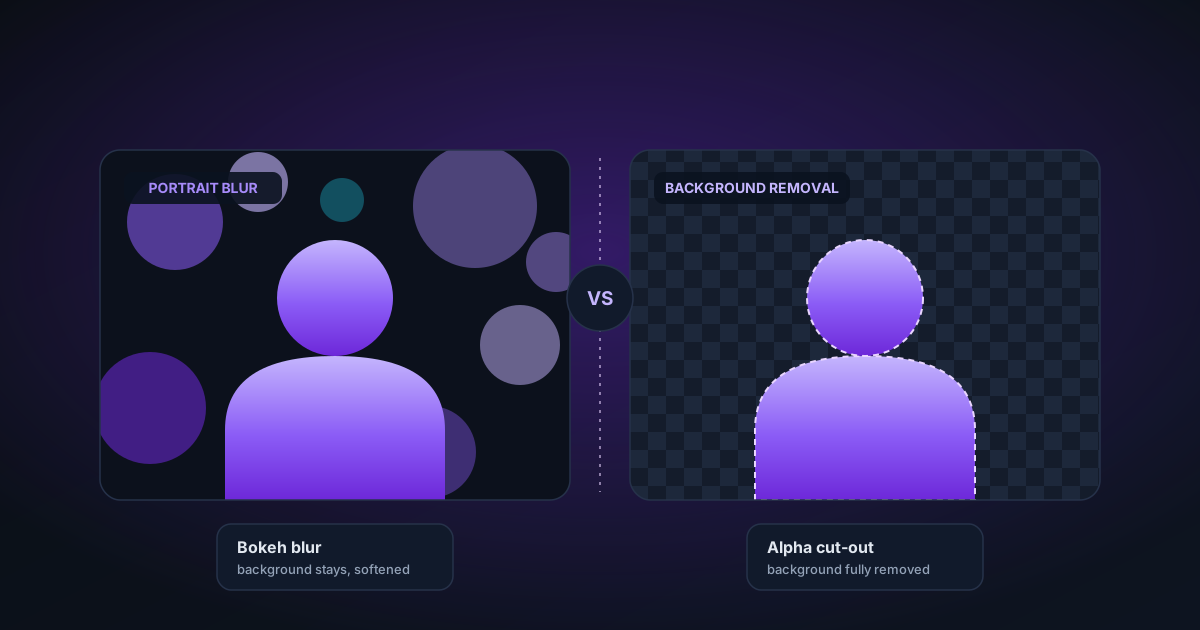
Background removal cuts the subject out and makes the background transparent. You can then place the subject on any background — white, solid colour, lifestyle scene, product shot environment.
Portrait blur keeps the background but adds a depth-of-field blur effect to it, making the subject appear sharper by contrast. The output is still a flat image with no transparency.
When to use background removal
Product photos
Product photography almost always needs true transparency. You want to place the product on a white e-commerce background, or composite it into a lifestyle scene, or use it on multiple coloured pages of a catalogue. Background removal gives you that flexibility.
Profile photos for web use
A transparent PNG profile photo can be placed on any coloured card, dark header, or branded background. If you use a portrait-blurred photo, it will always carry the original background — just blurred.
Slack, Discord, and Telegram emoji
Custom emoji need transparent backgrounds. Portrait blur does not help here at all.
Real estate staging
When adding virtual furniture to a room, you need the furniture image with a removed background, not a blurred background.
Any use where the background will change
If you ever want to reuse the image with a different background, background removal is the right choice. Portrait blur bakes the background into the image permanently.
When to use portrait blur
Keeping the background context
Sometimes you want the viewer to know where the person is — a coffee shop, a home office, a garden — but you want the background to be de-emphasised. Portrait blur achieves this. Background removal would erase that context entirely.
Natural-looking headshots for LinkedIn
A headshot where the subject is sharp and the background is softly blurred looks natural and professional. Replacing the background entirely can look artificial unless done carefully.
Video calls
Virtual background replacement on video calls often looks fake because the edge detection is running in real time on compressed video. Portrait blur (background blur) looks more natural because it does not require a perfect mask — it just blurs the area that appears to be at a greater depth.
Creative photography
Photographers who want to simulate the look of a fast prime lens on a smartphone can use portrait blur to add a realistic shallow depth-of-field effect.
When to combine both
One useful workflow:
- Use background removal to get the subject on a transparent PNG
- Place the transparent PNG over a lifestyle background image
- Apply a slight blur to the lifestyle background layer to simulate depth-of-field
This gives you a realistic-looking composited photo that retains the depth cue that pure background replacement misses.
The NSS image editor supports this natively: remove the background with AI, switch to the background tool, select a lifestyle scene template, and the scene is rendered at 1200×800 and placed behind your subject. If you want to blur it, use the blur slider in the background panel.
The technical difference
Portrait blur uses a depth estimation model (Depth Anything) to produce a per-pixel depth map. Pixels that appear far from the camera get a proportionally larger Gaussian blur radius. The depth map is not perfectly precise — it is a model estimate — but for photos where the subject is clearly in the foreground, it produces convincing results.
Background removal uses a salient object segmentation model (ORMBG or BiRefNet) to classify each pixel as foreground or background and produce an alpha mask. The mask quality is higher than depth estimation for the edges of the subject, but it says nothing about depth variation within the background.
Summary
| Background Removal | Portrait Blur | |
|---|---|---|
| Output | Transparent PNG | Flat image with soft background |
| Best for | Compositing, e-commerce, social media assets | Headshots, natural-looking portraits |
| Keeps background context | No | Yes |
| Usable on multiple backgrounds | Yes | No |
| Works as emoji or sticker | Yes | No |
| Looks natural on video calls | No (sharp edge) | Yes |
| Speed | Depends on model | Fast (no AI inference needed for Lanczos path) |
Use the NSS Image Editor tool for depth-of-field effects, and the Image Background Remover for true transparency. Both run entirely in your browser with no upload required.
Applies to NSS Background Remover v1.7.0 — the release that was current when this article was published.
Was this article helpful?
Your answer is saved in this browser only. This control makes no network request and does not send the answer to an NSS feedback endpoint.