How to Compress Images Without Losing Quality (JPEG & WebP Guide)
A practical guide to JPEG and WebP compression — how quality settings affect file size and visual fidelity, what sweet spots to aim for, and how to compare before and after in your browser.
By Novus Stream Solutions Editorial Team · Part of the Browser-local editing workflows topic cluster
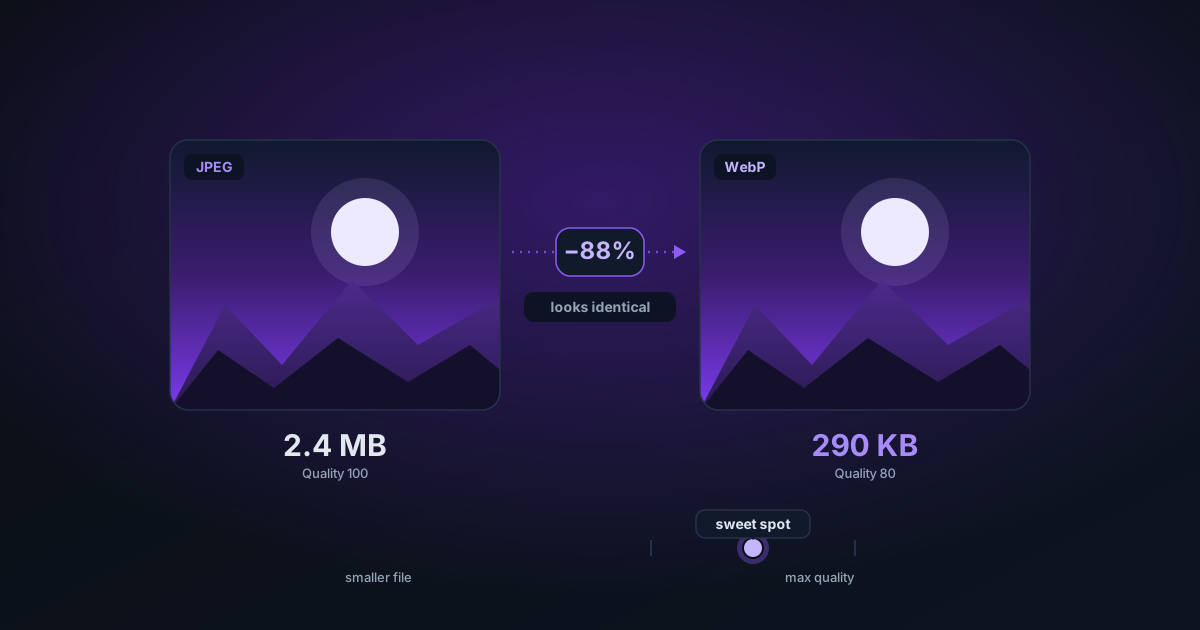
Image compression is one of the most misunderstood topics in web performance. The goal isn't to make files small — it's to find the point where file size is minimal without a visible quality drop. That sweet spot is different for every image, and for every output format.
How Lossy Compression Works
JPEG and WebP compression both work by discarding information that the human visual system is unlikely to notice. High-frequency detail (fine texture, sharp edges between dissimilar colours) is compressed aggressively; low-frequency areas (smooth gradients, uniform backgrounds) are compressed lightly.
The quality setting is a 0–100 scale that controls how aggressively this happens. A setting of 95 is nearly indistinguishable from the original. A setting of 30 produces visible artefacts — blocky areas and colour banding — but a much smaller file.
The Quality Sweet Spot
For most real-world images:
- JPEG 75–85 is the practical sweet spot. Most viewers won't notice the difference from the original, but file size drops by 50–70% vs quality 95.
- WebP 65–80 produces equivalent visual quality to JPEG at 10–25% smaller file size.
- Below quality 60 (either format), artefacts become visible on detailed textures, faces, and text.
The right quality depends on the image. A photo of textured fabric needs a higher setting than a product photo against a plain background.
JPEG vs WebP: Which Should You Choose?
| JPEG | WebP | |
|---|---|---|
| Browser support | Universal | Modern browsers (97%+) |
| File size at same quality | Baseline | 10–25% smaller |
| Transparency support | None | Yes (lossless or lossy) |
| Best for | Photos, product images | Web delivery, reduced-BG images |
If you're exporting a background-removed image that needs transparency, use WebP. If you're producing a JPEG for a product listing with a white background, JPEG is fine and universally compatible.
How to Compare Before and After
The NSS Image Compressor shows the original and compressed image side by side, with exact file size and percentage savings displayed in real time. Drag the quality slider and watch the compressed size update — you'll often see that dropping from quality 90 to 80 cuts file size in half while the visual difference is imperceptible at normal screen sizes.
Practical Targets by Use Case
| Use case | Target file size |
|---|---|
| E-commerce hero image | Under 250 kB |
| Product thumbnail (listing grid) | Under 80 kB |
| Blog header / feature image | Under 300 kB |
| Social media share image | Under 500 kB |
| Avatar / profile photo | Under 50 kB |
These aren't hard limits, but they keep page load times fast without noticeable quality loss.
A Note on PNG
PNG uses lossless compression — there's no quality slider. File size reduction for PNG works differently: use the PNG Optimizer to squeeze PNGs without any quality change, or convert to WebP using the Format Converter if lossless transparency isn't required.
Related Tools
- Image Compressor — Compress JPEG and WebP with a quality slider and before/after comparison
- PNG Optimizer — Lossless PNG file size reduction
- Format Converter — Convert between PNG, WebP, AVIF, and JPG
- Image Background Remover — Remove background before compressing for web
Applies to NSS Background Remover v0.3.0 — the release that was current when this article was published.
Was this article helpful?
Your answer is saved in this browser only. This control makes no network request and does not send the answer to an NSS feedback endpoint.