How to Extend the Canvas and Add Padding Around Images (Free)
What canvas extension is, how it differs from scaling, when to use transparent vs solid padding, and practical workflows for product photography, print bleed, and compositing.
By Novus Stream Solutions Editorial Team · Part of the Browser-local editing workflows topic cluster
Extending the canvas around an image — adding transparent or solid padding without scaling the image — is a common but frequently overlooked step in image workflows. Here's when you need it and how it works.
What Canvas Extension Actually Does
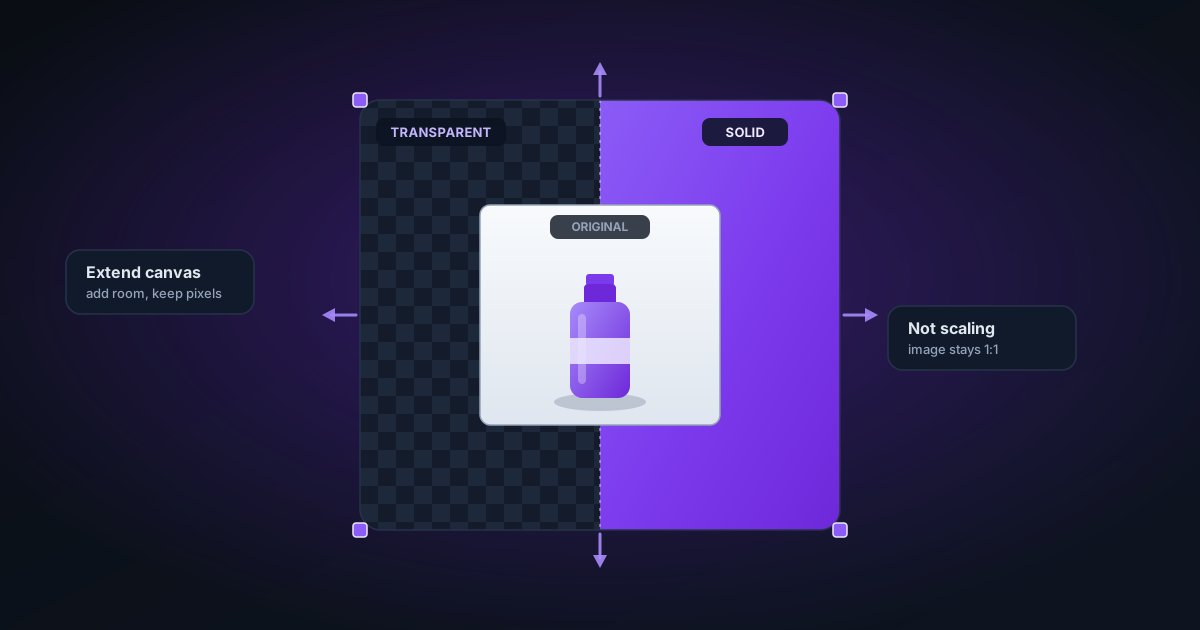
Canvas extension (also called "canvas resizing" or "adding image padding") increases the dimensions of the file without scaling the image content. The image stays at its original size and position; the surrounding area grows.
This is the opposite of cropping (which removes canvas area) and different from scaling (which changes the size of the image content itself).
When to Use Canvas Extension
Centering a subject with uneven space
If background removal leaves an image where the subject is off-centre (more space on the right than left, for example), you can add padding on the shorter side to balance the composition.
Matching required aspect ratios
Platforms like Shopify, Amazon, and Instagram have preferred aspect ratios (1:1 for square products, 16:9 for banners). If your subject is narrower or shorter than the target ratio, padding extends the canvas to the required ratio without distorting the image.
Adding breathing room before compositing
When placing a cut-out over a background image, subjects that extend to the very edge look cramped. Adding 5–10% padding around the subject before compositing gives the composition room to breathe.
Preparing assets for print
Print workflows often require bleed area — extra canvas beyond the intended trim line that gets cut off during printing. Canvas extension adds this bleed.
Creating banner or hero image templates
If you have a product cut-out and want to embed it in a landscape banner, you can extend the canvas to landscape proportions first, then open in the Image Editor to add a background and text.
Transparent vs Solid Padding
The NSS Canvas Extender supports two fill modes:
- Transparent — The added area is fully transparent. The output is a PNG with an enlarged canvas. Use this when you'll be compositing the image onto another background, or when you want the final asset to remain transparent.
- Solid colour — The added area is filled with a colour you choose. Use this for preparing images with a specific background colour (white for product listings, brand colour for marketing assets).
Pixel vs Percentage Padding
You can specify padding as pixels (exact dimensions, useful when matching platform requirements) or as a percentage of the image dimensions (proportional padding that scales with image size, useful for consistent appearance across differently-sized images).
Related Tools
- Canvas Extender — Add transparent or solid padding around images
- Image Background Remover — Remove background before extending the canvas
- Add Background — Fill the extended transparent area with a solid or gradient background
- Rotate & Flip — Rotate the image to the correct orientation before extending
Applies to NSS Background Remover v0.9.0 — the release that was current when this article was published.
Was this article helpful?
Your answer is saved in this browser only. This control makes no network request and does not send the answer to an NSS feedback endpoint.