How to Extract a Color Palette from Any Image (Free, Browser-Based)
How dominant color extraction works, what to use a palette for (brand design, UI theming, product matching), and how to copy hex codes or CSS custom properties directly from any photo.
By Novus Stream Solutions Editorial Team · Part of the Browser-local editing workflows topic cluster
Every image contains a dominant color story. The ability to extract that story — as a usable color palette — is valuable for brand design, UI theming, product matching, and data visualization. Here's how it works, and what to use it for.
How Dominant Color Extraction Works
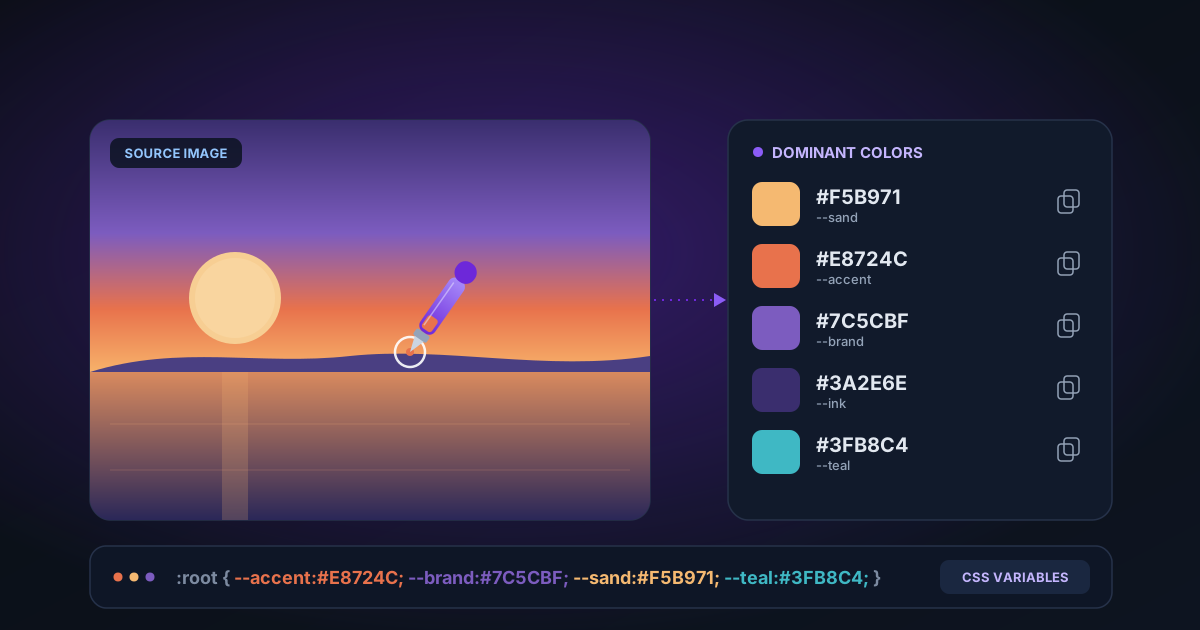
The NSS Color Extractor samples every pixel in the uploaded image and groups them into color buckets. Similar colors (those within a small perceptual distance from each other) are merged into a single swatch. The result is a ranked list of dominant colors, ordered by how much of the image they represent.
The output for each color includes:
- Hex code — e.g.
#3B82F6 - RGB values — e.g.
rgb(59, 130, 246) - HSL values — e.g.
hsl(217, 91%, 60%) - Percentage — what fraction of the image this color represents
- CSS custom property — ready to paste into a stylesheet
Use Cases for Color Extraction
Brand design
Upload a logo to extract the exact brand colors. Useful when working with a client's existing materials and you need the hex codes without asking.
UI theming
Extract a palette from a product photo or hero image to create a cohesive color scheme for the surrounding UI. This is how many design tools auto-generate theme suggestions.
E-commerce product matching
Extract dominant colors from product photos to build a color-filter feature on a shop — let customers browse by color without manual tagging.
Mood boards and art direction
Analyze reference images to understand the dominant hues and saturation levels of a visual style.
Data visualization
Extract a palette from a brand image and use the colors as your chart color scheme for brand-consistent reports.
Getting Better Results
- Use images with a clear subject and varied colors for the most useful palette
- White or near-white backgrounds will dominate the count — remove the background first if you want the subject's palette
- Increase the color count (up to 16) for complex images; reduce it for simple graphics
- The "copy CSS" button exports all extracted colors as
--color-1: #hex;custom properties, ready to paste into a stylesheet
Related Tools
- Color Extractor — Extract dominant palette from any image
- Image Background Remover — Remove background before extracting subject colors
- Colour Picker — Sample a specific pixel for an exact color value
- Add Background — Fill transparent PNGs with your extracted brand color
Applies to NSS Background Remover v0.3.0 — the release that was current when this article was published.
Was this article helpful?
Your answer is saved in this browser only. This control makes no network request and does not send the answer to an NSS feedback endpoint.