Rotate and Flip Images for Free — Lossless PNG Output in Your Browser
When to rotate vs flip, how lossless rotation works for PNGs (no re-compression), and quick tips for correcting photo orientation for e-commerce listings and social media.
By Novus Stream Solutions Editorial Team · Part of the Browser-local editing workflows topic cluster
Rotating and flipping images is one of the most basic operations in photo editing, but it's easy to get wrong — especially when file format and orientation metadata come into play. Here's what you actually need to know.
EXIF Orientation vs Actual Rotation
Smartphones don't always rotate the pixel data when you rotate the phone. Instead, they embed an EXIF orientation tag (Orientation: 6 for 90° clockwise, for example) and leave the pixel grid unchanged. Most apps read this tag and display the image correctly — but some don't.
When you export an image through a browser canvas (as NSS tools do), the EXIF tag is stripped and the canvas renders the actual pixel data. If the EXIF tag said "rotate 90°", the canvas renders it without the rotation — so the image appears sideways.
The fix: use the Rotate tool to apply the physical rotation before downloading. The output PNG has the rotation baked into the pixel data, with no EXIF tag needed.
Lossless Rotation for PNG
PNG uses lossless compression — there's no encoding step that degrades quality. When you rotate a PNG 90°, 180°, or 270°, you're rearranging pixels, not recompressing them. The output is exactly as sharp as the input.
JPEG rotation is different. Every time you save a JPEG, it re-encodes and loses a small amount of quality. A JPEG-to-JPEG rotate is never truly lossless (though some specialist tools can do block-level 90° JPEG rotation without re-encoding — that's not what browser canvas does).
For lossless rotation of originally-JPEG images, the cleanest approach is: open in NSS, rotate, download as PNG. You trade JPEG compression for PNG losslessness.
When to Flip vs Rotate
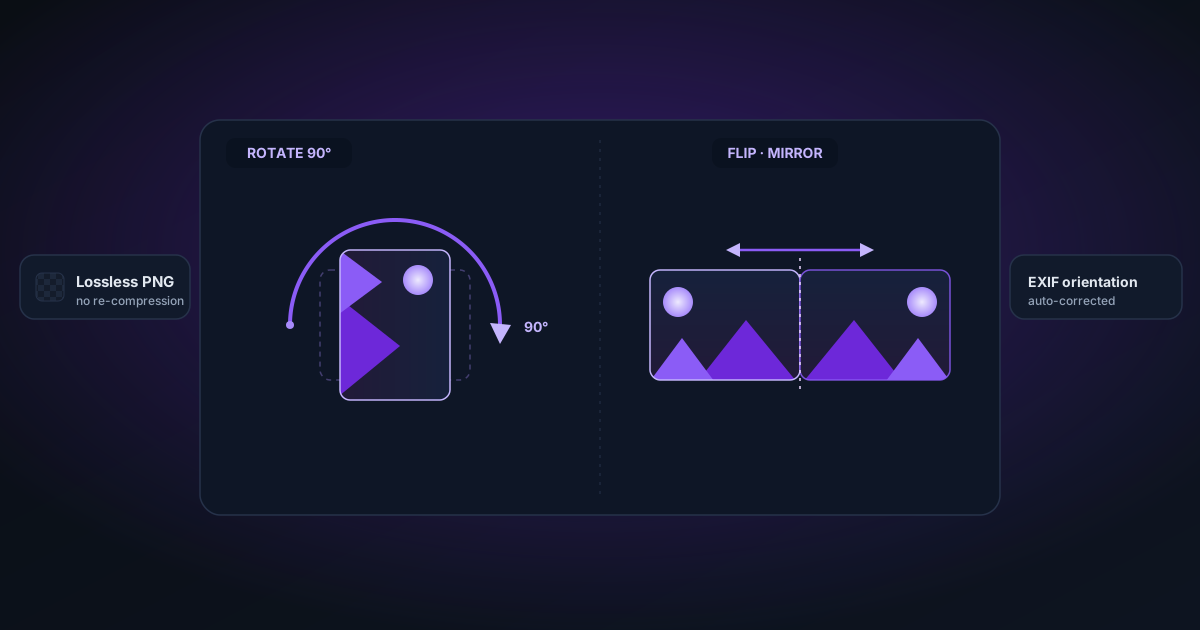
Rotate (90°, 180°, 270°) changes the orientation of the image.
Flip (horizontal/vertical) mirrors the image along an axis.
Common uses for flip:
- Correcting mirror-reversed selfies or photos taken in mirror mode
- Creating symmetrical composites
- Matching the orientation of a facing portrait for side-by-side layouts
Common uses for rotate:
- Correcting phone photos taken in the wrong orientation
- Rotating diagrams, charts, or infographics for inclusion in differently-oriented documents
- Preparing product photos that were shot sideways
A Note on Canvas Extender and Rotation Order
If you need to both rotate and add padding, rotate first, then extend. The Canvas Extender adds uniform padding in the up/down/left/right directions of the current pixel grid — so if you extend first and then rotate, your padding will end up in the wrong place relative to the image orientation.
Related Tools
- Rotate & Flip — Rotate 90°/180°/270° and flip — lossless PNG output
- Canvas Extender — Add padding after rotating
- Metadata Remover — Strip EXIF orientation data so all apps render correctly
- Image Background Remover — Remove backgrounds after correcting orientation
Applies to NSS Background Remover v0.3.0 — the release that was current when this article was published.
Was this article helpful?
Your answer is saved in this browser only. This control makes no network request and does not send the answer to an NSS feedback endpoint.