How to Add a Background to a Transparent PNG (Solid, Gradient, or Checkerboard)
After removing the background from an image, you often need to add a new one — for product listings, presentations, or social media. This guide covers solid fills, gradients, and compositing in the browser.
By Novus Stream Solutions Editorial Team · Part of the Browser-local editing workflows topic cluster
Removing a background is the first step. Adding the right background is what makes the final image useful. Whether you're preparing a product photo for a marketplace, creating a social media asset, or compositing for a presentation, there are three common approaches: solid fill, gradient, and checkerboard.
When You Need to Add a Background
Product listings
Most e-commerce platforms (Amazon, Etsy, Shopify) require or strongly prefer product images on a pure white (#FFFFFF) background. After removing the original background, you need to fill it with white — not just render on a white page, but actually embed the white into the file.
Marketing assets
Brand-colored backgrounds, gradient fills, and on-color shadows are common in marketing imagery. Starting from a transparent PNG and adding a branded background in-browser is faster than going back to Photoshop.
Checking your mask
The checkerboard background (the standard representation of transparency) is useful for verifying that your background removal is clean — zooming in on a checker makes edge fringing or mask imprecision visible.
Preventing dark rendering in some apps
Some apps and viewers render transparent PNG backgrounds as black instead of white. Adding a solid white fill before sending a file to a client prevents this confusion.
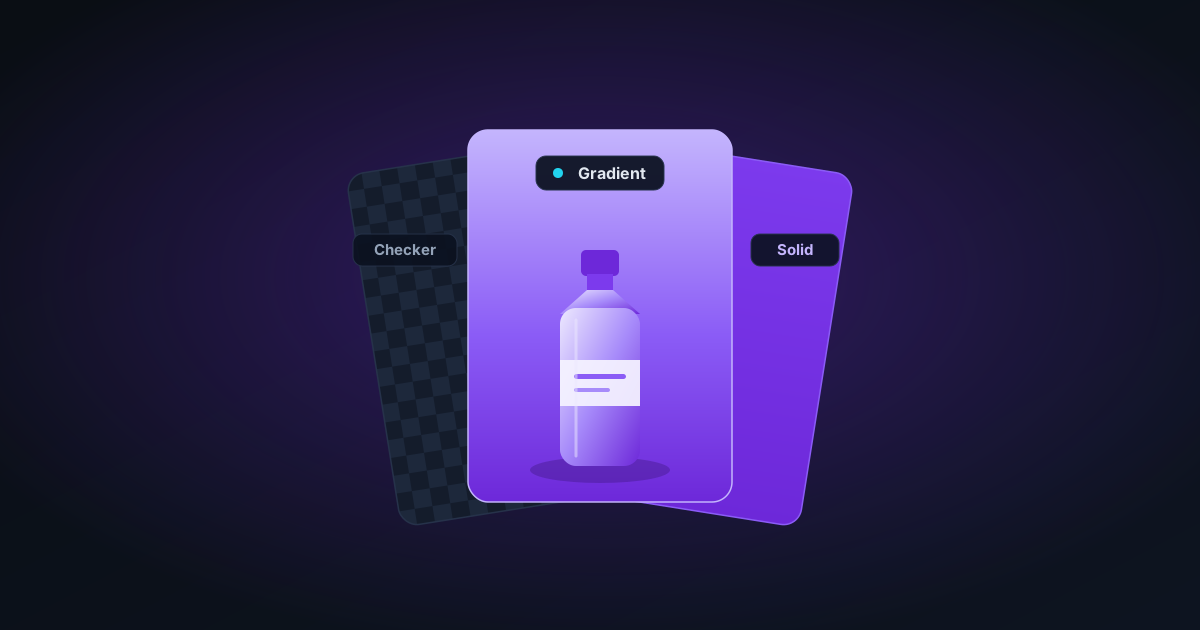
Solid Fill
The most common use case. Choose any color — white for product listings, grey for mood-neutral presentations, or your brand color for marketing. The fill is applied behind the subject, and the alpha channel from the original PNG is used to blend cleanly.
Gradient Fill
Gradient backgrounds are useful for social media, presentations, and hero images. The Add Background tool lets you choose two colors and an angle. The gradient is rendered using the browser's native createLinearGradient canvas API, so the math is precise and the output is smooth.
Common gradient angles:
- 0° — top to bottom
- 90° — left to right
- 135° — top-left to bottom-right diagonal
Checkerboard
The classic "transparency" pattern — useful for verifying mask quality, creating sticker previews, and web-safe transparency indicators. The checker itself is not transparent: the output file is a PNG with the checkerboard pattern as actual pixel data.
What "Add Background" Does Not Do
The Add Background tool composites a fill behind a transparent PNG. It does not:
- Remove backgrounds (use the Background Remover for that)
- Blend or feather edges differently (use the Image Editor for edge refinement)
- Add drop shadows (the editor has a shadow tool)
For a complete product photo workflow: remove background → refine edges in editor → add background → compress for web.
Related Tools
- Add Background — Solid, gradient, or checkerboard fill for transparent PNGs
- Image Background Remover — Remove the original background first
- Image Compressor — Reduce JPEG file size after adding a white background
- Canvas Extender — Add padding around the image before adding a background
Applies to NSS Background Remover v0.3.0 — the release that was current when this article was published.
Was this article helpful?
Your answer is saved in this browser only. This control makes no network request and does not send the answer to an NSS feedback endpoint.