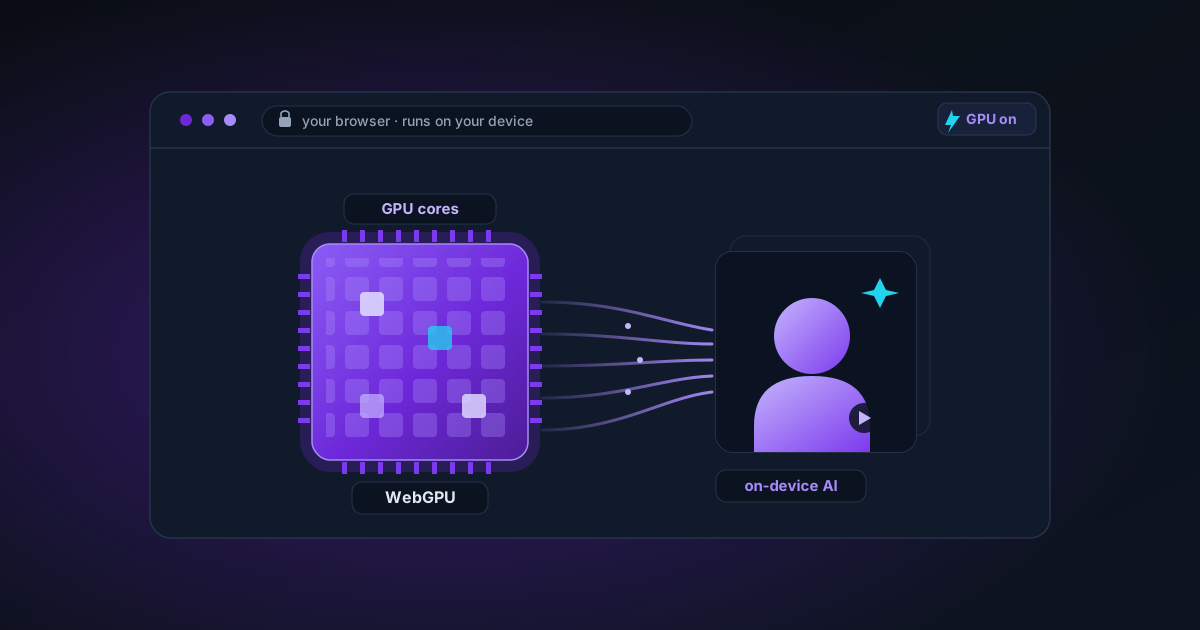
WebGPU, Explained for Creators: Why Your Browser Can Suddenly Run Real AI
You keep seeing 'WebGPU' next to AI tools. Here's what it actually is, in plain language — what changed, why it matters for editing photos and video, and how to tell if your device has it.
By Novus Stream Solutions Editorial Team · Part of the Browser-local editing workflows topic cluster
If you make things — thumbnails, product shots, short videos — you've probably noticed AI editing tools quietly moving into the browser over the last couple of years. No download, no install, and somehow they're not slow. The thing that made that possible has an unglamorous name: WebGPU. This is a creator's explanation of what it is and why it changed what your browser can do, with as little jargon as the topic allows.
The one-sentence version
WebGPU is a way for a web page to use your computer's graphics chip (GPU) for general number-crunching — not just drawing graphics, but the kind of heavy math that AI models are made of.
That's the whole idea. Everything else is consequence.
Why that's a bigger deal than it sounds
Your GPU is the most powerful piece of math hardware in your device. It's why your laptop can play a game or scrub 4K video. AI models — the ones that remove backgrounds, upscale, colourise — are also, underneath, enormous piles of the same kind of math (multiplying grids of numbers, millions of times).
For years, web pages could only reach the GPU for actual graphics. AI in the browser had to run on the CPU, which is like doing a thousand sums one at a time instead of all at once. It worked, but it was slow enough that everyone shipped AI as a cloud service: you uploaded your photo, a server's GPU did the work, and you waited for the result to come back.
WebGPU unlocked the door. Now a web page can hand AI math directly to your GPU. The server stops being necessary, because the powerful hardware was sitting in your lap the whole time.
What this actually changes for you
Three concrete things:
1. Your files stop leaving your device. When the AI runs on your GPU, there's nothing to upload. Your product photos, your kid's birthday video, your client's NDA work — none of it travels to someone else's computer. That's not a privacy promise; it's just how the architecture works. Nothing was sent because nothing needed to be sent.
2. It's free to run, as often as you like. A cloud tool pays for every GPU-second on its servers and bills you for it. When your own GPU does the work, the marginal cost is zero. Process one image or a thousand — same price.
3. It works offline. Once the AI model has downloaded and cached, you can edit on a plane, a train, or a campsite with no signal. The model lives in your browser; the internet was only ever needed to fetch it the first time.
"Faster" deserves an honest footnote
You'll see "WebGPU acceleration" sold as fast, and on a decent modern machine it genuinely is — background removal in a few seconds, upscaling in tens of seconds. But speed depends entirely on your hardware. A flagship laptop and a six-year-old budget machine will both finish the job; one just makes you wait longer.
There's also a subtlety the marketing skips: not every AI graph fits every browser backend. Our original 1024px Best Quality graph exceeded browser working memory even when its weights loaded successfully. We wrote a detailed follow-up on the browser-ready replacement: How Best Quality Uses WebGPU with a WASM Safety Net. The takeaway for you as a creator: a good tool picks a graph and runtime path that can complete on your device automatically. You don't manage it.
How to tell if your device has WebGPU
The short answer: if you're on a reasonably current browser and machine, you almost certainly do.
- Chrome and Edge (version 113 and up, 2023 onward) have WebGPU on by default on most desktops.
- Safari added it in recent versions on Mac, iPhone, and iPad.
- Firefox has been rolling it out.
You don't need to check a setting. When you open a tool like the background remover or the AI upscaler, it detects WebGPU, confirms your GPU is healthy, and uses it. If your device doesn't have it — an older browser, a locked-down work machine — the same tool falls back to the CPU path and still works, just slower. Nothing breaks; you simply wait a bit more.
What "on-device" lets creators do that cloud never did
Put the three changes together and you get workflows that weren't practical before:
- Iterate freely. When every cutout is free and instant-ish, you stop rationing. Try five crops, three backgrounds, two upscale settings — there's no credit counter ticking.
- Handle sensitive work. Client photos under NDA, pre-launch products, images of people — you can edit them without the legal and ethical knot of uploading to a third party.
- Build offline into your routine. Prep a whole catalogue on a flight. The model's already cached.
The trade you're making
It's worth being clear-eyed. On-device AI asks two things of you:
- A one-time download. The AI model is tens to hundreds of megabytes. You pay that once in bandwidth and a short wait, then it's cached.
- Your device's effort. Your fans will spin on a long batch. That work used to happen on a server you were paying for — now it happens on hardware you already own.
For most creators that's a trade worth making many times over. The privacy is structural, the cost is gone, and the only thing you gave up is a server you didn't want in the loop anyway.
Try it and watch the network tab
The convincing demo is to prove it to yourself. Open the background remover, then open your browser's developer tools to the Network panel, and process an image. Watch for an upload of your photo. You won't see one — because WebGPU let the work stay home.
Applies to NSS Background Remover v1.9.0 — the release that was current when this article was published.
Was this article helpful?
Your answer is saved in this browser only. This control makes no network request and does not send the answer to an NSS feedback endpoint.